A Windows application that captures audio from any input device and streams it in real-time using the SRT (Secure Reliable Transport) protocol. Perfect for streaming audio to OBS Studio or other media applications with low latency.
Audio to Stream provides a simple GUI to:
- Select any audio input device (microphone, line-in, WASAPI loopback, etc.)
- Configure streaming bitrate (64k - 320k)
- Stream audio via SRT protocol with customizable URLs
- Monitor audio levels with real-time VU meters
- Track streaming statistics (bitrate, connection status, duration)
The application uses FFmpeg for encoding and streaming, with SRT protocol ensuring reliable transmission even over unreliable networks.
- 🎵 Multiple Audio Sources: Support for all Windows audio input devices
- 🎚️ Adjustable Bitrate: Choose from 64k to 320k for quality vs. bandwidth tradeoffs
- 📊 Real-time VU Meters: Monitor left and right channel audio levels
- 📡 SRT Streaming: Low-latency, reliable streaming protocol
- 💾 Persistent Settings: Automatically saves your configuration
- 🎨 Dark Theme UI: Easy on the eyes during long streaming sessions
- 📈 Live Statistics: View connection status, bitrate, and streaming duration
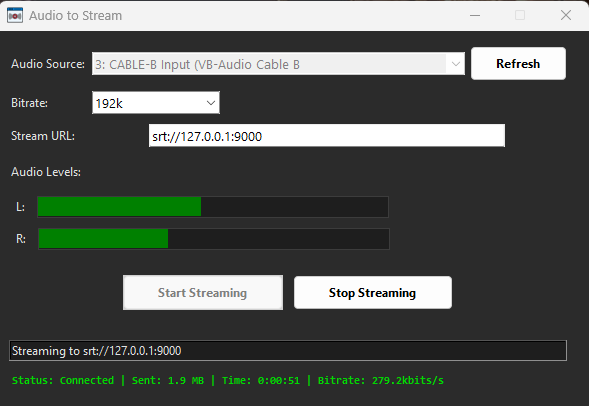
- Windows OS
- FFmpeg (bundled with the executable or available in PATH)
- Audio input device

- Launch Audio to Stream
- Select your audio input device from the dropdown
- Choose your desired bitrate (192k recommended for good quality)
- Configure the stream URL (default:
srt://localhost:9000) - Click Start Streaming
The default SRT URL format is:
srt://<ip_address>:<port>
For example:
srt://localhost:9000- Stream locallysrt://192.168.1.100:9000- Stream to another device on your networksrt://0.0.0.0:9000?mode=listener- Listen mode (wait for connection)
To receive the audio stream in OBS Studio, follow these steps:
-
Add a Media Source
- In OBS Studio, click the + button in the Sources panel
- Select Media Source
- Give it a name (e.g., "Audio Stream")
- Click OK
-
Configure the Media Source
-
Uncheck "Local File"
-
In the Input field, enter your SRT URL with parameters:
srt://<local_ip>:<port>?mode=listener&latency=2000000Example:
srt://192.168.1.100:9000?mode=listener&latency=2000000Or for localhost:
srt://127.0.0.1:9000?mode=listener&latency=2000000
-
-
Set Input Format
- In the Input Format field, enter:
mpegts
- In the Input Format field, enter:
-
Configure Network Options
- Uncheck "Buffering"
- Set Network Buffering to
0MB or uncheck the buffering option entirely - Set Reconnect Delay to
2seconds (2000 ms)
-
Apply Settings
- Click OK to save the media source
- The audio should now appear in OBS
The typical setup uses:
- Audio to Stream: Runs in caller mode (connects to OBS)
- OBS Studio: Runs in listener mode (waits for the connection)
Make sure to:
- Start OBS Studio first and add the media source
- Then start streaming from Audio to Stream
mode=listener- OBS waits for incoming connections (recommended for OBS side)latency=2000000- Sets latency to 2000ms (2 seconds) in microseconds. Adjust based on network conditions:- LAN/Local:
1000000(1 second) - Stable network:
2000000(2 seconds) - Unreliable network:
3000000-5000000(3-5 seconds)
- LAN/Local:
If you don't see/hear audio in OBS:
- Check IP and Port: Ensure the IP address and port match between Audio to Stream and OBS
- Firewall: Windows Firewall may block SRT connections. Allow OBS through the firewall
- Start Order: Start OBS's media source (listener) before starting Audio to Stream (caller)
- Test Locally First: Use
127.0.0.1orlocalhostto test on the same machine - Check Audio Device: Verify the correct audio device is selected in Audio to Stream
- Monitor VU Meters: Ensure audio levels are showing in Audio to Stream
- Increase Latency: If stream is choppy, try increasing the latency parameter
Settings are automatically saved to settings.ini in the application directory:
[Settings]
audio_device = 0
bitrate = 192k
stream_url = srt://localhost:9000- Encoding: AAC audio codec
- Container: MPEGTS (MPEG Transport Stream)
- Protocol: SRT (Secure Reliable Transport)
- Sample Rate: 44100 Hz (configurable via FFmpeg)
- Channels: Stereo (2 channels)
See BUILD_INSTRUCTIONS.md for details on building the executable with PyInstaller.
Install required Python packages:
pip install -r requirements.txtRequired packages:
sounddevice- Audio device interfacenumpy- Audio data processingPyInstaller- Executable buildingpillow- Image processing (for icon)
This project is provided as-is for personal and commercial use.
- Uses FFmpeg for audio encoding and streaming
- Built with Python and tkinter
- SRT protocol implementation via FFmpeg
For issues, questions, or contributions, please visit the project repository on GitHub.
Note: Ensure FFmpeg is available either bundled with the application or installed in your system PATH.