
Watson Conversation is now Watson Assistant. Although some images in this code pattern may show the service as Watson Conversation, the steps and processes will still work.
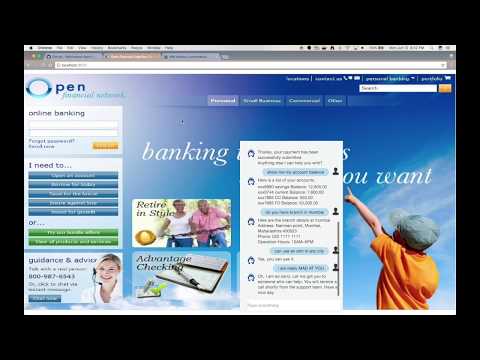
In this code pattern, we will create a chatbot using Node.js and Watson Assistant. The Assistant flow will be enhanced by using Natural Language Understanding to identify entities and using Tone Analyzer to detect customer emotions. For FAQs, a call to the Discovery service will use passage retrieval to pull answers from a collection of documents.
When the reader has completed this pattern, they will understand how to:
- Create a chatbot that converses via a web UI using Watson Assistant and Node.js
- Use Watson Discovery with passage retrieval to find answers in FAQ documents
- Use Watson Tone Analyzer to detect emotion in a conversation
- Identify entities with Watson Natural Language Understanding

- The FAQ documents are added to the Discovery collection.
- The user interacts with a chatbot via the app UI.
- User input is processed with Tone Analyzer to detect anger. An anger score is added to the context.
- User input is processed with Natural Language Understanding (NLU). The context is enriched with NLU-detected entities and keywords (e.g., a location).
- The input and enriched context is sent to Assistant. Assistant recognizes intent, entities and dialog paths. It responds with a reply and/or action.
- Optionally, a requested action is performed by the app. This may include one of the following:
- Lookup additional information from bank services to append to the reply
- Use Discovery to reply with an answer from the FAQ documents
- IBM Watson Assistant: Build, test and deploy a bot or virtual agent across mobile devices, messaging platforms, or even on a physical robot.
- IBM Watson Discovery: A cognitive search and content analytics engine for applications to identify patterns, trends, and actionable insights.
- IBM Watson Natural Language Understanding: Analyze text to extract meta-data from content such as concepts, entities, keywords, categories, sentiment, emotion, relations, semantic roles, using natural language understanding.
- IBM Watson Tone Analyzer: Uses linguistic analysis to detect communication tones in written text.
- Node.js: An asynchronous event driven JavaScript runtime, designed to build scalable applications.
Use the Deploy to IBM Cloud button OR create the services and run locally.

-
Press the above
Deploy to IBM Cloudbutton and then click onDeploy. -
In Toolchains, click on
Delivery Pipelineto watch while the app is deployed. Once deployed, the app can be viewed by clickingView app.
-
To see the app and services created and configured for this journey, use the IBM Cloud dashboard. The app is named
watson-banking-chatbotwith a unique suffix. The following services are created and easily identified by thewbc-prefix:- wbc-conversation-service
- wbc-discovery-service
- wbc-natural-language-understanding-service
- wbc-tone-analyzer-service

If you encounter deployment errors, refer to Troubleshooting.
NOTE: These steps are only needed when running locally instead of using the
Deploy to IBM Cloudbutton.
- Clone the repo
- Create Watson services with IBM Cloud
- Import the Watson Assistant skill
- Load the Discovery documents
- Configure credentials
- Run the application
Clone the watson-banking-chatbot locally. In a terminal, run:
git clone https://github.com/IBM/watson-banking-chatbotWe’ll be using the file data/conversation/workspaces/banking.json and the folder
data/conversation/workspaces/
Create the following services:
- Find the Assistant service in your IBM Cloud Dashboard.
- Click on the service and then click on
Launch tool. - Go to the
Skillstab. - Click
Create new - Click the
Import skilltab. - Click
Choose JSON file, go to your cloned repo dir, andOpenthe workspace.json file indata/conversation/workspaces/banking.json. - Select
Everythingand clickImport.
To find the WORKSPACE_ID for Watson Assistant:
- Go back to the
Skillstab. - Click on the three dots in the upper right-hand corner of the watson-banking-chatbot card and select
View API Details. - Copy the
Workspace IDGUID.

Optionally, to view the Assistant dialog, click on the skill and choose the
Dialog tab. Here's a snippet of the dialog:

- Find the Discovery service in your IBM Cloud Dashboard.
- Click on the service and then click on
Launch tool. - Create a new data collection by hitting the
Upload your own databutton.

- Provide a collection name
- Keep the
Default ConfigurationandEnglishlanguage - Click
Create
- Use
Drag and drop your documents here or browse from computerto seed the content with the five documents indata/discovery/docsof your cloned repo. - Click on
Use this collection in APIand save theEnvironment IdandCollection Idfor your.envfile in the next step.


Collect the credentials for the IBM Cloud services (Assistant, Discovery, Tone Analyzer and Natural Language Understanding). For each of these services:
- Find the service in your IBM Cloud Dashboard.
- Click on the service.
- Hit
Managein the left sidebar menu. - Copy the
API KeyandURL.
The other settings for Assistant and Discovery were collected during the
earlier setup steps (DISCOVERY_COLLECTION_ID, DISCOVERY_ENVIRONMENT_ID and
WORKSPACE_ID).
Copy the env.sample to .env.
cp env.sample .envEdit the .env file with the necessary credentials and settings.
# Copy this file to .env and replace the credentials with
# your own before starting the app.

# Note: If you are using older services, you may need _USERNAME and _PASSWORD
# instead of _IAM_APIKEY.

# Watson Assistant
WORKSPACE_ID=<add_assistant_workspace>
ASSISTANT_URL=<add_assistant_url>
ASSISTANT_IAM_APIKEY=<add_assistant_iam_apikey>

# Watson Discovery
DISCOVERY_URL=<add_discovery_url>
DISCOVERY_ENVIRONMENT_ID=<add_discovery_environment_id>
DISCOVERY_COLLECTION_ID=<add_discovery_collection_id>
DISCOVERY_IAM_APIKEY=<add_discovery_iam_apikey>

# Watson Natural Language Understanding
NATURAL_LANGUAGE_UNDERSTANDING_URL=<add_nlu_url>
NATURAL_LANGUAGE_UNDERSTANDING_IAM_APIKEY=<add_nlu_iam_apikey>

# Watson Tone Analyzer
TONE_ANALYZER_URL=<add_tone_analyzer_url>
TONE_ANALYZER_IAM_APIKEY=<add_tone_analyzer_iam_apikey>

# Run locally on a non-default port (default is 3000)
# PORT=3000- Install Node.js runtime or NPM.
- Start the app by running
npm install, followed bynpm start. - Use the chatbot at
localhost:3000.
Note: server host can be changed as required in server.js and
PORTcan be set in.env.

-
Error: Server error, status code: 409, error code: 60016, message: An operation for service instance wbc-discovery-service is in progress.
This indicates that the Discovery service is still being provisioned. Wait a few minutes and click the
Runbutton to restart the application. -
Error: Environment {GUID} is still not active, retry once status is active
This is common during the first run. The app tries to start before the Discovery environment is fully created. Wait a few minutes and click the
Runbutton to restart the application. -
Error: Only one free environment is allowed per organization
To work with a free trial, a small free Discovery environment is created. If you already have a Discovery environment, this will fail. If you are not using Discovery, check for an old service thay you may want to delete. Otherwise use the .env DISCOVERY_ENVIRONMENT_ID to tell the app which environment you want it to use. A collection will be created in this environment using the default configuration.
This code pattern is licensed under the Apache License, Version 2. Separate third-party code objects invoked within this code pattern are licensed by their respective providers pursuant to their own separate licenses. Contributions are subject to the Developer Certificate of Origin, Version 1.1 and the Apache License, Version 2.