
check disconnections and interrupts using cURL (>= 7.70.0) and dig
see the methodology section to see what we actually do.
Note: we send requests with a unique User-Agent, if the server doesn't welcome our requests (indicated by HTTP Code 420 or 429), the script will automatically exit.
bash [bash file name] -u [URI of the target] [optional -a at the end for any cURL arguments]
bash netector.bash -u https://www.gmail.com/generate_204bash netector.bash -u https://self-signed.example.com/robots.txt -a -k-uor--urito set a new URI instead of default one (i.e.https://gmail.com/generate_204)-aor--argumentto set arguments forcurlcommands. (e.g.-I) NOTE: this command must be used at the end.-mor--muteto mute the alarms from the start. (you can unmute it anytime in run time by pressingmkey)-gor--no-graphto start with no graph. (you can see the graph anytime by pressing thegkey at run time.-ror--resolverto change the default public resolver (i.e. 8.8.8.8)-sor--sleepto wait more between each requests to avoid being rate limited or blocked-tor--timeoutto change the default timeout in dig and curl commands (i.e. 2 seconds)-hor--helpto see the usage.
NOTE: all arguments after -a will be considered for curl command. therefore you MUST use it at the end
- press
morMto mute/unmute - press
gorGto show or hide the graph - press
qorQto exit
sudo apt install dnsutils curl jq -ysudo dnf install dnsutils curl jq -ybrew install jqNote: usually macOS has the latest version of cURL and dig. if not, try:
brew install bind curl jq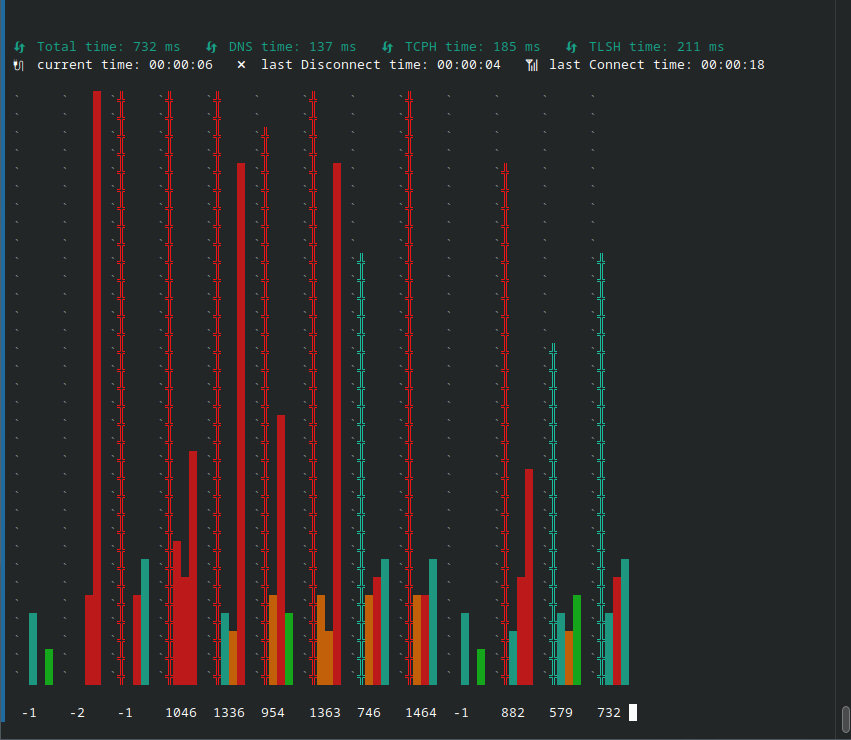
[*] Total time = (curl's time_total - curl's time_namelookup) + dig's Query time to domain's NS server
- first bar =
-1: DNS is working - TCP handshake is working very fast (less to show in graph --> fixed now) - TLS handshake is working - but after that, there is timeout - second bar =
-2: DNS is not working - TCP handshake is working very late - TLS handshake is working very late - there is timeout after that. (HTTP exchange) - third bar =
-1: We now have the Total time's bar - DNS is not working - TCP handshake is working - TLS handshake is working - there is no timeout after that, because we have the Total time's bar - forth bar =
1046: which means we had successful connection in bothdigandcurl. the +0 values like1046means Total time
using dig command 1) we will fetch the NS of the domain using our default public resolver (i.e. 8.8.8.8) then 2) request the hostname directly to the NS server to check if the NS is working properly. finaly, using curl command, 3) we will request the URI. All as follows:
example URI: https://cp.cloudflare.com/generate_204
$ dig +timeout=1 +retry=0 cloudflare.com @8.8.8.8 NS +short
ns3.cloudflare.com.
[SNIP]
$ dig +timeout=1 +retry=0 cp.cloudflare.com @ns3.cloudflare.com.
[SNIP]
;; ->>HEADER<<- opcode: QUERY, status: NOERROR, id: 40853
[SNIP]
;; Query time: 308 msec
[SNIP]$ curl -o /dev/null -4 -m2 -sw "%{json}\n" https://cp.cloudflare.com/generate_204
{[SNIP],"http_code":204,[SNIP],"time_appconnect":0.560336,"time_connect":0.355649,"time_namelookup":0.163739,"time_pretransfer":0.560398,"time_redirect":0.000000,"time_starttransfer":0.966813,"time_total":0.966860,[SNIP]}