| Features | CaveBot |
|---|---|
 |
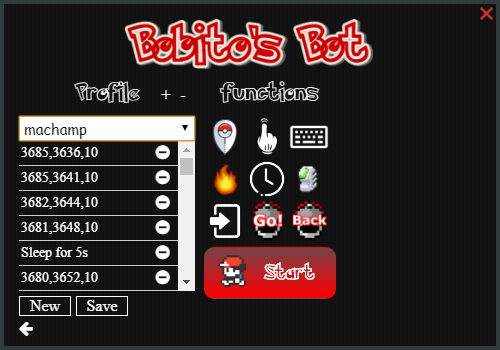 |
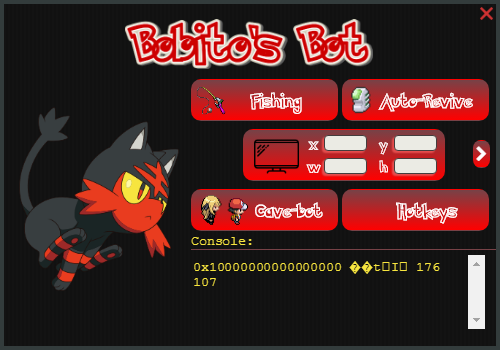
Virtual Assistant Application for a specific game (Tibia Platform) for Learning Purposes in Security Area involving:
- Code Injection
- Memory Reading
- Intercomunication between client and a external program.
App Requisites:
- Windows ONLY
- Client in Dx9 version
- .Net Framework 4 (Client Profile + Extended?)
Install nodejs from the official website (6.11+, with npm of course) Install it as global access: node-gyp, windows-build-tools for python2.7 and Microsoft Visual C++ DevLib using the command bellow.
- Do not forget to execute CLI of the windows with admininistrator rights.
- Do not use git bash or other unix substitute for windows to run the commands below (Windows).
Node packages usually depend on packages with native code, so you have to install Visual Studio. Node-gyp is a wrapper around Python GYP (Generate Your Projects), a tool that can generate project files for Gcc, XCode, and Visual Studio. Since the de facto method of Windows development is via Visual Studio, that's the supported one.
npm install -g node-gyp
npm install -g --add-python-to-path='true' --production windows-build-tools
After receiving the message of success. Like this one

You can check if python is already added in path by typing:
echo $PATH
If not... stay a while and listen :] The enviroment path variables at windows stays at the global variable "PATH". To add python variable to path, check first where is your python2.7 path, go to control painel of your windows and add the path at the end of PATH variable as the picture below shows.

git clone this project and install dependencies
git clone https://github.com/dnovaes/keydetection.git
cd keydetection/
npm install
Now the magic as last step. Rebuild your native modules for electron to work even with your other native modules (C++ in this case). And start the application.
npm run build
npm start
or run, if the code above didnt work, the following commands:
./node_modules/.bin/electron-rebuild.cmd
npm start
Note: If you're using Linux Bash for Windows, see this guide or use node from the command prompt.
if you still have any issues with python enviroment variables, check this thread: felixrieseberg/windows-build-tools#56 Also a good could be reseting ur config python variables at npm and reinstall everything. To reset python config:
npm config set python ""
If you are having issues with windows node modules. i,e, messages likes this in the console of electron app:
check this project README. Most of time it is a problem due to different node versions between electron-rebuild node version and your systema node installed version. https://github.com/electron/electron-rebuild
TDLR: Try to update ur electron-rebuild package (npm install --save-dev electron-rebuild) or reinstall a diff node version. Remember to always execute
./node_modules/.bin/electron-rebuild.cmd
before npm start
if you are having trouble with running node-gyp alone with a js file (node test.js) maybe your node-gyp variable path is not set properly. instead of using:
C:\Program Files\nodejs\node_modules\npm\node_modules\npm-lifecycle\node-gyp-bin;
use this in windows path enviroments
C:\Program Files\nodejs\node_modules\npm\bin\node-gyp-bin;
- if you are going to run a node file and you are not using the electron app (index.js), compile the binaries of the native modules using the code below
node-gyp configure
node-gyp build
To change your resolution or the game resolution, you need to reconfigure the screen coordinates by clicking in the monitor button again.
Install electron-packager. I built my version using NPM 5.4.1/5.6.0.
npm install electron-packager -g
Go to source project folder and run:
if using windows 64bits on host:
electron-packager ./ AppName --platform=win32 --arch=x64 --asar

if using windows 32bits on host
electron-packager ./ AppName --platform=win32 --arch=ia32 --asar --prune=true