







FileRise is a self-hosted web file manager with WebDAV, sharing, and per-folder ACLs.
Drag & drop uploads, OnlyOffice integration, and optional folder-level encryption at rest — all in one PHP app you control.
Built for homelabs, teams, and client portals that need fast browsing, strict ACLs, and zero-database simplicity.
- Quick links
- Install (Docker – recommended)
- Manual install (PHP web server)
- After install (5 minutes)
- Data & backups
- First-run security checklist
- Optional dependencies
- WebDAV & ONLYOFFICE (optional)
- Security & updates
- Community, support & contributing
- AI Disclosure
- License & third-party code
- Press
- 💾 Self-hosted “cloud drive” – Runs anywhere with PHP (or via Docker). No external database required.
- 🔐 Granular per-folder ACLs – Manage View (all/own), Upload, Create, Edit, Rename, Move, Copy, Delete, Extract, Share, and more — all enforced consistently across the UI, API, and WebDAV.
- 🔐 Folder-level encryption at rest (optional) – Encrypt entire folders (and all descendants) on disk using modern authenticated encryption.
- Opt-in per folder with inherited protection for subfolders
- Files are stored encrypted on disk and transparently decrypted on download
- Master key can be generated by FileRise or supplied via environment variable
- When enabled, incompatible features (WebDAV, sharing, ZIP operations, OnlyOffice) are automatically disabled for safety
- 🔄 Fast drag-and-drop uploads – Chunked, resumable uploads with pause/resume and progress tracking. If your connection drops, FileRise resumes automatically.
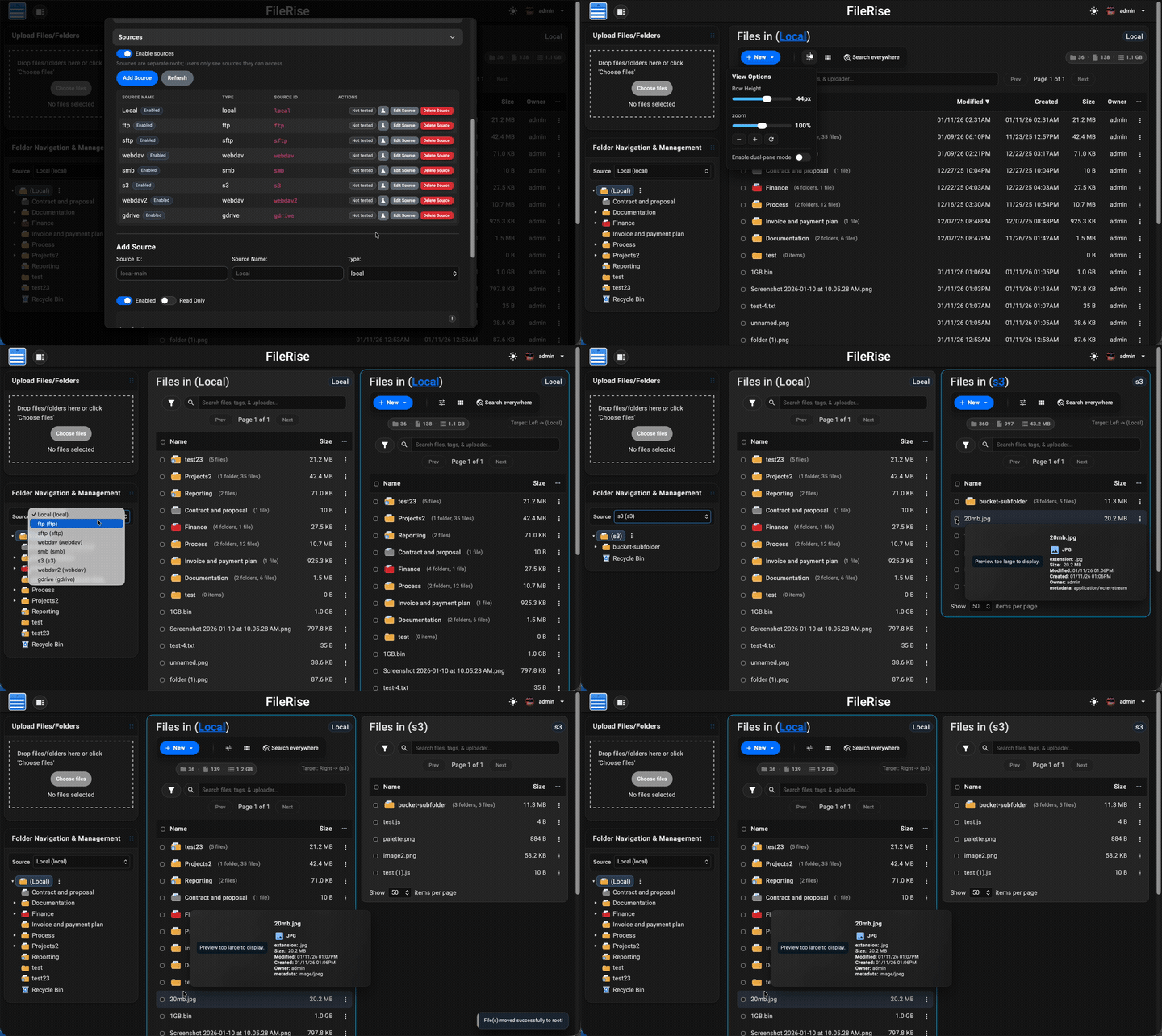
- 🪟 Dual-pane mode + keyboard shortcuts – Optional two-pane file browser for fast workflows (copy/move between panes, compare folders, and operate without the mouse). Shortcut overlay + hotkeys (F3 preview, F4 edit, F5 copy, F6 move, F7 new folder, Del delete,
/search). - 🌳 Scales to huge trees – Tested with 100k+ folders in the sidebar tree without choking the UI.
- 🌈 Visual organization – Color-code folders in the tree, inline list, and folder strip, plus tag files with color-coded labels for fast visual scanning.
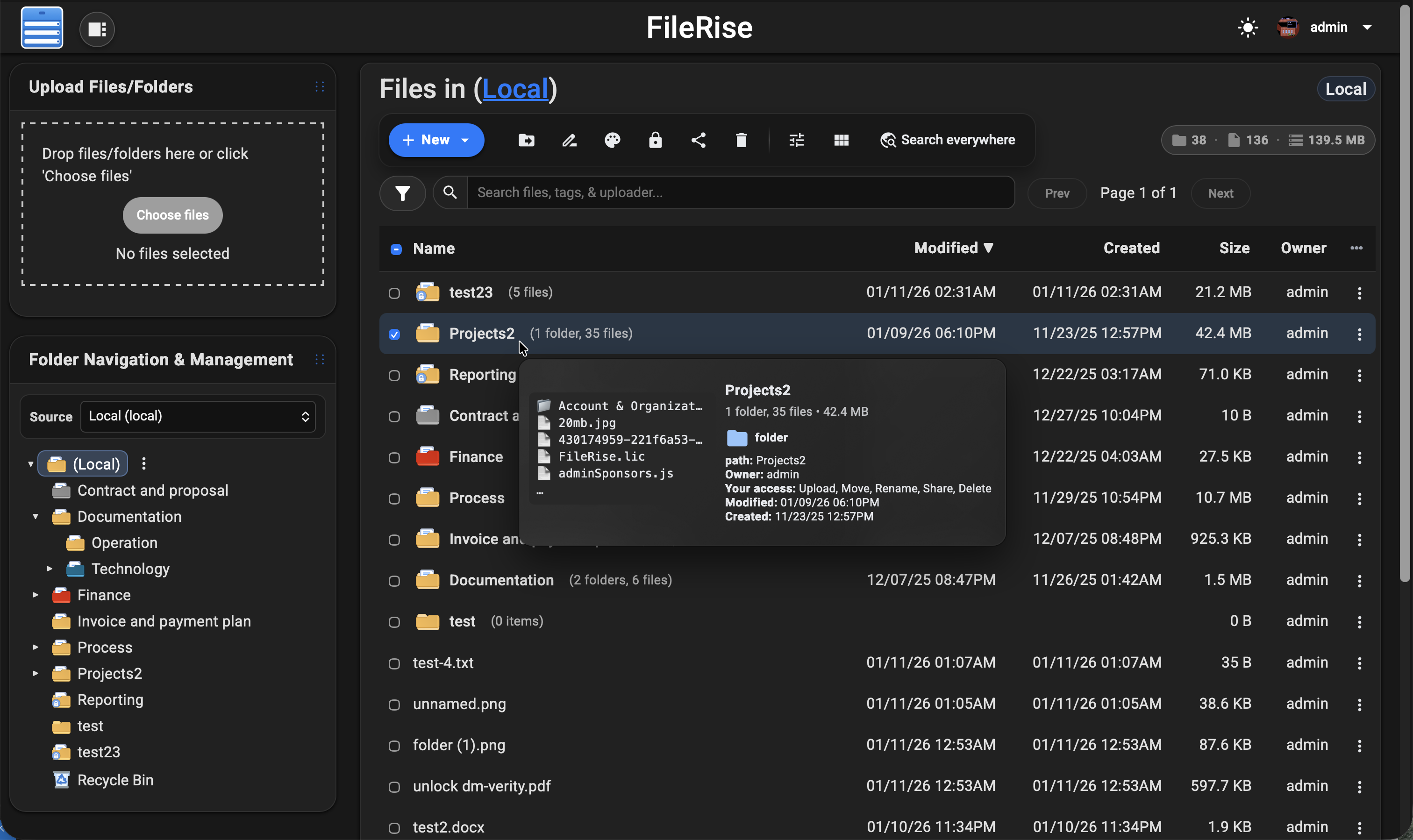
- 👀 Hover preview “peek” cards – On desktop, hover files or folders to see thumbnails (images/video), quick metadata (size, timestamps, tags), and effective permissions. Per-user toggle stored in
localStorage. - 🎬 Smart media handling – Track per-file video watch progress with a “watched” indicator, remember last volume/mute state, and reset progress when needed.
- 🧩 OnlyOffice support (optional) – Edit DOCX/XLSX/PPTX using your own Document Server; ODT/ODS/ODP supported as well. PDFs can be viewed inline.
- 🌍 WebDAV (ACL-aware) – Mount FileRise as a drive from macOS, Windows, Linux, or Cyberduck/WinSCP. Listings, uploads, overwrites, deletes, and folder creation all honor the same ACLs as the web UI.
- 🏷️ Tags, search & trash – Tag files, search by name/tag/uploader/content via fuzzy search, and recover mistakes using a Trash with time-based retention.
- 📚 API + live docs – OpenAPI spec served at
api.php?spec=1(fromopenapi.json.dist) with a Redoc UI atapi.php(login required). - 📊 Storage / disk usage summary – CLI scanner with snapshots, total usage, and per-volume breakdowns surfaced in the admin panel.
- 🎨 Polished, responsive UI – Dark/light mode, mobile-friendly layout, in-browser previews, and a built-in code editor powered by CodeMirror.
- 🌐 Internationalization – English, Spanish, French, German, Polish, Russian, Japanese and Simplified Chinese included; community translations welcome.
- 🔑 Login + SSO – Local users, TOTP 2FA, and OIDC (Auth0 / Authentik / Keycloak / etc.) with optional auto-provisioning, IdP-driven admin role assignment, and Pro user-group mapping.
- 🛡️ ClamAV virus scanning (Core) + Pro virus log – Optional ClamAV upload scanning, with a Pro virus detection log in the admin panel and CSV export.
- 🌐 Reverse proxy & subpath aware – Designed to run cleanly behind Nginx, Traefik, Caddy, or Apache:
- Supports installs under a subpath (e.g.
https://example.com/files) - Correct URL generation for assets, APIs, portals, PWA, and share links
- If the proxy strips the prefix, set
FR_BASE_PATHor sendX-Forwarded-Prefix - Explicit “Published URL” setting for proxy / firewall environments
- Works with
X-Forwarded-*headers and Kubernetes ingress setups
- Supports installs under a subpath (e.g.
- 👥 Pro: user groups, client portals, global search, storage explorer & audit logs –
Group-based ACLs, brandable client upload portals, ACL-aware global search across files, folders, users, and permissions, an ncdu-style storage explorer for identifying large folders/files and reclaiming disk space directly from the UI, and Pro Audit Logs (configurable activity logging with filters + CSV export for tracking key actions across web, WebDAV, shares, and portals). - 🌐 Pro: Sources (multi-storage adapters) –
Turn FileRise into a storage hub by connecting multiple backends and switching between them in the UI:- Multiple local roots (additional local paths)
- S3-compatible (AWS S3 / MinIO / Wasabi / Backblaze B2 S3 / etc.)
- SMB/CIFS, SFTP, FTP
- WebDAV (Nextcloud / ownCloud / FileRise)
- Google Drive, OneDrive, Dropbox
- Works with dual-pane so you can copy/move via drag & drop or toolbar actions between sources, with per-source Trash
Full list of features: Full Feature Wiki
💡 Looking for FileRise Pro (brandable header, user groups, client upload portals, license handling)? Check out filerise.net – FileRise Core stays fully open-source (MIT).
- 🚀 Live demo: Demo (username:
demo/ password:demo) - 🧩 FileRise Pro: filerise.net
- 📚 Docs & Wiki: Wiki
- Features overview
- FAQ
- Troubleshooting and common errors
- Logs and diagnostics
- Screenshots
- Installation & setup
- Common env vars
- Env vars (full reference)
- Admin Panel
- ACL & permissions
- ACL recipes
- WebDAV (mount)
- WebDAV via curl
- ONLYOFFICE
- OIDC & SSO
- Nginx setup
- Kubernetes / k8s
- Backup & restore
- Upgrade & migration
- Maintenance scripts
- Reverse proxy & subpath
- 🐳 Docker image:
- 💬 Discord: Discord
- 📝 Changelog: Changelog
If you open an issue/discussion, please include:
- FileRise version + install method (Docker tag / release ZIP / git)
- Reverse proxy (Nginx / Traefik / Caddy) + subpath (yes/no)
- Browser console errors (if any)
- Server/container logs around the error
The easiest way to run FileRise is the official Docker image.
✅ Tip: For stability, pin a version tag (example:
error311/filerise-docker:vX.Y.Z) instead of:latest. See Releases for current versions.
docker run -d \
  --name filerise \
  -p 8080:80 \
  -e TIMEZONE="America/New_York" \
  -e TOTAL_UPLOAD_SIZE="10G" \
  -e SECURE="false" \
  -e PERSISTENT_TOKENS_KEY="default_please_change_this_key" \
  -e SCAN_ON_START="true" \
  -e CHOWN_ON_START="true" \
  -v ~/filerise/uploads:/var/www/uploads \
  -v ~/filerise/users:/var/www/users \
  -v ~/filerise/metadata:/var/www/metadata \
  error311/filerise-docker:latest
Then visit:
http://your-server-ip:8080
On first launch you’ll be guided through creating the initial admin user.
💡 After the first run, you can set
CHOWN_ON_START="false"if permissions are already correct and you don’t want a recursivechownon uploads/metadata on every start.
⚠️ Uploads folder recommendationIt’s strongly recommended to bind
/var/www/uploadsto a dedicated folder (for example~/filerise/uploadsor/mnt/user/appdata/FileRise/uploads), not the root of a huge media share.If you really want FileRise to sit “on top of” an existing share, use a subfolder (e.g.
/mnt/user/media/filerise_root) instead of the share root, so scans and permission changes stay scoped to that folder.
services:
  filerise:
    image: error311/filerise-docker:latest
    container_name: filerise
    ports:
      - "8080:80"
    environment:
      TIMEZONE: "America/New_York"
      TOTAL_UPLOAD_SIZE: "10G"
      SECURE: "false"
      PERSISTENT_TOKENS_KEY: "default_please_change_this_key"
      SCAN_ON_START: "true"   # auto-index existing files on startup
      CHOWN_ON_START: "true"  # fix permissions on uploads/metadata on startup
    volumes:
      - ./uploads:/var/www/uploads
      - ./users:/var/www/users
      - ./metadata:/var/www/metadata
Bring it up with:
docker compose up -d| Variable | Required | Example | What it does |
|---|---|---|---|
TIMEZONE |
✅ | America/New_York |
PHP / container timezone. |
TOTAL_UPLOAD_SIZE |
✅ | 10G |
Max total upload size per request; also used to set PHP/Apache upload limits. |
SECURE |
✅ | false |
true when running behind HTTPS / a reverse proxy, else false. |
PERSISTENT_TOKENS_KEY |
✅ | change_me_super_secret |
Secret used to encrypt stored secrets (tokens, permissions, admin config). Do not leave this at the default. |
SCAN_ON_START |
Optional | true |
If true, runs a scan once on container start to index existing files. |
CHOWN_ON_START |
Optional | true |
If true, recursively normalizes ownership/permissions on uploads/ + metadata/. |
PUID |
Optional | 99 |
If running as root, remap www-data user to this UID (e.g. Unraid’s 99). |
PGID |
Optional | 100 |
If running as root, remap www-data group to this GID (e.g. Unraid’s 100). |
FR_PUBLISHED_URL |
Optional | https://example.com/files |
Public URL when behind proxies/subpaths (share links, portals, redirects). |
FR_BASE_PATH |
Optional | /files |
Force a subpath when the proxy strips the prefix (overrides auto-detect). |
FR_TRUSTED_PROXIES |
Optional | 127.0.0.1,10.0.0.0/8 |
Comma-separated IPs/CIDRs for trusted proxies; only these can supply the client IP header. |
FR_IP_HEADER |
Optional | X-Forwarded-For |
Header to trust for the real client IP when the proxy is trusted. |
Full list of common env variables: Common Environment variables Full reference: Environment Variables (Full Reference)
Other useful env vars (optional):
FR_WEBDAV_MAX_UPLOAD_BYTES(WebDAV upload cap in bytes;0= unlimited),
FR_ENCRYPTION_MASTER_KEY(32-byte key: hex orbase64:...),
VIRUS_SCAN_ENABLED/VIRUS_SCAN_CMD/VIRUS_SCAN_EXCLUDE_DIRS/CLAMAV_AUTO_UPDATE,
LOG_STREAM(error/access/both/none),
HTTP_PORT/HTTPS_PORT/SERVER_NAME,
SHARE_URL(override share endpoint;FR_PUBLISHED_URLpreferred).🧩 Traefik + subpath note (Kubernetes): use
StripPrefixand rely onX-Forwarded-Prefix+FR_PUBLISHED_URL.
See: Deployments Wiki More deployment docs: Install Setup
Short version: FileRise expects data at /var/www/{uploads,users,metadata} and your web server must point to the public/ folder (for example DocumentRoot /var/www/filerise/public).
Full guide + troubleshooting:
Installation & setup • Upgrade & migration • Reverse proxy & subpath
- PHP 8.3+
- Web server (Apache / Nginx / Caddy + PHP-FPM)
- PHP extensions:
json,curl,zip(and usual defaults) - No database required
- Create data directories:
sudo mkdir -p /var/www/uploads /var/www/users /var/www/metadata
sudo chown -R www-data:www-data /var/www/uploads /var/www/users /var/www/metadata   # adjust web user if needed
sudo chmod -R 775 /var/www/uploads /var/www/users /var/www/metadata- Download a release and extract:
cd /var/www
sudo mkdir -p filerise
sudo chown -R $USER:$USER /var/www/filerise
cd /var/www/filerise

VERSION="vX.Y.Z"  # replace with the tag you want
ASSET="FileRise-${VERSION}.zip"

curl -fsSL "https://github.com/error311/FileRise/releases/download/${VERSION}/${ASSET}" -o "${ASSET}"
unzip "${ASSET}"- Point your web server at
/var/www/filerise/public, then visithttp://serverip/.
If you install FileRise outside /var/www/filerise, keep the data dirs in /var/www or update the paths in config/config.php.
- Log in and create your first admin account (prompted on first run).
- Open Admin → Users to add accounts, then Admin → Folder Access to set permissions.
- If you’re behind a reverse proxy or subpath, set
FR_PUBLISHED_URL(andFR_BASE_PATHif needed). - Optional: enable WebDAV or ONLYOFFICE in Admin and follow the wiki guides.
Back up these paths (Docker volumes or host directories):
/var/www/uploads(file data)/var/www/users(users, ACLs, admin config, Pro license)/var/www/metadata(indexes, tags, logs)
Notes:
- Logs live in
/var/www/metadata/logand can be rotated or pruned. - Keep your
PERSISTENT_TOKENS_KEYconsistent when restoring backups.
- Set a strong
PERSISTENT_TOKENS_KEY(encrypts tokens, permissions, admin config). - Use HTTPS and set
SECURE="true"when behind TLS/reverse proxy. - If behind a proxy, set
FR_TRUSTED_PROXIESandFR_IP_HEADER. - Set
FR_PUBLISHED_URL(andFR_BASE_PATHif needed) so share links are correct.
- FFmpeg – video thumbnails (set
FR_FFMPEG_PATHif not on PATH). - ClamAV – upload scanning (
VIRUS_SCAN_ENABLED=true), optionalVIRUS_SCAN_EXCLUDE_DIRSpath excludes. - PHP sodium (libsodium) – required for encryption-at-rest.
- ONLYOFFICE Document Server – document editing in the browser.
Once enabled in the Admin panel, FileRise exposes a WebDAV endpoint (e.g. /webdav.php). Use it with:
- macOS Finder – Go → Connect to Server →
https://your-host/webdav.php/ - Windows File Explorer – Map Network Drive →
https://your-host/webdav.php/ - Linux (GVFS/Nautilus) –
dav://your-host/webdav.php/ - Clients like Cyberduck, WinSCP, etc.
WebDAV operations honor the same ACLs as the web UI.
Docs: WebDAV Wiki
If you run an ONLYOFFICE Document Server you can open/edit Office documents directly from FileRise (DOCX, XLSX, PPTX, ODT, ODS, ODP; PDFs view-only).
Configure it in Admin → ONLYOFFICE:
- Enable ONLYOFFICE
- Set your Document Server origin (e.g.
https://docs.example.com) - Configure a shared JWT secret
- Copy the suggested Content-Security-Policy header into your reverse proxy
Docs: ONLYOFFICE Wiki
- FileRise is actively maintained and has published security advisories.
- See SECURITY.md and GitHub Security Advisories for details.
- Docker: pull the new tag and recreate the container with the same volumes.
Example:
docker pull error311/filerise-docker:latest
# or pin a specific version from Releases- Manual: replace app files with the latest release ZIP (keep
/var/www/uploads,/var/www/users,/var/www/metadata, and your config).
Please report vulnerabilities responsibly via the channels listed in SECURITY.md.
Contributions are welcome — from bug fixes and docs to translations and UI polish.
See CONTRIBUTING.md for guidelines.
If FileRise saves you time or becomes your daily driver, a ⭐ on GitHub or sponsorship is hugely appreciated:
- ❤️ GitHub Sponsors
- ☕ Ko-Fi
FileRise is my project. I use AI like a tool for some tasks (e.g., translations/snippets), but the architecture, core code, and ongoing maintenance are mine.
FileRise Core is released under the MIT License – see LICENSE.
It bundles a small set of well-known client and server libraries (Bootstrap, CodeMirror, DOMPurify, Fuse.js, Resumable.js, sabre/dav, etc.).
All third-party code remains under its original licenses.
The official Docker image includes the ClamAV antivirus scanner (GPL-2.0-only) for optional upload scanning.
See THIRD_PARTY.md and the licenses/ folder for full details.


![@github-actions[bot]](https://avatars.githubusercontent.com/in/15368?s=64&v=4)

