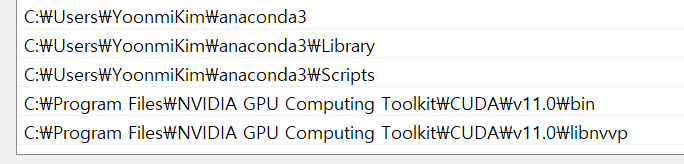
- 시스템 변수 - path에 환경 변수도 추가해주자.
conda create -n 가상환경이름 python=3.6  // python 버전 3.6으로 설치
conda env list  // 가상환경 목록
(conda) activate 가상환경이름  // 실행
(conda) deactive 가상환경이름  // 종료

/*
conda create -n tftest python=3.6
conda activate tftest
*/
pip install tensorflow
pip install matplotlib
pip install opencv-python==4.5.5.64
pip install keras
pip install pandas
pip install sklearn
pip install scikit-learn
pip install scipy
pip install jupyter notebook
python -m ipykernel install --user --name 가상환경이름 --display-name "표시할 커널이름"  // 커널 연결

// python -m ipykernel install --user --name tftest --display-name "tftest"

jupyter notebook  // 주피터 노트북 실행
a. clone 받은 폴더 안에 data 폴더 만들기
b. 데이터셋에서 학습시키고자 하는 .npy 파일들을 /data폴더 안에 넣기
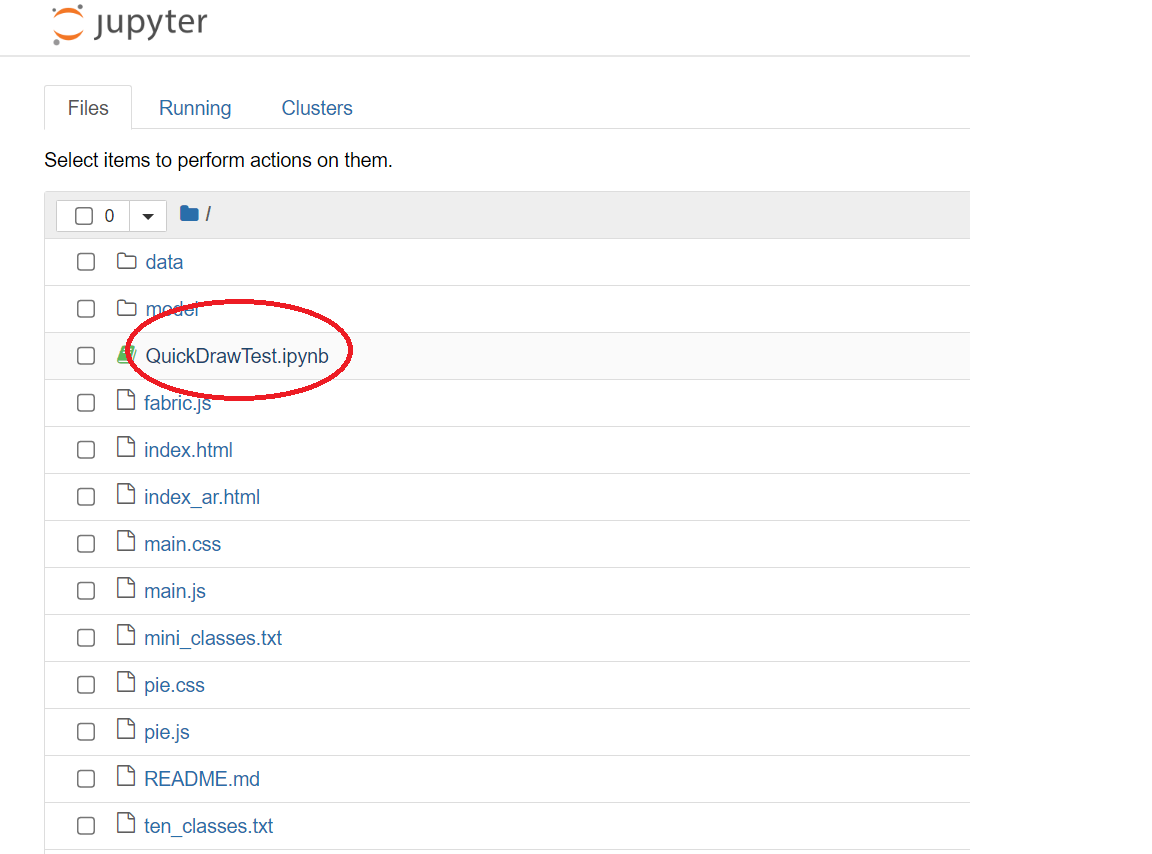
model폴더 안의class_names.txt내용의 파일 이름들을 간단하게 바꿔주면 결과를 직관적으로 볼 수 있다!
Ex)
full_numpy_bitmap_apple
full_numpy_bitmap_axe
full_numpy_bitmap_banana
full_numpy_bitmap_baseball bat
full_numpy_bitmap_bee
full_numpy_bitmap_book
apple
axe
banana
baseball bat
bee
book
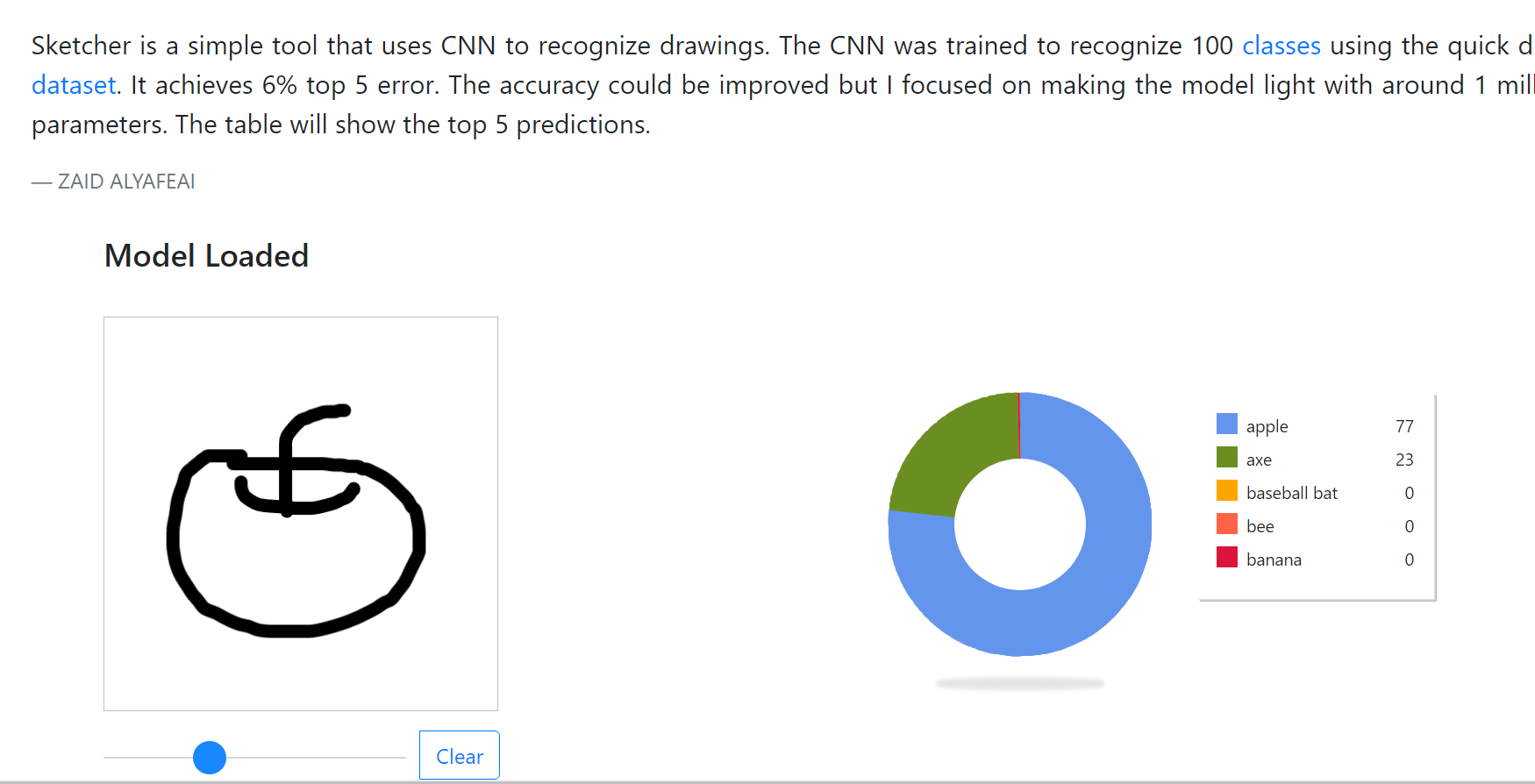
- 캔버스 하단 바를 조절해 그리는 선 굵기를 조절할 수 있다.