===

The Zendesk Ticket Viewer is a command-line application that was developed as a submission to the 2021 Zendesk Coding Challenge. It allows users to:
- Request all company tickets
- View individual ticket details
- Get a bird's eye view of tickets at 25-item intervals
If you would like to demo this application, follow the instructions below:
To successfully run this application, you will need the following resources:
-
A Copy of this Application. To copy this application to your machine, use the command line to
cdto your desired location and enter the following:git clone https://github.com/kat-kime/zendesk_coding.git -
Python: To download the latest version of Python, visit Python.org.
-
Authorization Code: This application uses an OAuth token to confirm authorization. To get yours, follow Zendesk's instructions here.
-
Constants.py: This program relies on a Constants.py file to store secret information. Create your own and add the following variables:
- AUTHORIZATION_KEY = "{insert OAuth token}"
- DOMAIN = "{your Zendesk domain}"
- REDIRECT_URI = "{Redirect URI}"
-
PrettyTable: To download the PrettyTable module that displays content in tables, use the following command:
pip3 install prettytable -
Unit Testing Framework: To run the
tests.pyprogram, you will need to import the unittest module. -
[Optional] Sample Tickets: To generate your own, use the included tickets.json file and the following curl command:
curl https://{subdomain}.zendesk.com/api/v2/imports/tickets/create_many.json -v -u {email_address}:{password} -X POST -d @tickets.json -H "Content-Type: application/json"
To run the program, cd to the program's directory and run the following command:
python3 ticket_viewer.py
A menu will appear with brief instructions to help you navigate the application. Enjoy the positive customer support vibes while you're there!
The following requirements were set by the user (Zendesk) and met by the Ticket Viewer application:
- Connects to the Zendesk API
- Requests all the tickets for your account
- Displays tickets in a list
- Displays individual ticket details
- Pages through tickets when more than 25 are returned
- Displays a friendly error message if the API is unavailable or the response is invalid.
- Tells the user something is wrong if there is a program error.
- The Ticket Viewer should handle the API being unavailable
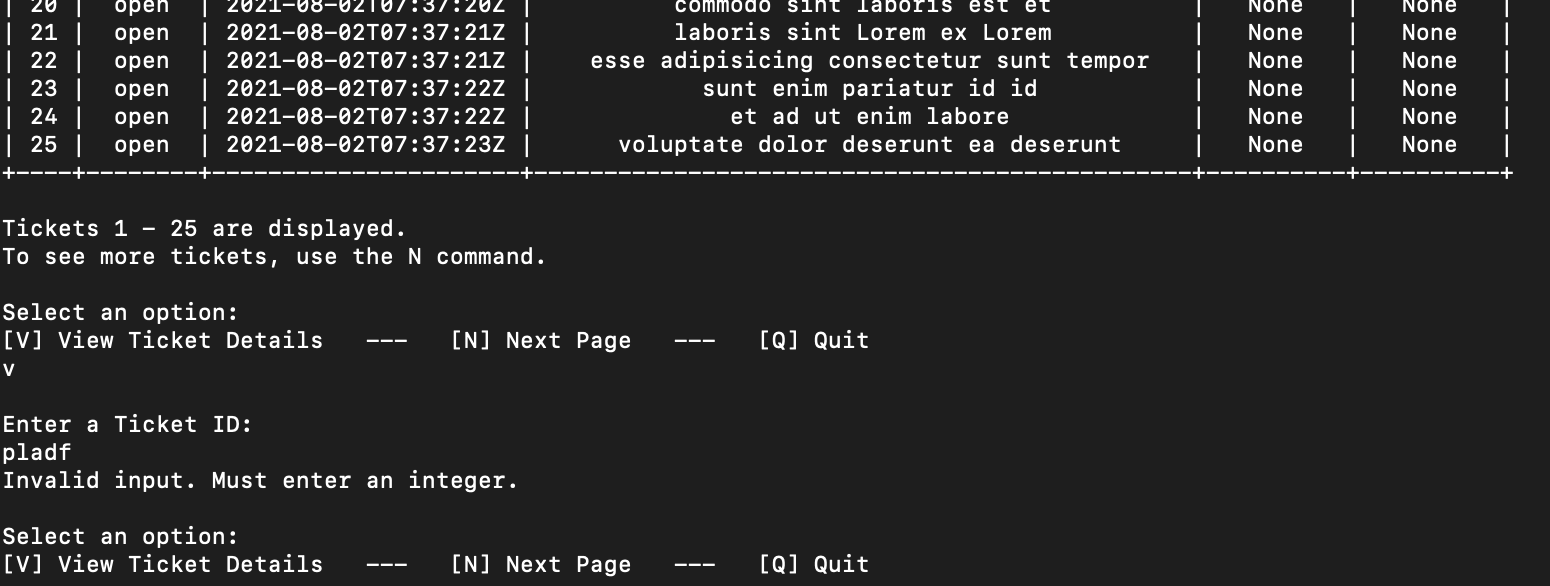
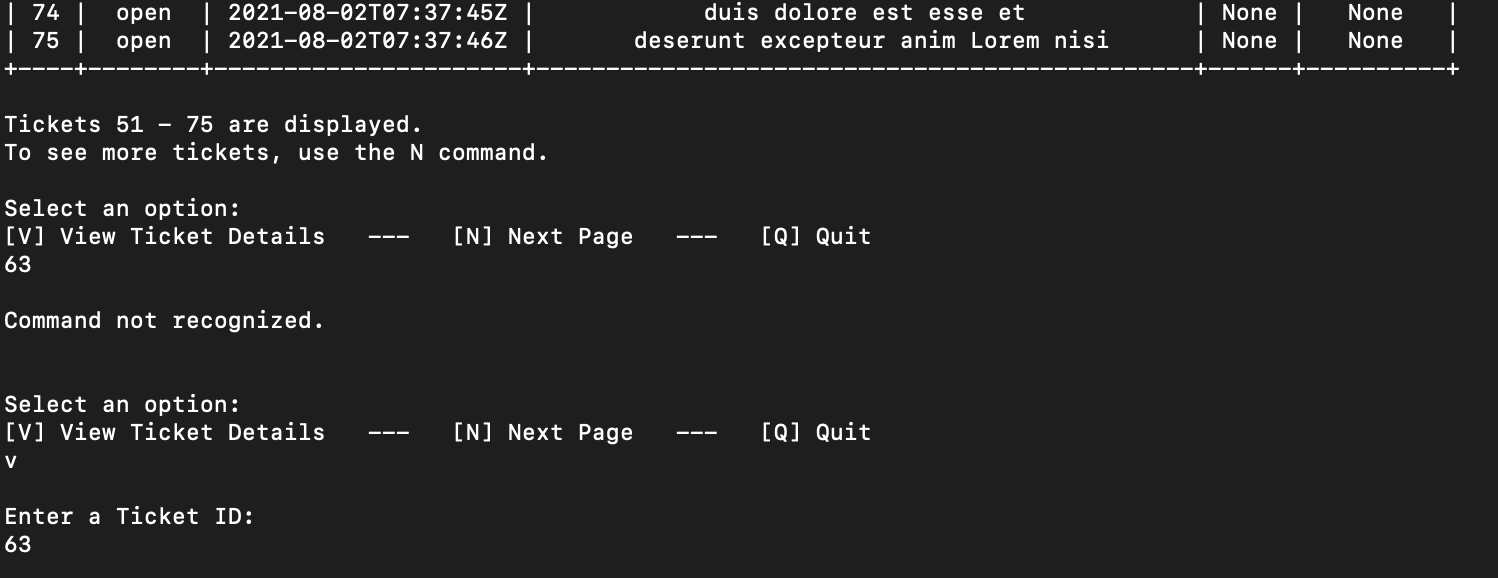
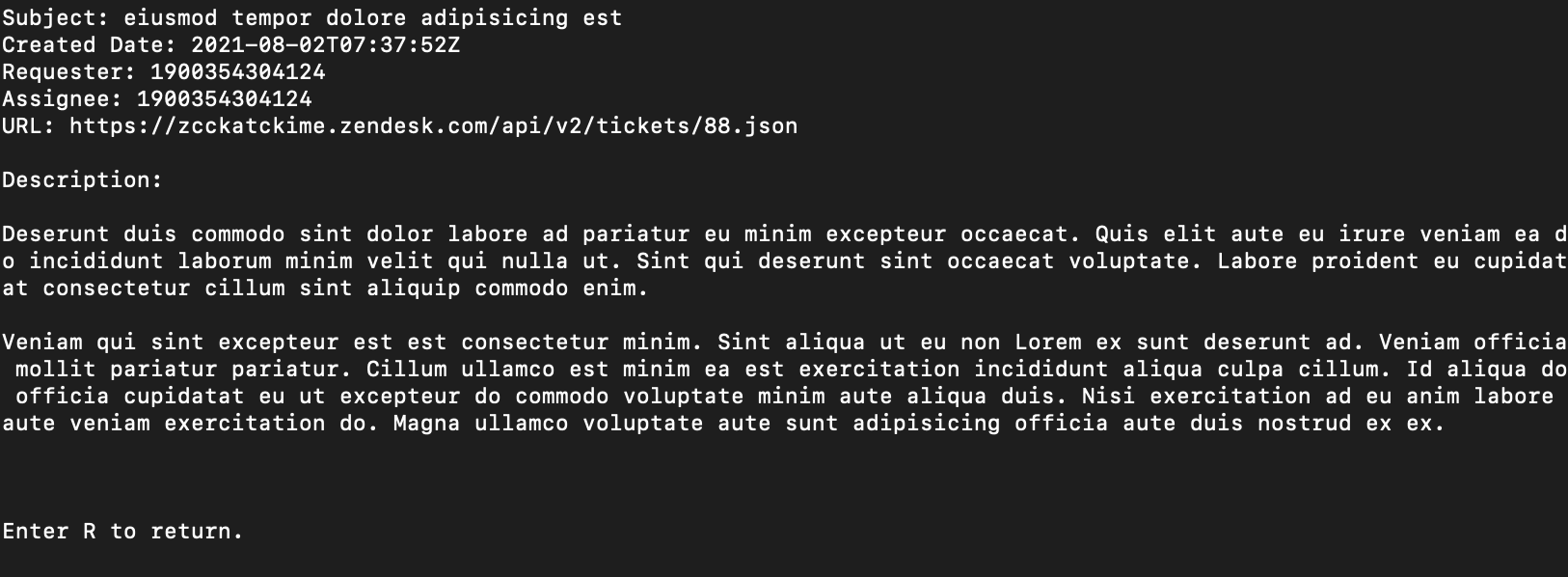
The following are screenshots to help you get a feel of how the program works:
As the program starts, it calls the Zendesk API to request all tickets, then displays the tickets in a table. Users can navigate the application by using the input-based menu.

On command, the application presents curated ticket details to the user, with a URL to help users get an even closer look at a ticket's information.
Upon receiving invalid inputs, the ticket viewer will handle exceptions and instruct the user on how to provide valid inputs.