Multithreaded CLI Image Editor
- Clone the repository
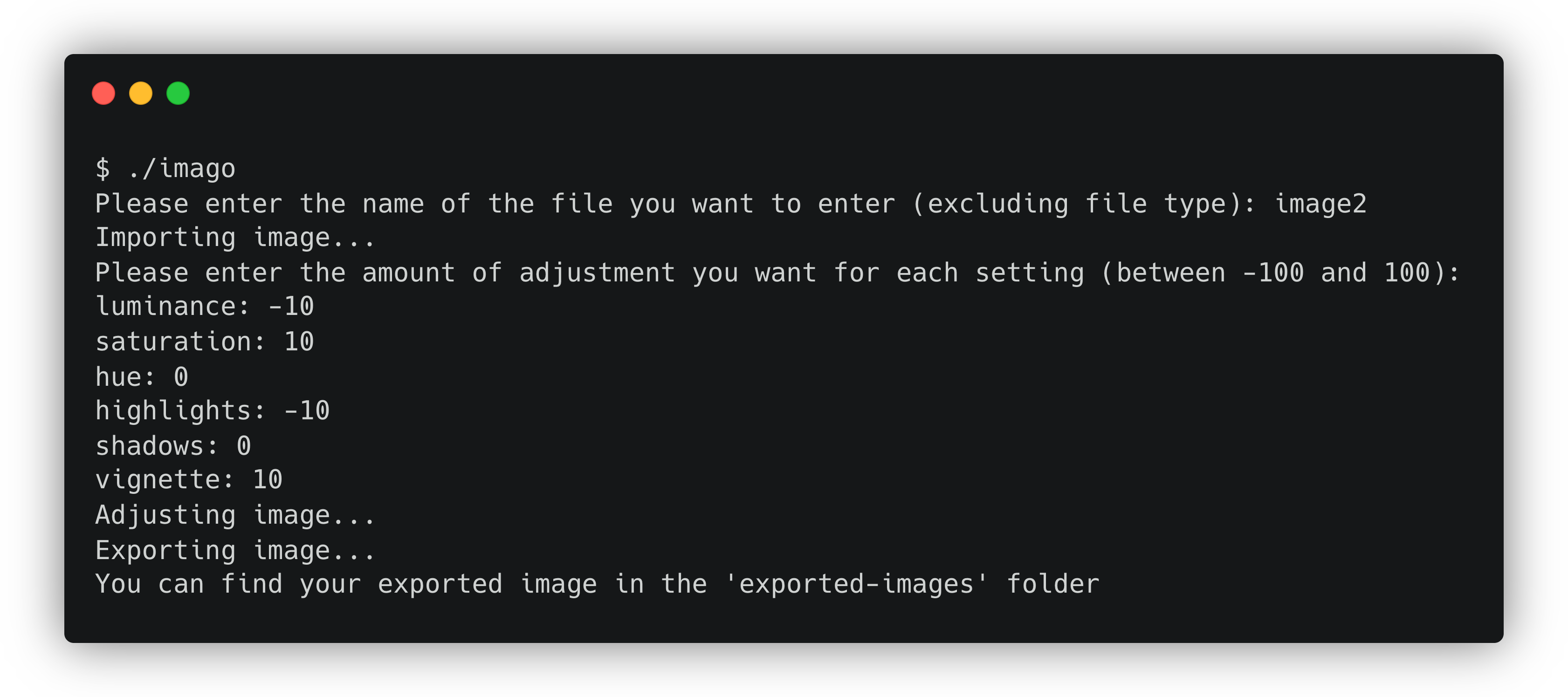
- Drag and drop the image you want to edit inside the 'input-images' folder
- Using terminal, navigate to the directory of the repository
- Run the following:
./imago- Follow the prompts
- Your edited images will be exported to the 'exported-images' folder
Note: You can only use png images. If your image isn't png, convert it.
- Clone the repository
- Drag and drop the png image you want to edit inside the 'input-images' folder
- Using terminal, navigate to the directory of the repository
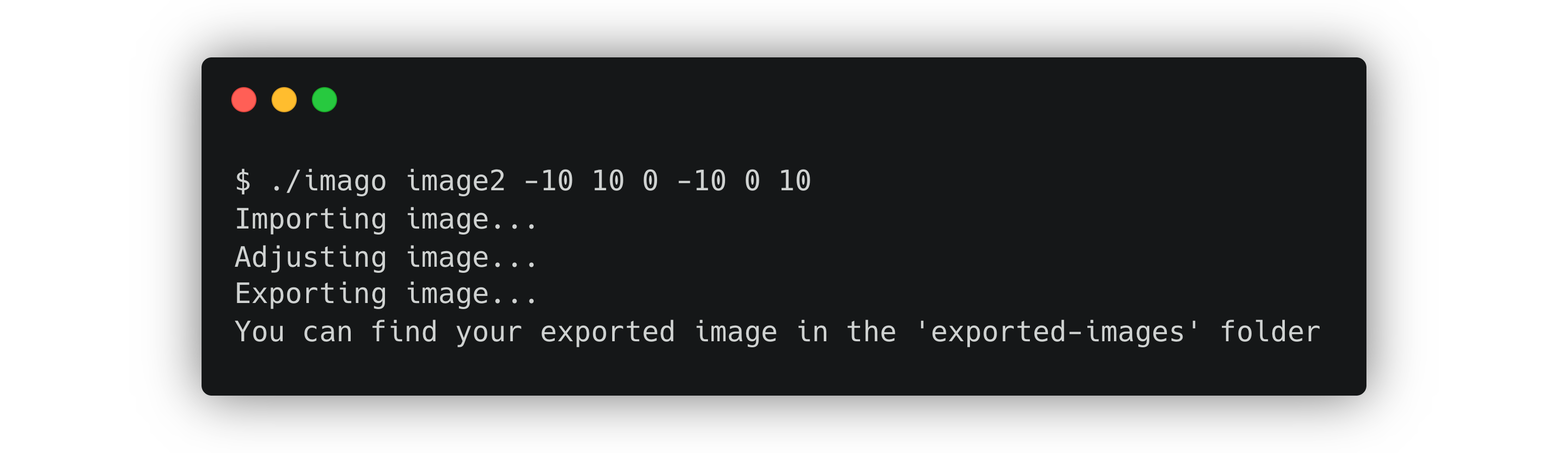
- Run by passing the arguments straight from the command-line
The arguments are:
./imago imageFileName luminance saturation hue highlights shadows vignetteYou need to pass an integer in range [-100, 100] (inclusive). For example:
./imago image2 -15 10 0 -10 0 10Note: Do not include the file type in the first argument. i.e. if the file is called 'image2.png', don't including the '.png' part in the argument.
- Your edited images will be exported to the 'exported-images' folder
Note: You can only use png images. If your image isn't png, convert it.
The compiled files are already in the repository, but if you make changes, you can compile the project again.
To compile the project, navigate to the repository using terminal, and run the following:
make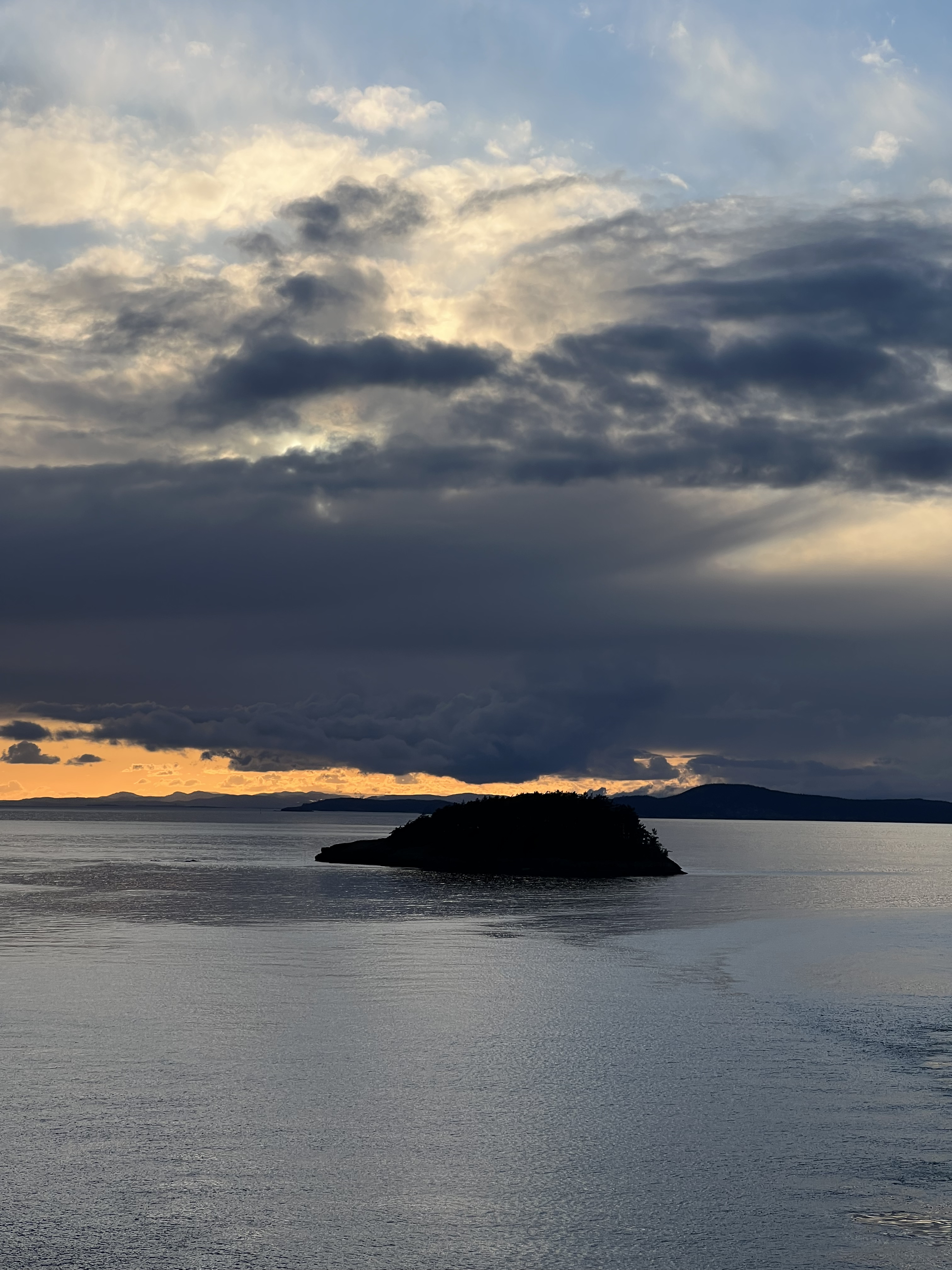
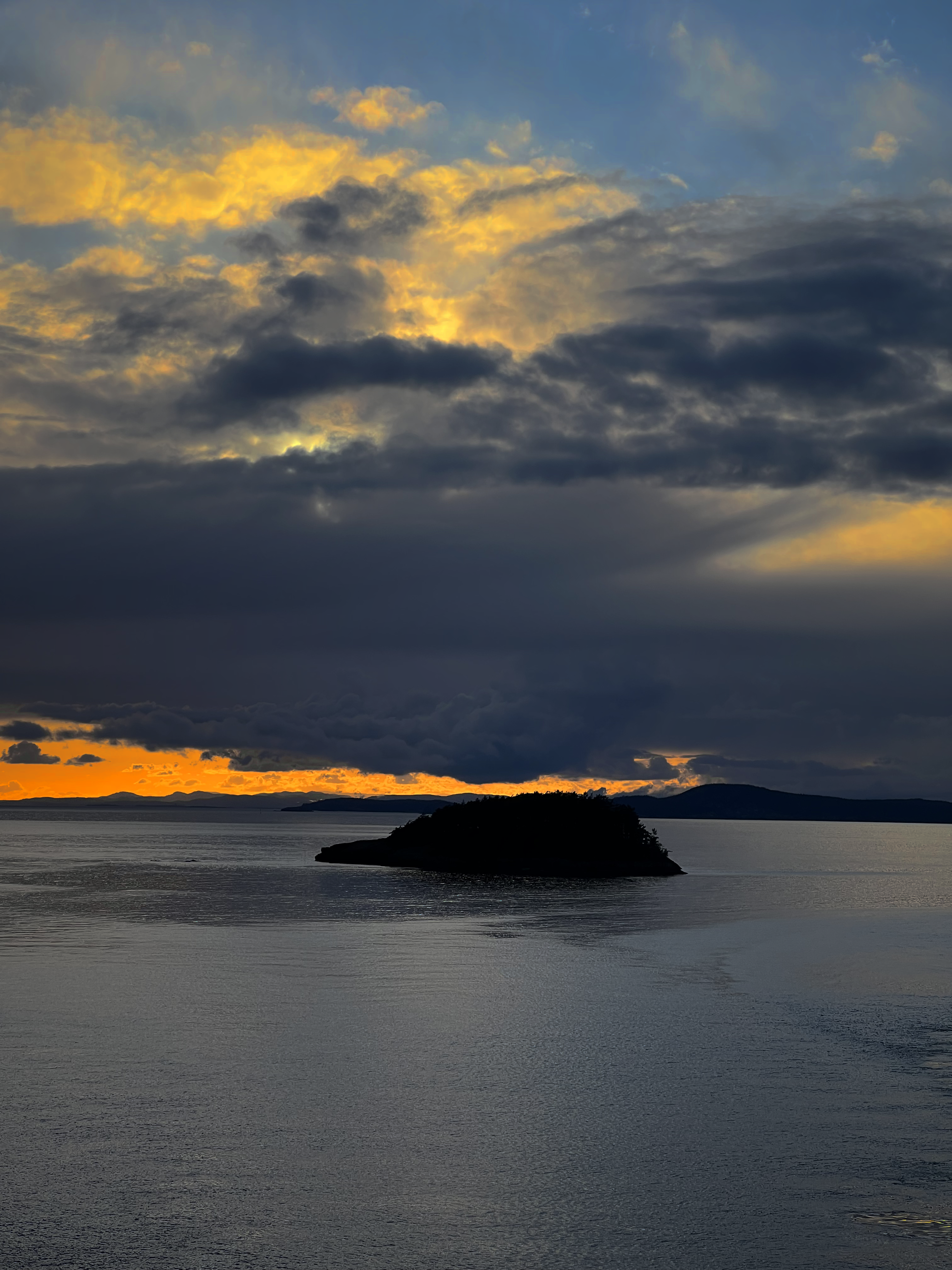
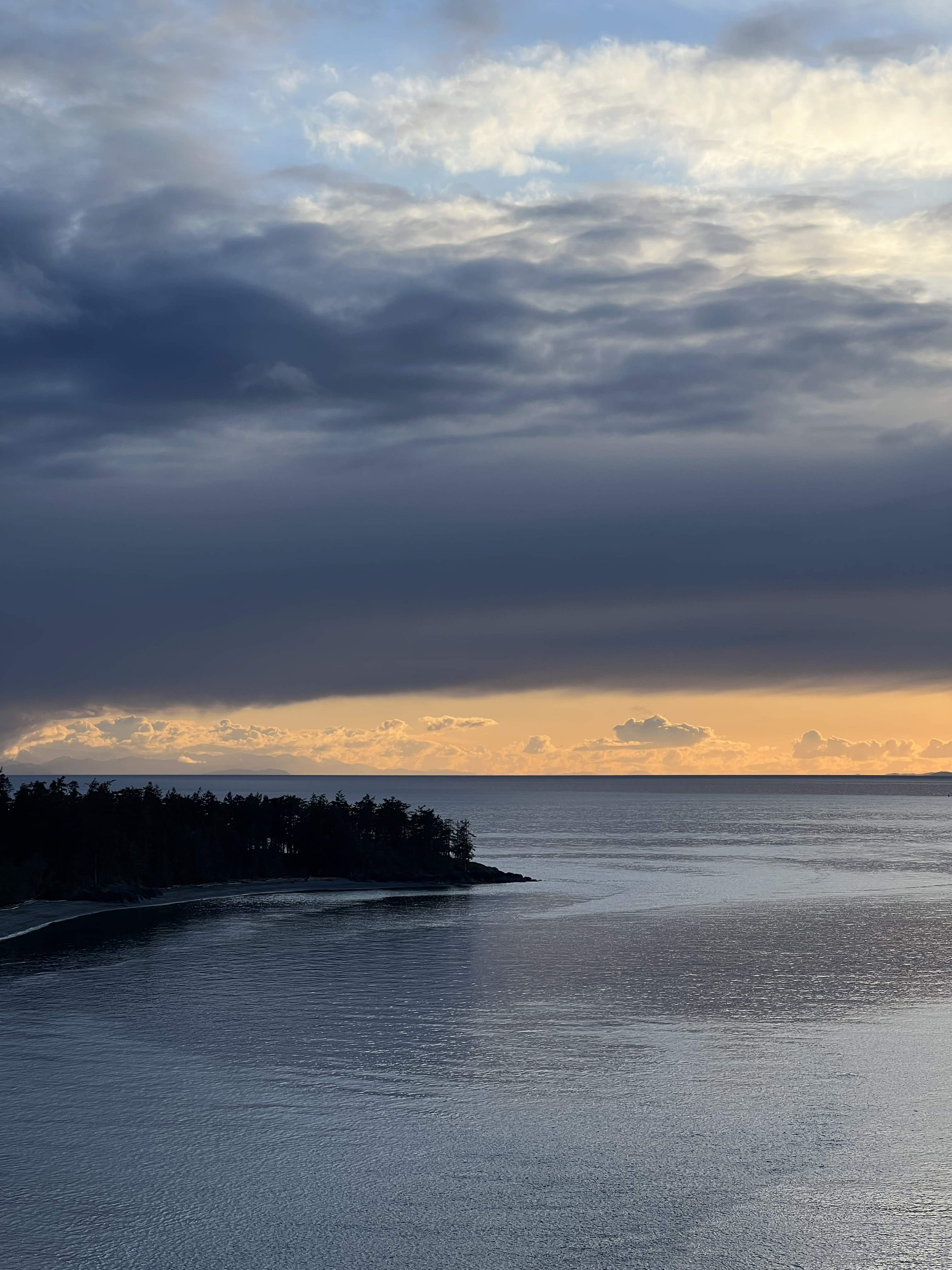
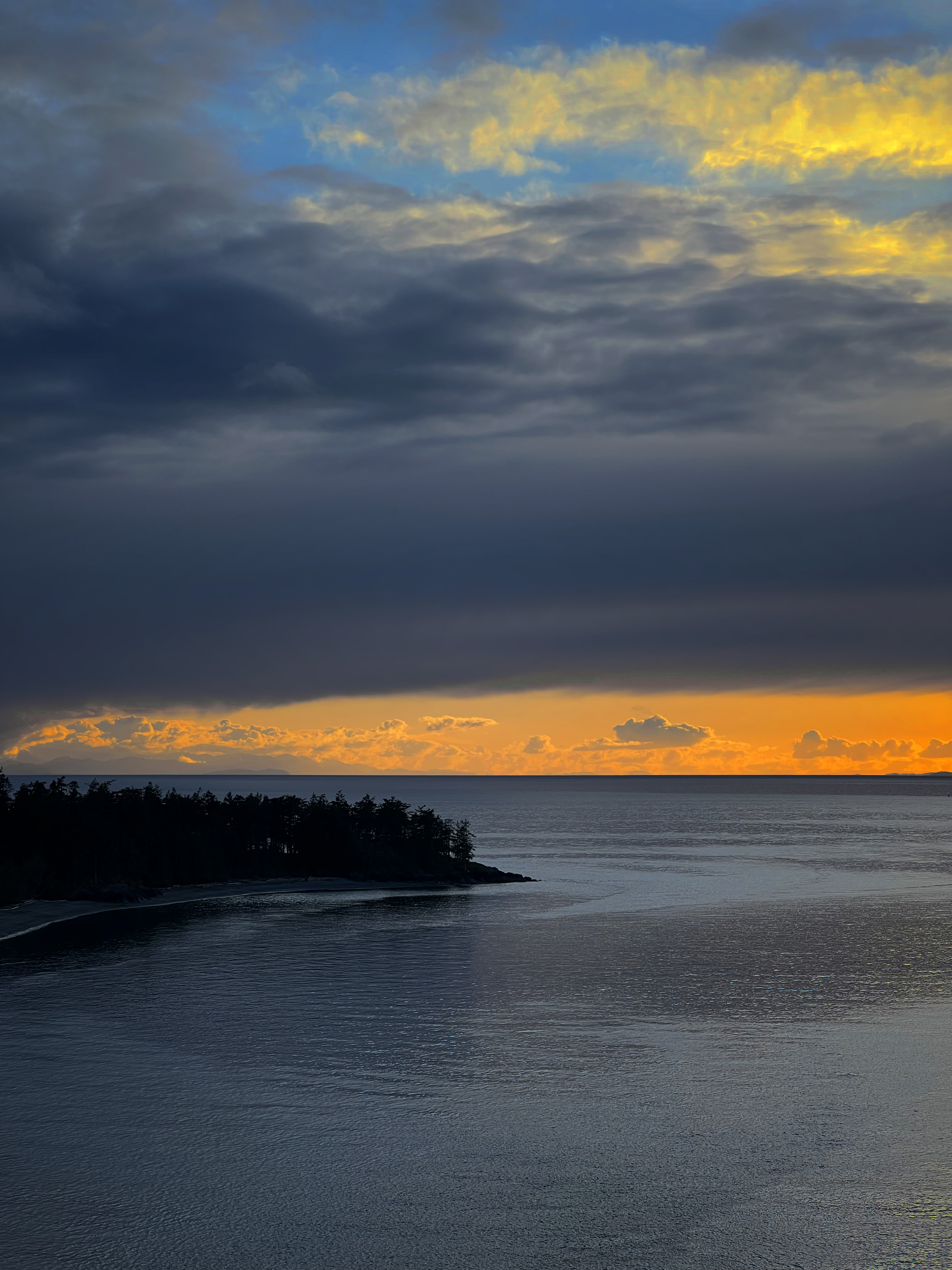
Settings for above: luminance: -10, saturation: 10, hue: 0, highlights: -10, shadows: 0 vignette: 10 (-10 10 0 -10 0 10)
If I had more time, I would make it so that Imago automatically manipulates every photo in the 'input-images' folder without prompting for filenames. That would require me to make adjustments to the multithreading to manipulate every photo instead of only 1.
Or at least if there is only 1 file in the 'input-images' folder, Imago could read it automatically without prompting for filename.
Used help from the cs221util library for png and pixel structures. I used them to read and write png files and minipulate the pixels. Created by CPSC 221 from UBC.