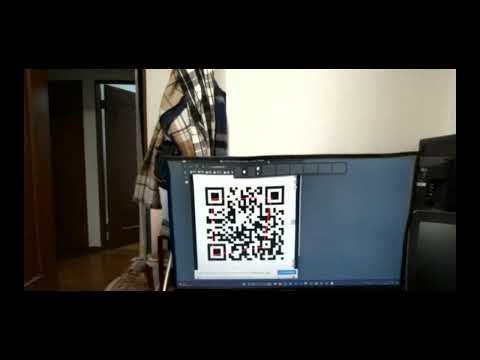
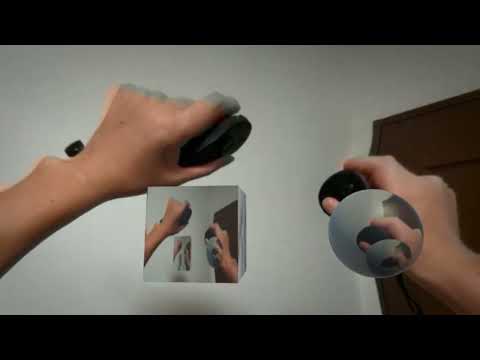
Quest Media Projection Plugin for Unity is a Unity plugin for capturing the Meta Quest screen using the MediaProjection API. This plugin provides four main features:
- Capture Screen as Texture2D: Capture the Meta Quest screen and handle it as a
Texture2Din Unity. - Barcode Scanning: Read specified barcodes from the captured screen using ZXing.
- Save Screen Captures: Save the captured screen to storage.
- 🚀 WebRTC Support (NEW in v1.3.0!) 🚀 – Stream captured screen content in real-time using WebRTC for seamless remote viewing and communication.
Meta has recently introduced the Quest Passthrough Camera API, which allows third-party developers to access the passthrough camera feed, a feature that was previously restricted due to privacy concerns.
This new API brings a significant relief, as it means we are finally free from the restrictions and workarounds that had to be employed before. No longer will developers need to navigate around limitations to achieve passthrough camera functionality.
As a result, this repository will now be archived and preserved for reference purposes only. Moving forward, the official Passthrough Camera API will be the recommended approach for all passthrough camera development.
Ensure that your Meta Quest device is running firmware v68 or later.
Media Projection functionality was re-enabled starting with firmware v68, so earlier versions may not work as expected.
Make sure to enable the Spatial Data permission for the app to function correctly.
To do this:
- Open Settings on your Quest device.
- Navigate to Apps > App Permissions.
- Find your app and ensure Spatial Data is enabled.
(Thanks to anagpuyol for pointing this out!)
-
Create a Meta Quest Project:
- If using the Meta SDK, refer to the official tutorials:
- If using OpenXR, refer to the OpenXR implementation at:
-
Download and Import UnityPackage:
- Download the UnityPackage from the GitHub Releases page.
- Import the
.unitypackageinto your Unity project.
-
Configure Project Settings:
- Go to the menu bar and select
Edit > Project Settings. - In the window that appears, go to the
Playertab and configure the following:- In the
Other Settingspanel, set theTarget API Levelto 34 or higher. - In the
Publishing Settings, check the boxes forCustom Main Manifest,Custom Main Gradle Template, andCustom Gradle Properties Template.


- In the
- Go to the menu bar and select


- If you have enabled
Minifyin the Publishing Settings, you will need to check theCustom Proguard Fileoption.
-
Modify AndroidManifest.xml:
- Open
Assets/Plugins/Android/AndroidManifest.xml. - Add the following permission inside the
<manifest>tag:<manifest ...> <uses-permission android:name="android.permission.FOREGROUND_SERVICE" /> <uses-permission android:name="android.permission.FOREGROUND_SERVICE_MEDIA_PROJECTION" /> ... </manifest>
- Add the following service definition inside the
<application>tag:<application ...> <service android:name="com.t34400.mediaprojectionlib.core.MediaProjectionService" android:foregroundServiceType="mediaProjection" android:stopWithTask="true" android:exported="false" /> ... </application>
- Note: In Unity 6+, you need to remove the
UnityPlayerActivityblock from the manifest to avoid conflicts.
If your project is using GameActivity, keep theUnityPlayerGameActivityblock and remove theUnityPlayerActivityblock:<!-- Remove this block if using GameActivity --> <activity android:name="com.unity3d.player.UnityPlayerActivity" ...> ... </activity> <!-- Keep this block if using GameActivity --> <activity android:name="com.unity3d.player.UnityPlayerGameActivity" ...> ... </activity>
- Open
-
Update gradleTemplate.properties:
- Open
Assets/Plugins/Android/gradleTemplate.properties. - Add the following lines:
android.useAndroidX=true
android.enableJetifier=true
- Open
-
Update mainTemplate.gradle:
- Open
Assets/Plugins/Android/mainTemplate.gradle. - Add the appropriate dependencies in the
dependenciesscope:dependencies { ... implementation 'androidx.appcompat:appcompat:1.6.1' implementation 'org.jetbrains.kotlinx:kotlinx-serialization-json:1.7.2' implementation 'com.google.zxing:core:3.5.3' // Use this if you are using ZXing for barcode scanning implementation 'com.google.mlkit:barcode-scanning:17.3.0' // Use this if you are using Google ML Kit for barcode scanning }
- Open
-
Update proguard-user.txt:
- If you have enabled Minify in the Publishing Settings you need to add the following line to the generated
Assets/Plugins/Android/proguard-user.txtby enabling theCustom Proguard Fileoption(Thank you to stephanmitph for pointing out!)-keep class com.t34400.mediaprojectionlib.** { *; }
- Add the
ServiceContainercomponent andMediaProjectionViewModelcomponent to a suitableGameObject. - In the
MediaProjectionViewModelcomponent, set theServiceContainerfield to the previously addedServiceContainercomponent. - Adjust the screen capture frequency using the
Min Update Interval [s]field. - Proceed to configure any of the following features as needed.

- In the
MediaProjectionViewModelcomponent, check theTexture Requiredoption. - Assign the object that will use the texture to the
Texture Updatedevent and select the property/method from the dropdown.- If you want to process the texture in a custom component, define a public method like the following, attach it to a
GameObject, register it with the event, and select the method from the dropdown:using UnityEngine; class TextureHandler : MonoBehaviour { public void ProcessTexture(Texture2D texture) { // process texture... } }
- If you want to apply the texture to a material, attach the material and select
mainTexturefrom the dropdown.
- If you want to process the texture in a custom component, define a public method like the following, attach it to a
-
Add the
BarcodeReaderViewModelcomponent to a suitableGameObjectand attach theMediaProjectionViewModelcomponent created in the basic setup to itsMediaProjectionViewModelfield. -
Select the barcodes to be read from the
PossibleFormatslist (multiple formats can be selected).Supported barcode formats:
AZTECCODABARCODE_128CODE_39CODE_93DATA_MATRIXEAN_13EAN_8ITFMAXICODEPDF_417QR_CODERSS_14RSS_EXPANDEDUPC_AUPC_EUPC_EAN_EXTENSION
-
To crop the input image before barcode reading, check
Crop Requiredand specify theCrop Rect. -
For higher accuracy, check
Try Harder. -
To handle barcode reading results, create a component and register it with the
Barcode Readevent. You need to define a public method in your component that takes an array ofBarcodeReadingResult[]as an argument:using UnityEngine; using MediaProjection.Models; class ResultHandler : MonoBehaviour { public void ProcessResult(BarcodeReadingResult[] results) { foreach (var result in results) { string text = result.Text; // raw text encoded by the barcode string format = result.Format; // format of the barcode that was decoded byte[] rawBytes = result.RawBytes; // raw bytes encoded by the barcode Vector2[] resultPoints = result.ResultPoints; // points related to the barcode in the image long timestamp = result.Timestamp; // ... } } }

-
Add the
MlKitBarcodeReaderViewModelcomponent to a suitableGameObjectand attach theMediaProjectionViewModelcomponent created in the basic setup to itsMediaProjectionViewModelfield. -
Select the barcodes to be read from the
PossibleFormatslist (multiple formats can be selected).Supported barcode formats:
CODE_128CODE_39CODE_93CODABARDATA_MATRIXEAN_13EAN_8ITFQR_CODEUPC_AUPC_EPDF417AZTEC
-
To handle barcode reading results, create a component and register it with the
Barcode Readevent. Similar to ZXing, you need to define a public method in your component that takes an array ofBarcodeReadingResult[]as an argument.

- Add the
ImageSaverViewModelcomponent to a suitableGameObjectand attach theMediaProjectionViewModelcomponent created in the basic setup to itsMediaProjectionViewModelfield. - Specify a filename prefix in the
FilenamePrefixfield. - The captured images will be saved to
/sdcard/Android/data/<package name>/files/<FilenamePrefix><timestamp>.jpg.

- To enable/disable MediaProjection:
Simply setServiceContainer.enabledtotrueorfalse.- Important Limitation:
MediaProjectiondoes not support a built-in pause/resume feature.- If you disable it, you will need to request user permission again to restart the projection.
- If you only want to pause Unity-side processing while keeping
MediaProjectionactive, setenabled = falseon the correspondingViewModelinstead.
- Important Limitation:
Click to expand
- Complete the MediaProjection installation steps.
- Add the following dependency to
Assets/Plugins/Android/mainTemplate.gradle:implementation 'io.getstream:stream-webrtc-android:1.3.8' - If using microphone audio, add the following permission to
AndroidManifest.xml:<uses-permission android:name="android.permission.RECORD_AUDIO"/>
- Add the ServiceContainer component to your scene and enable the Enable WebRTC option.
- If only using WebRTC, disable Enable Image Processing.
- Add the WebRtc Media Projection Manager component to your scene and attach the previously added ServiceContainer component.
- From any script, call
WebRtcMediaProjectionManager.CreatePeerConnection()to create a PeerConnection and handle signaling.
This library is a wrapper around the native WebRTC library, so refer to its documentation for more details.
Methods:
void CreateOffer(SdpObserver observer, Dictionary<string, string> constraints)
void CreateAnswer(SdpObserver observer, Dictionary<string, string> constraints)
string GetLocalDescription()
void GetRemoteDescription(SdpObserver observer)
void SetLocalDescription(SdpObserver observer)
void SetLocalDescription(SdpObserver observer, SessionDescriptionType type, string description)
void SetRemoteDescription(SdpObserver observer, string type, string description)
bool AddIceCandidate(string sdpMid, int sdpMLineIndex, string sdp)
void RestartIce()
PeerConnectionState GetConnectionState()
IceConnectionState GetIceConnectionState()
IceGatheringState GetIceGatheringState()
SignalingState GetSignalingState()
void SetAudioPlayout(bool enable)
void SetAudioRecording(bool enable)
void SetBitrate(int min, int current, int max)
Events:
event Action? OnVideoTrackAdded
event Action<SignalingState>? OnSignalingChange
event Action<IceConnectionState>? OnIceConnectionChange
event Action<bool>? OnIceConnectionReceivingChange
event Action<IceGatheringState>? OnIceGatheringChange
event Action<IceCandidateData>? OnIceCandidate
event Action? OnRenegotiationNeededConstructor:
SdpObserver()Events:
event Action<SessionDescription>? OnCreateSuccess;
event Action? OnSetSuccess;
event Action<string>? OnCreateFailure;
event Action<string>? OnSetFailure;- Signaling must be performed after enabling the
ServiceContainer. - If
ServiceContaineris disabled, a newPeerConnectionmust be created. - Video and audio tracks are automatically configured.
- If your script is inside an Assembly Definition, you need to add MediaProjection.WebRTC to its references in order to use WebRTC features.
This project uses the following libraries:
- ZXing, licensed under the Apache License 2.0.
- ML Kit, subject to the ML Kit Terms of Service.
- WebRTC Android by Stream, licensed under the Apache License 2.0.
- NativeWebSocket, licensed under the MIT License.
We would like to thank the contributors of these libraries for their work.
This project is licensed under the MIT License.
If you include the following libraries as dependencies in your Unity project, please ensure compliance with their respective licenses:
- ZXing – Apache License 2.0
- ML Kit – ML Kit Terms of Service
- WebRTC Android by Stream – Apache License 2.0
Make sure to review and adhere to the licensing terms of these libraries when integrating them into your project.