- Create a Github account and join the students team of the
data-hydenv(see invitation link per e-mail). - Enroll with course password on Moodle (http://www.lehre-hydro.uni-freiburg.de).
- Prepare your computer with software (e.g. R Studio) and ensure that you are able to install and load packages. Be sure that you know the main features of R Studio App (console, load/save scripts, getting help,
View(), Main preferences, Connection to CRAn server) - Install following packages:
tidyverse,lubridate,zoo,sf,skimr,padr(might be helpful),RPostgreSQL(see details below),- see also R Markdown section below.
- Use your HOBO measurement protocol and go to the HOBO Meta table and insert your HOBO meta information there. Double check your Lon/Lat information (in decimal number) if really the correct location is described.
- Check the HOBO Manual (Download PDF above) to learn how the sensor/logger works (i.e. precision, uncertainty, ranges).
- Moodle http://www.lehre-hydro.uni-freiburg.de
- HOBO Meta table http://tiny.cc/hobometa2020
- Exercises: https://data-hydenv.github.io/exercises/ (Webpage with all Exercises and Code snippets)
- Visit the Course Resources section https://github.com/data-hydenv/cheatsheets_resources
| For the time series data analysis part |
|---|
| Internet access is really important (check your ability to connect with the "eduroam"-wifi) |
| R Studio (> V 1.0) (with Internet access) and R Installation (R > 3.5.x is recommended) |
| Texteditor (normal TextEdit is enough, but you can look for more advanced editors), e.g. https://www.textpad.com/ (Win) or https://www.barebones.com/ (Mac) |
| MS Excel (helpful) or comparable software |
| MS Word or word processor (to write report) or comparable software |
- QGIS 3.x. It is highly recommended to use QGis >3.4, as this version is used for demonstration. In case you use any 2.x, it has to be > 2.12 and note that the software changed substantially from version 2 to 3. Examples during class might work different in version 2.x. However, QGis >2.12 and 3.x are all technically capable of solving the tasks.
QGIS download: https://qgis.org/de/site/forusers/download.html. QGIS is available for Windows, Mac and Linux.
On top you will need a software for managing PostgreSQL database servers. There are two options:
-
pgAdmin4: pgAdmin4 (Caution: not pgAmin3). For Windows/Mac: https://www.pgadmin.org/download/ ; Linux users will find pgAdminIII in the software repositories of Debian, Ubuntu, CentOS/Redhat/Fedora and OpenSuse, always called 'pgadmin4'. There is also pgAdmin3, which is completely fine and maybe the more intuitive product, however version 3 and 4 are fundamentally different and it might be hard to follow the examples with version 3.
-
DataGrip: This is the preferred software, but it is a proprietary chargeable software. For students it is free, in case you register using a university mail adress. DataGrip is available for Windows, Mac and Linux. DataGrip is way more powerful than pgAdmin, but not open Source. You can accomplish the lecture with both products.
You can install either of both, or both products.
Finally, a R package is needed:
-
RPostgreSQL, make sure that the R package RPostgreSQL is installed and can be imported. Linux users might have to additionally install the package postgresql-server-10-dev to make RPostgreSQL work properly as R fails to install all dependencies in some circumstances. -
other useful packages beside
sffor spatial data analysis in R:leaflet,mapview,ggmap,tmap,raster
Normally the CRAN server is used to install install.packages("a_package_name") from the console. Packages are then loaded with library(a_package_name). Check for error- or warning-messages in the console.
If you want to install a pre-release of a package or a package that is not supported by CRAN but available on Github you use devtools. The command is a combination of github account (here: r-lib) and name of the package/repository (here: devtools).
install.packages("devtools")
devtools::install_github("r-lib/devtools")
A third possibility is to use the dialog Install packages in the Tools menu in R Studio. To get an overview on your R session and the attached packages use:
search()
sessionInfo()
If an older version of a package is needed you can often download archived version from the package homepage (search for package name + CRAN). Archives can be installed with:
install.packages("http://cran.r-project.org/src/contrib/Archive/RNetLogo/RNetLogo_0.9-6.tar.gz", repo=NULL, type="source")
install.packages("C:\\Downloads\RNetLogo_0.9-6.tar.gz", repos = NULL, type="source")
Install the packages rmarkdown and distill in R Studio. Go to https://rmarkdown.rstudio.com/authoring_quick_tour.html and make sure that your R Studio is "R Markdown"-ready. Check if you are able to knitr a R Markdown file (HTML, PDF).
- Go To New File in R Studio and select R Markdown. There you can choose a new Distill Article from the _Template_menu. An example file is loaded. Save it and try to
Knitit into HTML or PDF. Thedistillpackage offers R Markdown files with scientific features (see https://rstudio.github.io/distill/).
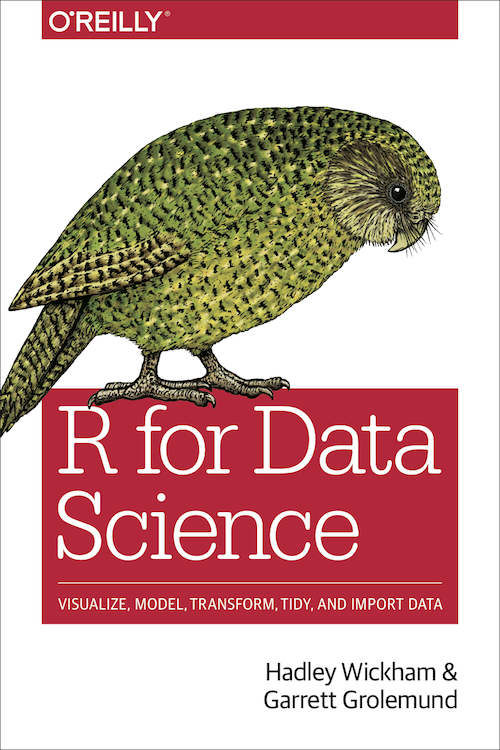
Book: R for Data Science (Wickham & Grolemund) https://r4ds.had.co.nz/