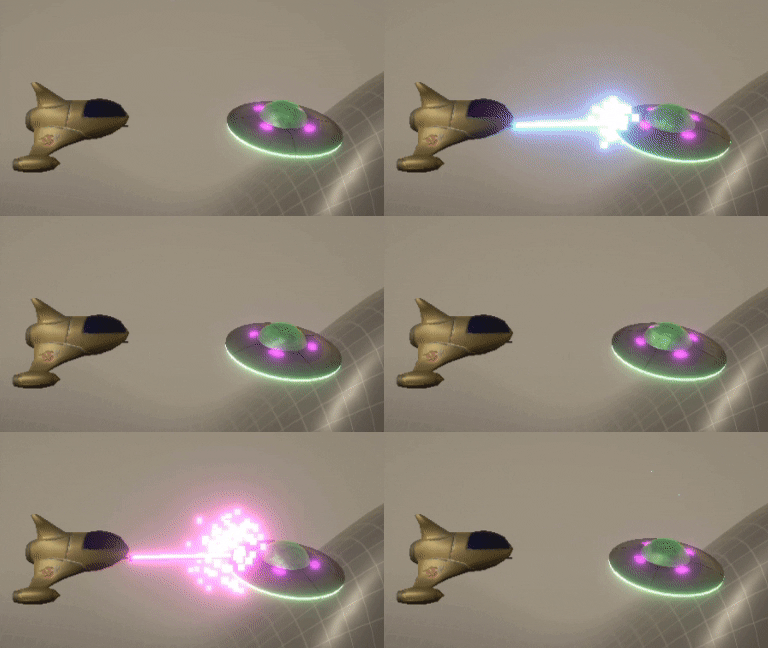
13 Laser Impact
Currently our laser is just a long cylinder with a fixed length. If we happen to shoot a UFO, it will just pass right through the other side.
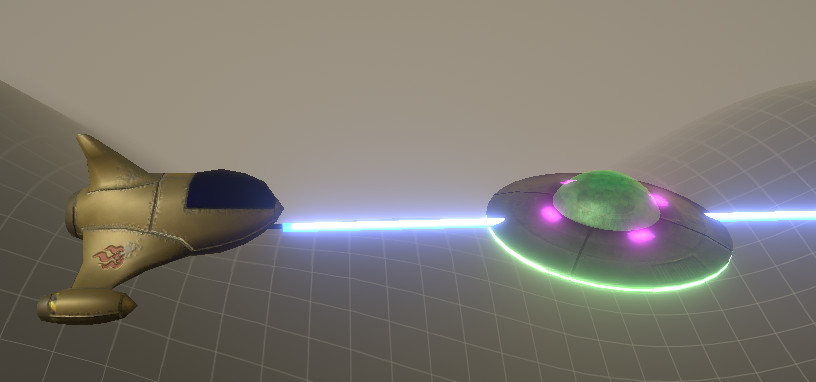
Just before we fire a laser, we'll do a Raycast operation. This sends out an invisible ray at a given point and direction, and gives us information about what that ray would have hit, and where it hit. We'll limit the distance the ray can go to 1000 since that's the size of our world.
-
In the PlayerShoot script add a variable for the maximum laser length
public float MaxDistance = 1000;
-
Just before Instantiating the new laser, add code to do the raycast and get the distance to what was hit. When creating the laser, store this in a variable so we can work with it. And then set the length of the laser. Our Update() function should now look like this
     if (Input.GetKeyDown(KeyCode.Space))
     {
         // Did we hit anything?
         float laserLength = MaxDistance;
         Ray ray = new Ray(transform.position, transform.TransformDirection(Vector3.forward));
         bool hitSomething = Physics.Raycast(ray, out RaycastHit hitInfo, MaxDistance);
         if (hitSomething)
         {
             laserLength = hitInfo.distance;
         }

         // Create a new laser at the position and rotation of the gun
         GameObject laser = Instantiate(LaserPrefab, transform.position, transform.rotation);

         // Set the length of the laser
         laser.transform.localScale = new Vector3(1, 1, laserLength);

         LaserSound.Play();
     }
That's better:
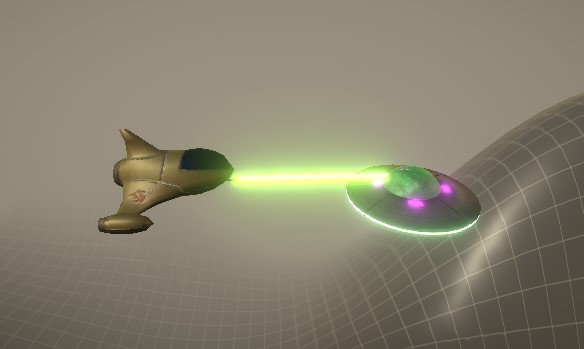
If we hit a UFO it will eventually explode. But I think no matter what we hit (ground, mothership shield, etc.), we should have a particle effect at the point of impact. We'll need a new prefab for that.
-
In the Hierarchy create a new Empty and name it LaserImpact
-
Drag this to the prefabs folder to convert it to a prefab.
-
Open it in the prefab editor
-
Reset the transform
-
Add a Particle System component to it
At this point you can create whatever particle effect you like. It could be smoke, fire, sparks. Below I'm going to create a pixely sparks kind of effect, with the same changing colours as the laser.
-
In the particle system expand the Renderer section and change the Material to Laser
-
To make the particles change color, add the LaserColor script to this prefab object
-
The particles should go in all directions, so in the Particle System expand the Shape settings and change the Shape value to Sphere and set the Radius and Radius Thickness both to 0.001.
-
We want a lot of particles all in one burst. So expand the Emission settings and change Rate Over Time to 1000. That means if the system is active for a second, it will create 1000 particles. Our system won't be active that long.
-
At the top of the particle system settings change the Duration to 0.1. This is how many seconds it will create particles.
-
Change the Start Lifetime to 0.3. This is the number of seconds a particle will live.
-
Make sure Looping is not checked. We want a single burst of particles, and then the system to go away.
-
Set Start Speed to 30. We want the particles to fly off quickly.
-
I think the particles should shrink away rather than just disappear. So turn on the Size Over Lifetime and change the shape to a downward ramp.
-
To make the particle system disappear after it's finished playing, change it's Stop Action to Destroy
-
Switch to your Player prefab, select the Gun object, and open the PlayerShoot script.
-
We'll need a variable for the type of particles to create when there's a hit.
public GameObject LaserImpactPrefab;
-
In the Update() function inside the check where it knows we've hitSomething, add code to create an impact particle system at that point. The rotation doesn't matter, so we'll use the generic rotation called Quaternion.Identity
     // Create a particle effect
     Instantiate(LaserImpactPrefab, hitInfo.point, Quaternion.identity);
-
Back in Unity in the prefab's Gun object, drag your LaserImpact prefab into the gun's Player Impact Prefab variable.
Freakin' Awesome!