Tutorial 5
-
Edit figures: In the Options tab, look for the Preferences panel.
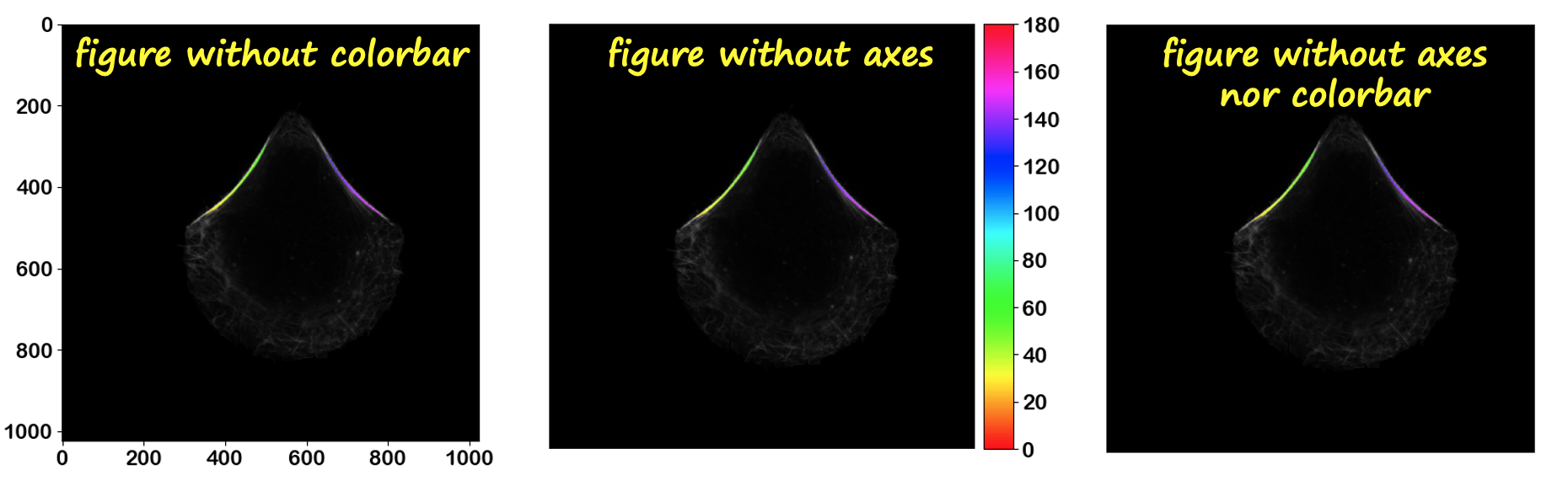
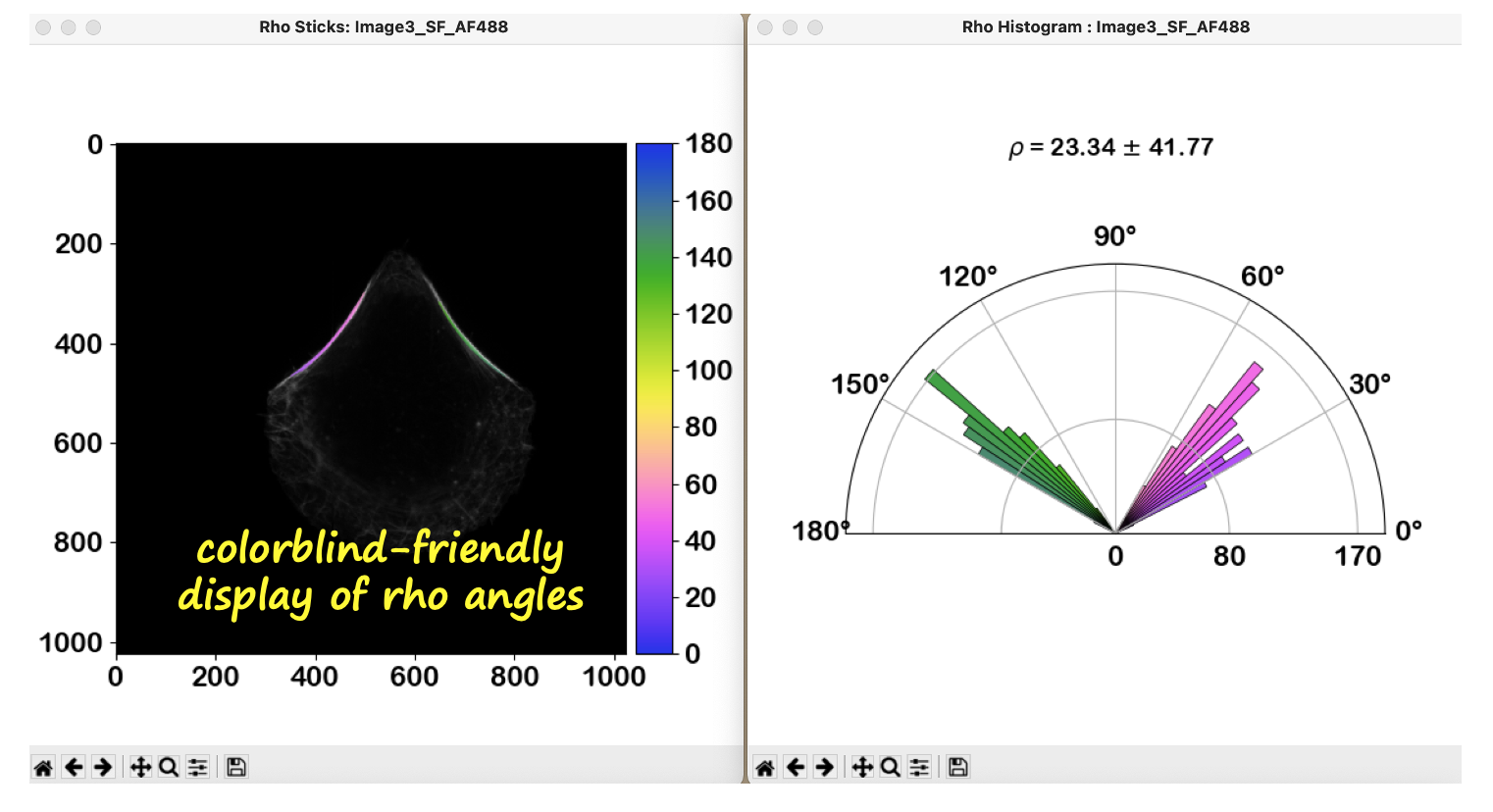
- Choose whether you want to display the axes and colorbars in the displayed figures by selecting the respective buttons. If needed, use colorblind-friendly colorbars by selecting the respective button.
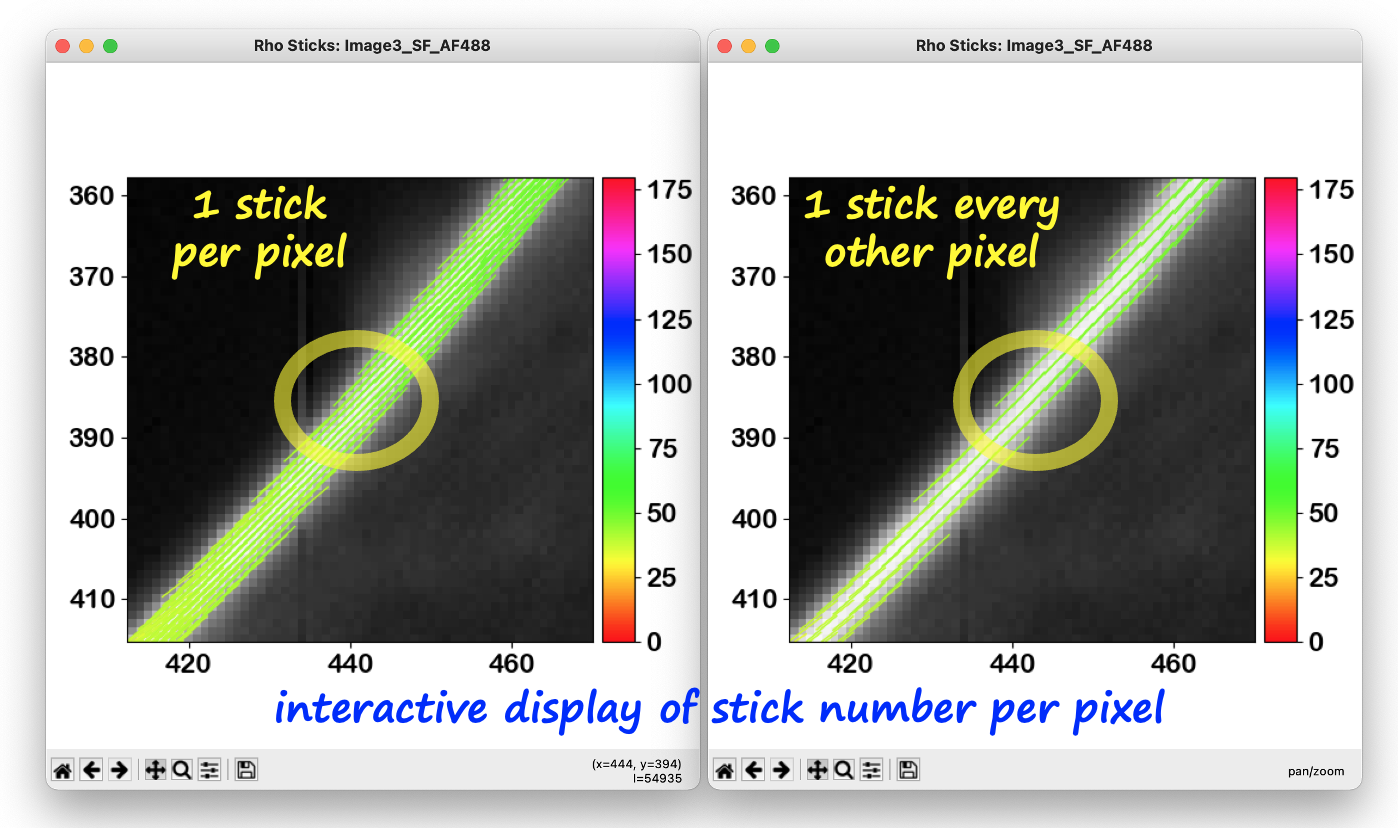
- Choose how many sticks you want to show/save (e.g., sticks for every pixel or sticks every other pixel) by using the respective spinners for the x and y axes.
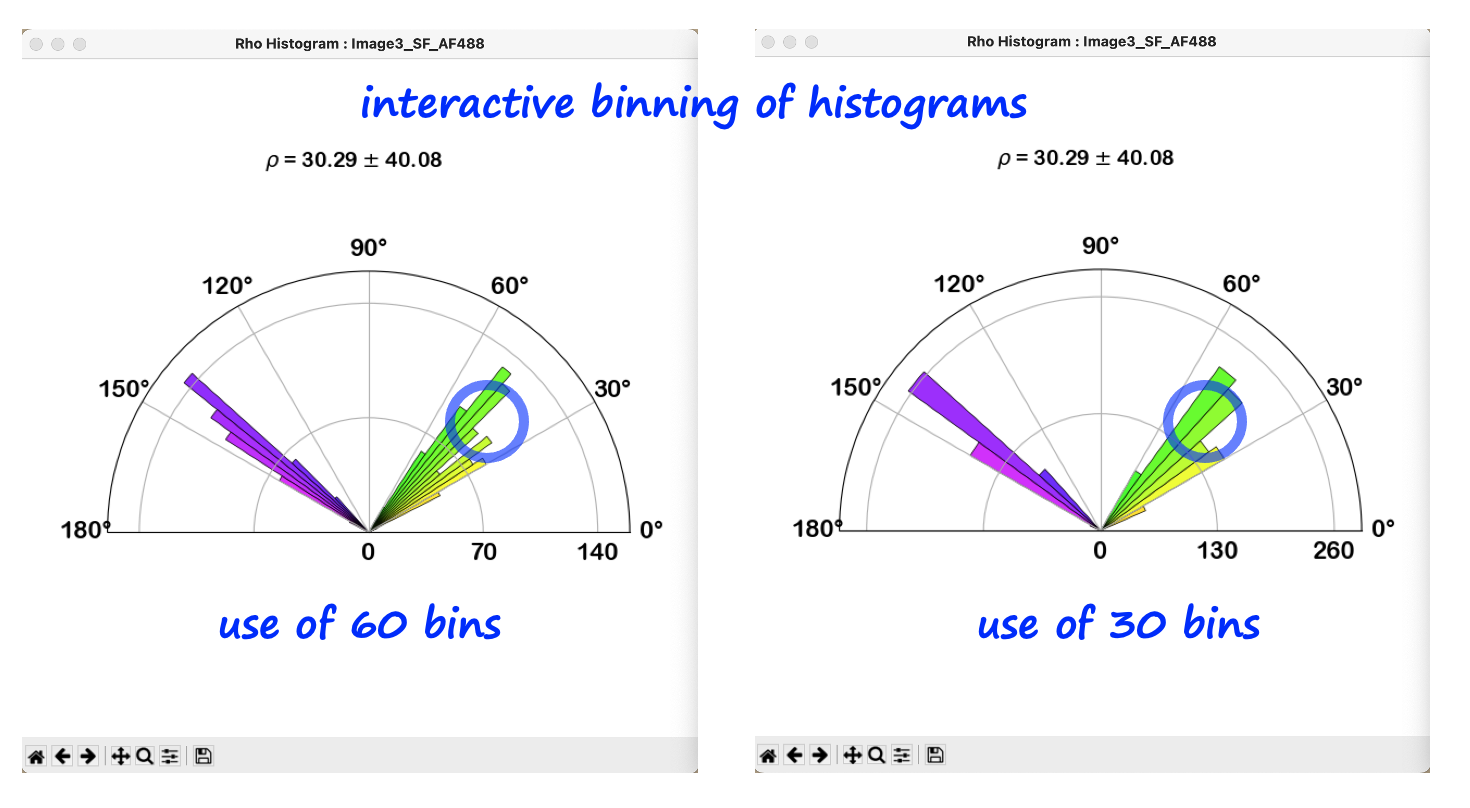
- Choose the bin number of histograms by using the respective spinner.
Note
All features are interactive and apply both to shown and saved figures.
- Hover data: When exploring Composite figures, move your mouse over specific pixels to see the calculated values for the respective variables. Hover over histogram bins to see the exact count and variable values for that bin.
-
Use the navigation toolbar: Every figure includes a standard navigation toolbar at the bottom:
- Home: Reset to the original view.
- Pan/Zoom: Click to zoom into the image or to scroll across zoomed regions.
- Save: Manually export the current view as an image file.
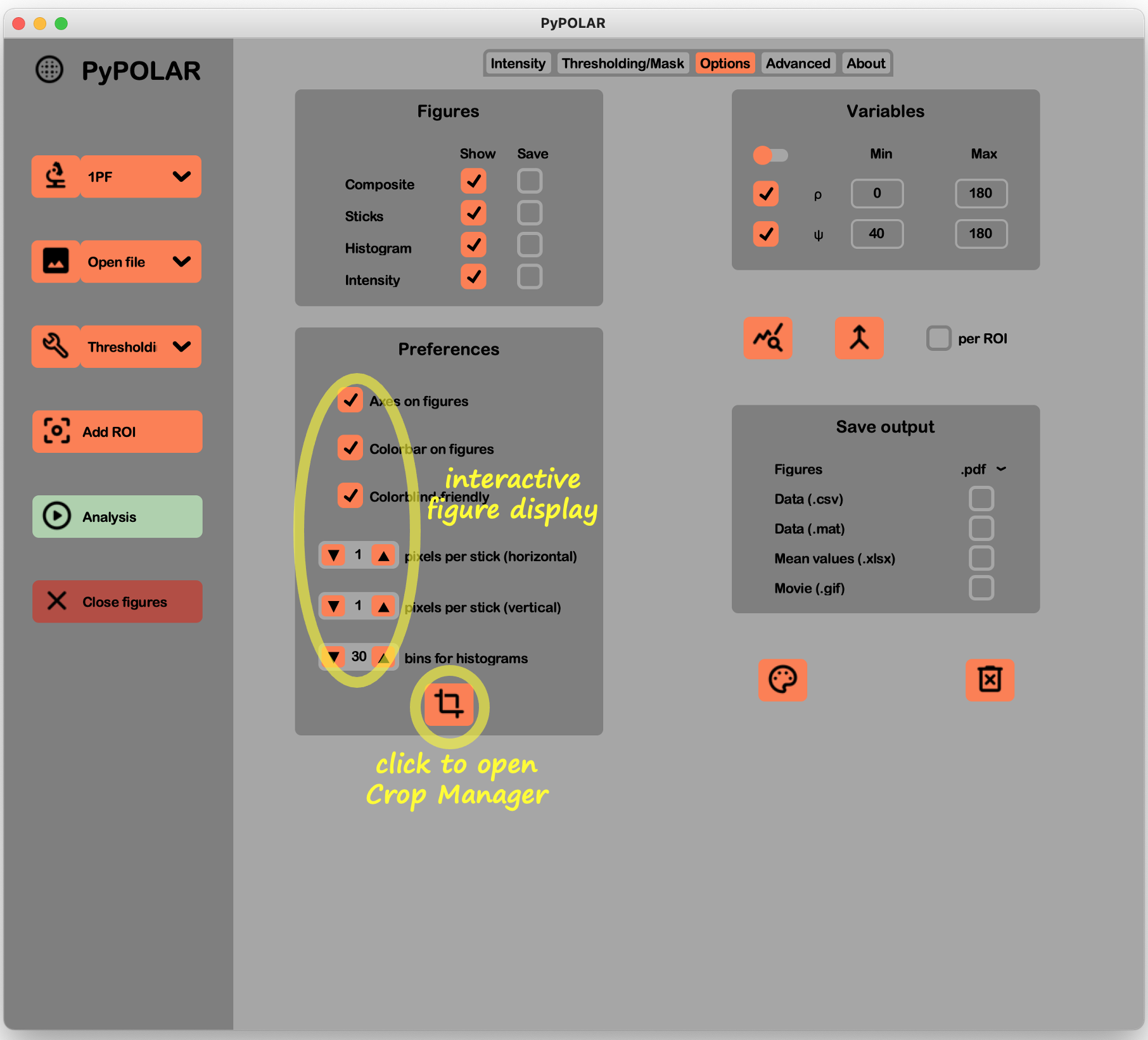
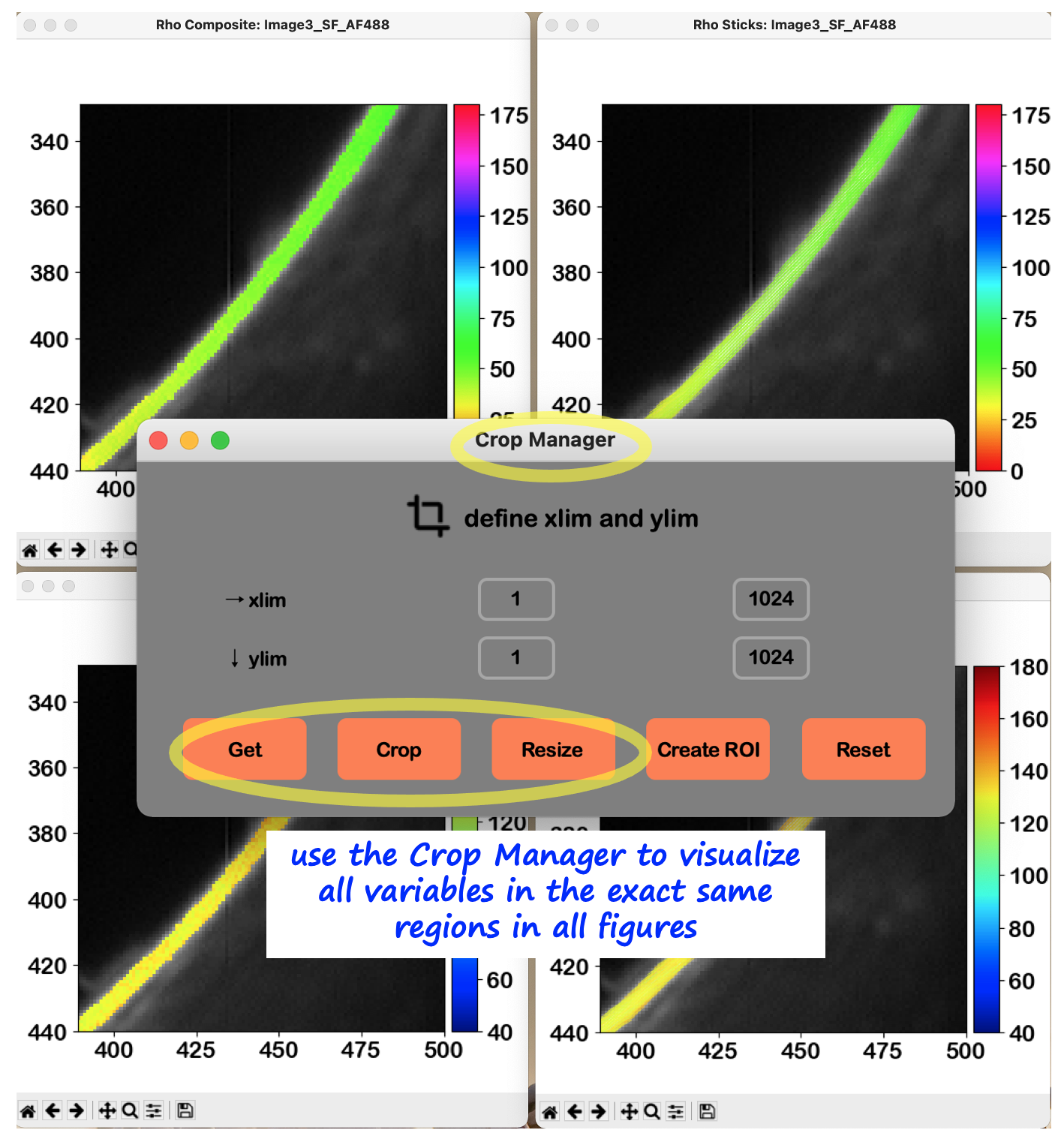
- Open the Crop Manager: Click the Crop Manager button at the bottom of the Preferences panel in the Options tab.
- Get axis limits: Display the x and y axis limits of any active image figure by clicking the Get button.
-
Crop figures:
- Enter the x and y axis limits in the xlim, ylim boxes to crop all image figures using these limits.
- Alternatively, use the zoom and pan tools of the navigation bar of the image figure of interest to select the region to crop. Click the Crop button to apply the same crop to all image figures. This allows visualization of all variables (e.g.,
$\rho$ ,$\psi$ for 1PF) in the exact same regions of the respective Composite or Sticks figures. - Reset the original axis limits by clicking Reset.
- Create ROI from crop (optional): You can convert your current zoom/crop limits into a rectangle ROI by clicking Create ROI.
- Resize figures: To optimize your workspace when managing multiple figure windows, resize your figure of interest and click Resize to match all other figures to its dimensions. Select or update the reference figure at any time by double-clicking it before hitting the Resize button.
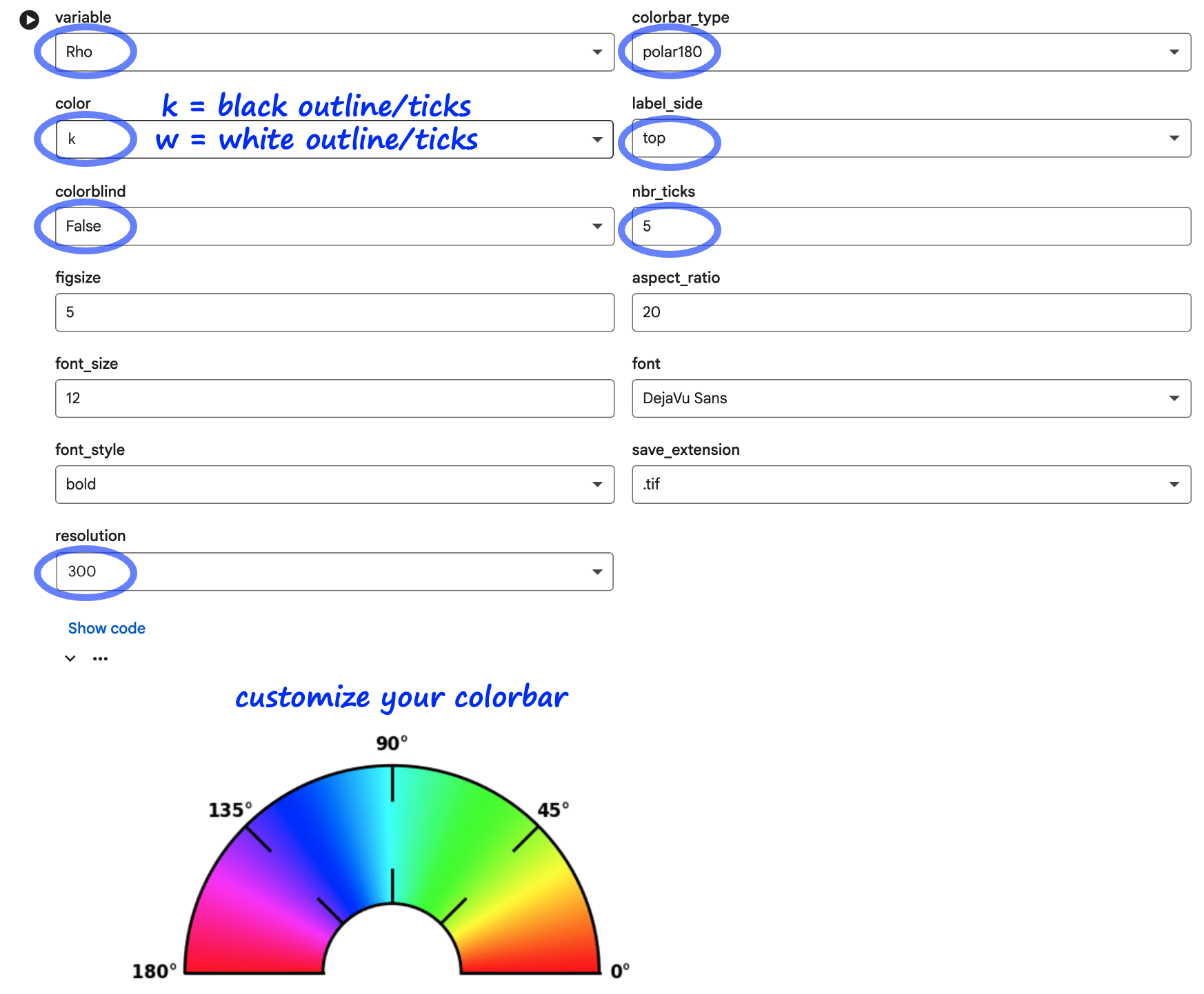
Click the palette button at the bottom right of the Options tab to customize the colorbars used for displaying variable values. This opens a Jupyter notebook when you can visualize colorbars and personalize their appearance (horizontal, vertical, or polar; label position; figure and font size; number of ticks; colorblind-friendly etc).
 PyPOLAR is developed under the BSD 2-Clause License, Copyright © 2021 • cristel.chandre@cnrs.fr
Tutorials
- Tutorial 1 (basic analysis)
- Tutorial 2 (mask and ROI)
- Tutorial 3 (batch analysis)
- Tutorial 4 (reference angle and boundary)
- Tutorial 5 (figures and colorbars)