Tutorial 2
- Choose the experimental method and file to analyze as in Step 1 of Tutorial 1.
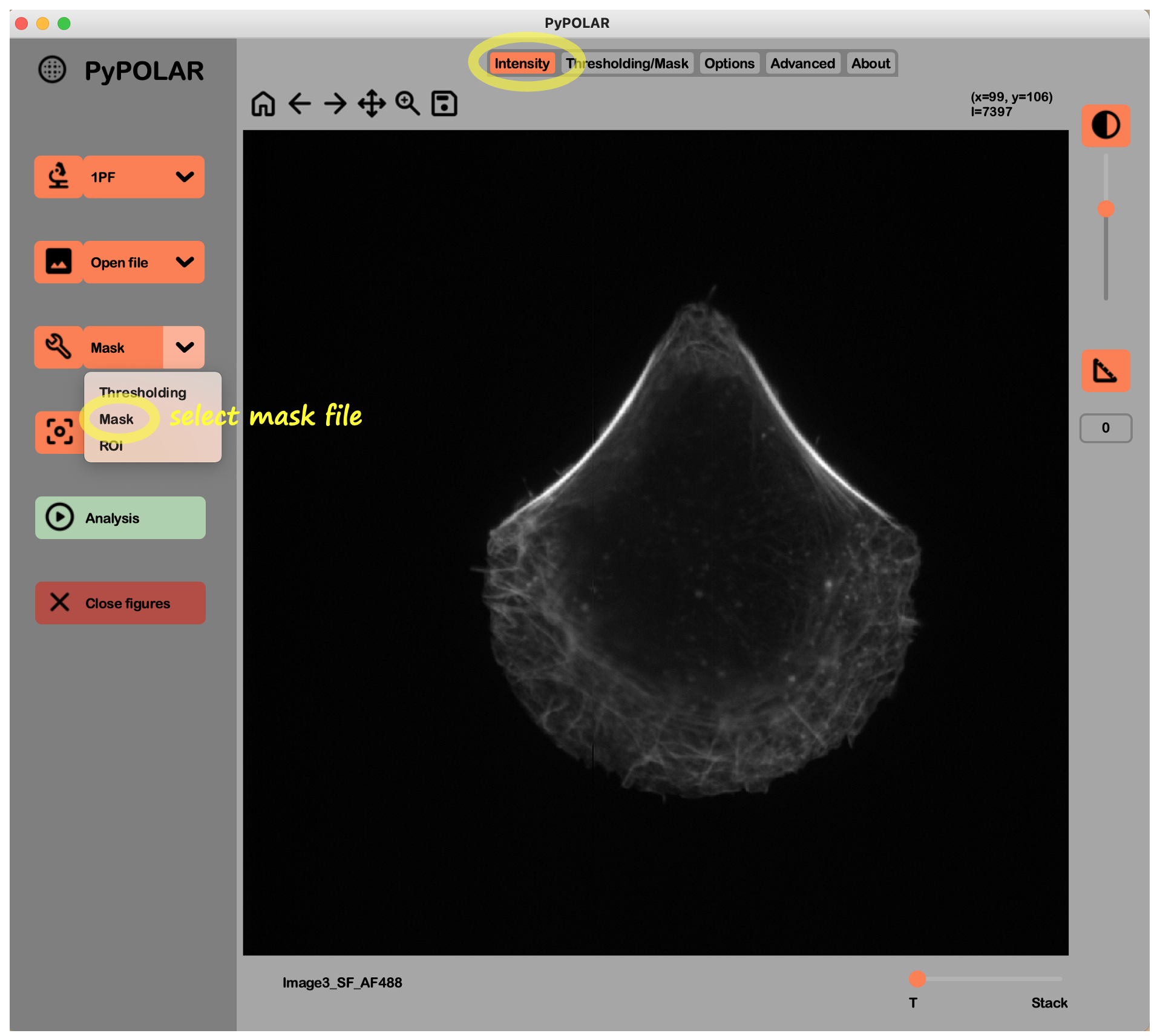
- Select mask mode: Select Mask from the tool dropdown menu in the left panel.
-
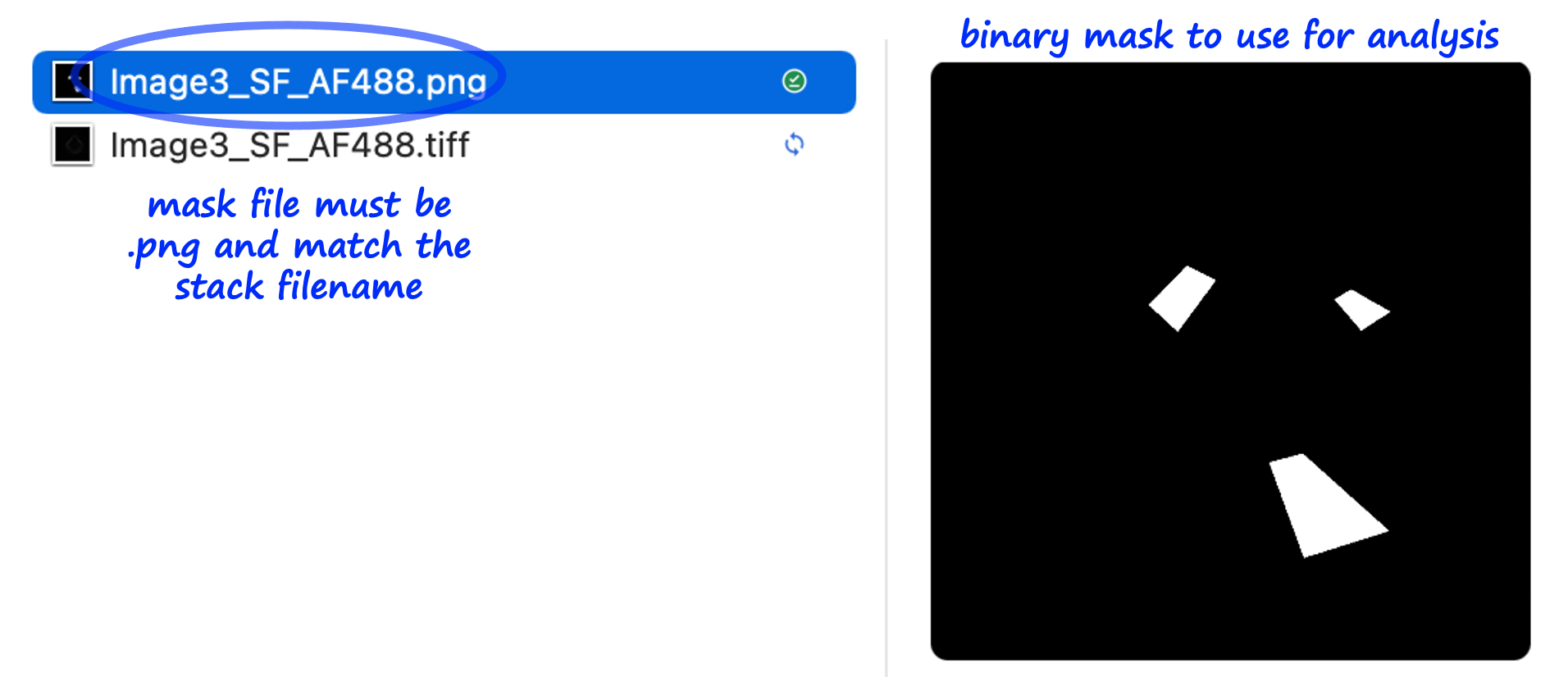
Select mask file: Browse and select the folder containing your mask file. The mask file must be a
.pngwith a filename identical to the image stack filename. Once imported, the pixels contained in the mask will appear in the Thresholding/Mask tab.
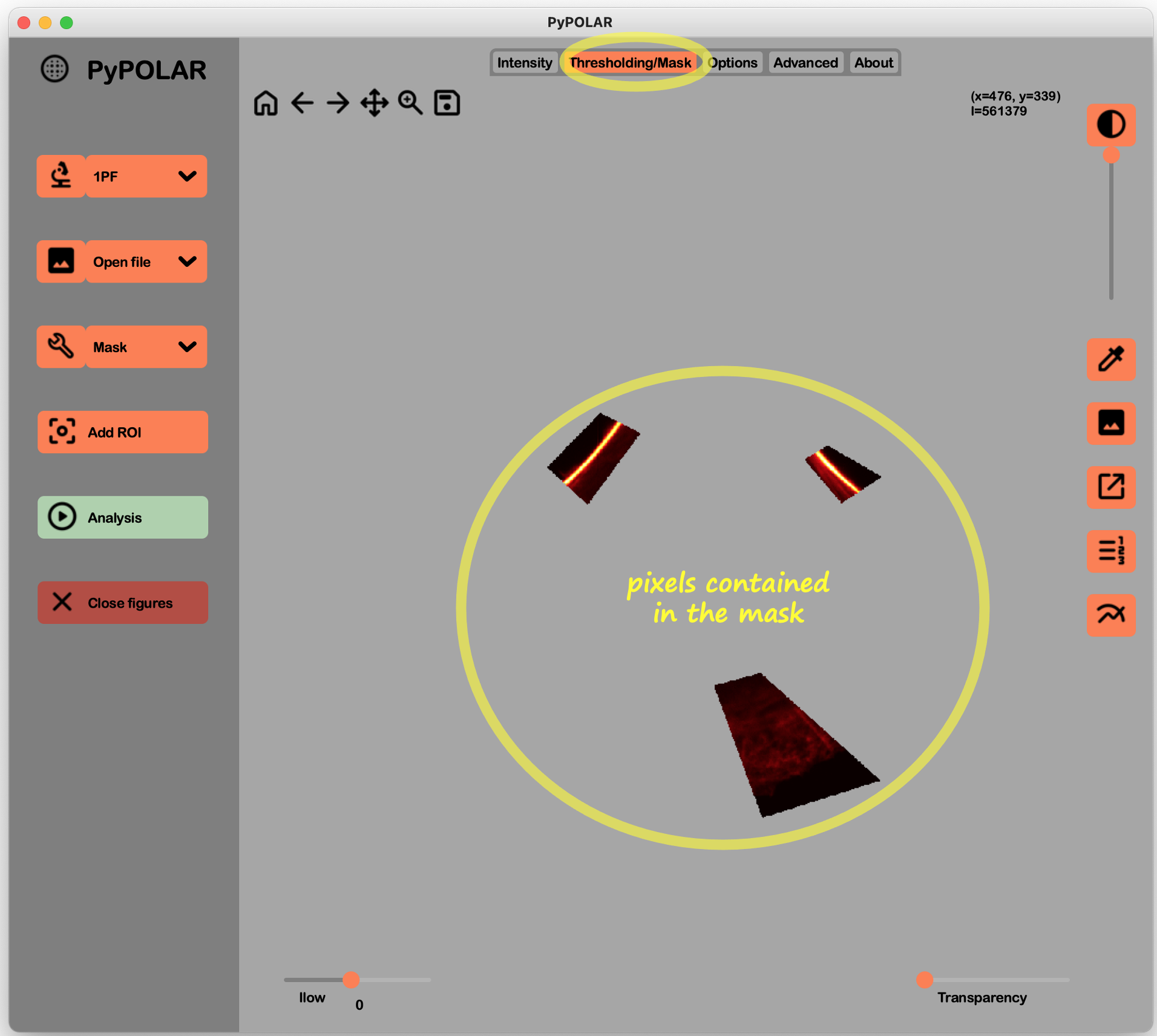
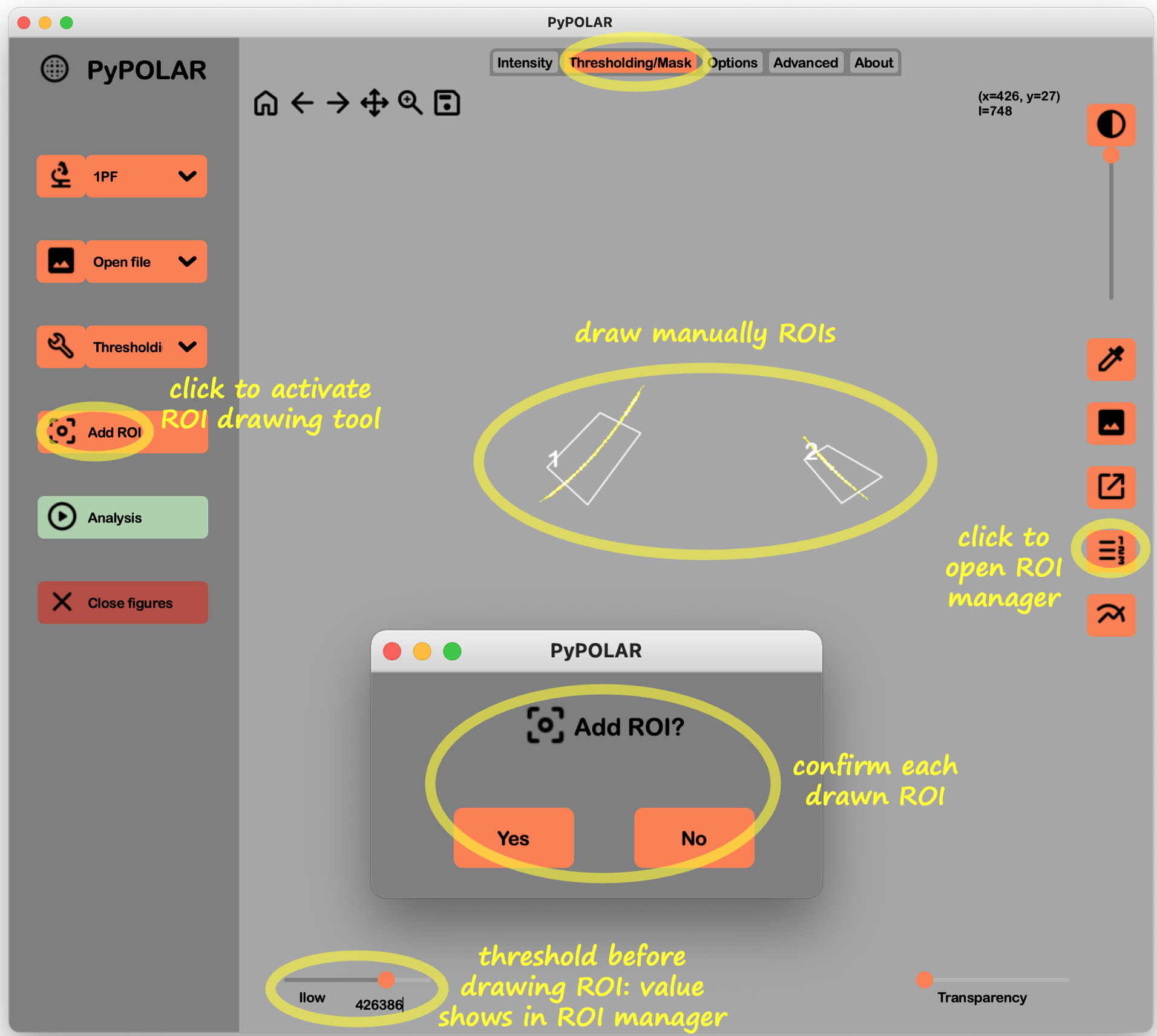
- Activate draw mode: Navigate to the Thresholding/Mask tab to begin manual ROI creation. Click the Add ROI button in the left panel to enable the drawing tool.
-
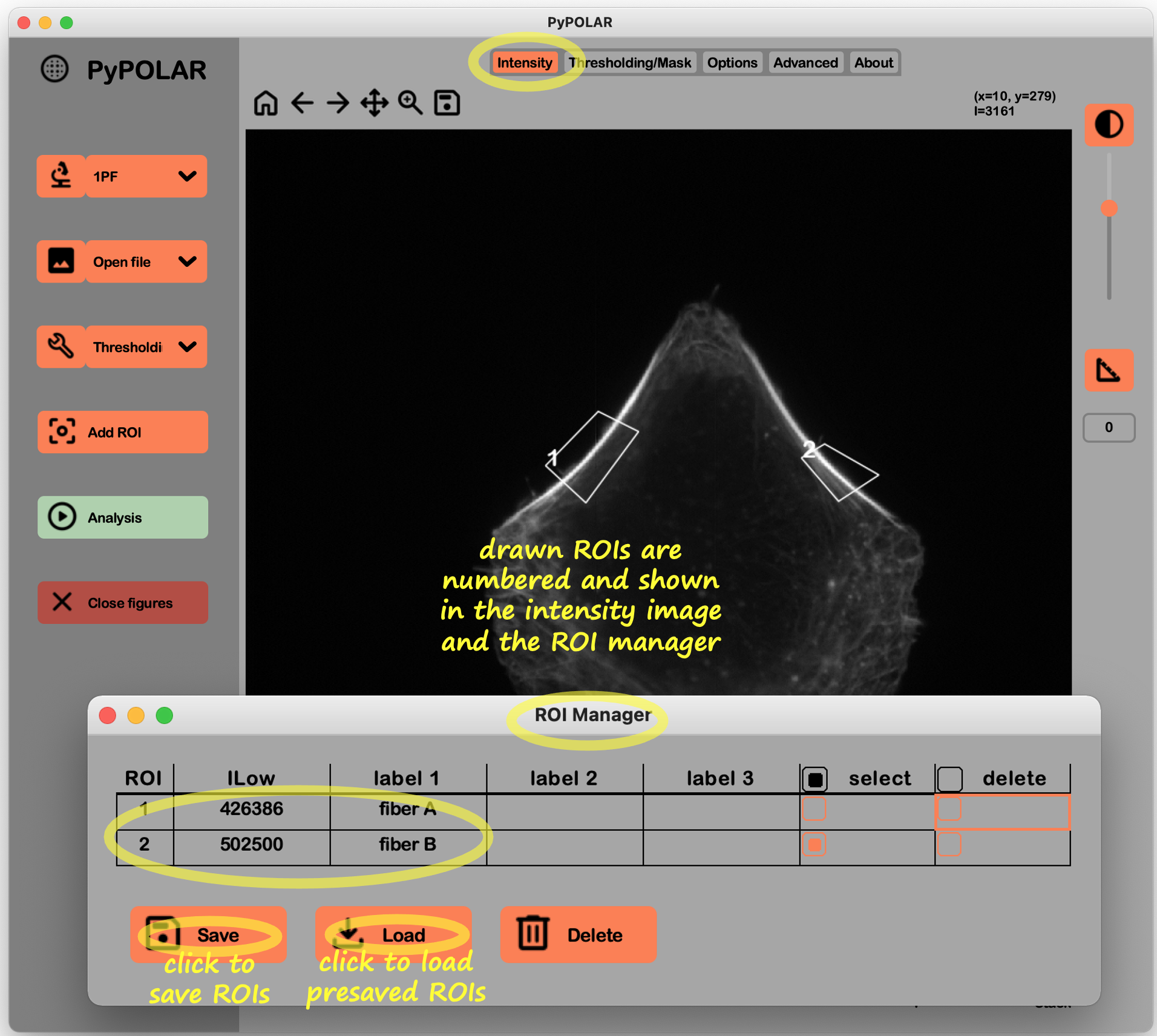
Draw ROI: Manually draw the regions of interest (ROIs) directly on the image. Click the Add ROI button again at any time to exit the drawing mode. Each confirmed ROI is numbered and visible on the Intensity tab, the Thresholding/Mask tab, and within the ROI Manager list. To open the latter, click the ROI Manager button in the right panel of the Thresholding/Mask tab. To
combine intensity thresholding with ROIs, adjust the threshold intensity
$I_{low}$ before drawing; each ROI can maintain a unique$I_{low}$ value, which will also be listed in the ROI Manager. -
Save ROI (optional): Click the Save button in the ROI Manager to save the defined ROIs as a
.pyroifile and reuse it for analysis by clicking the Load button within the ROI Manager.
-
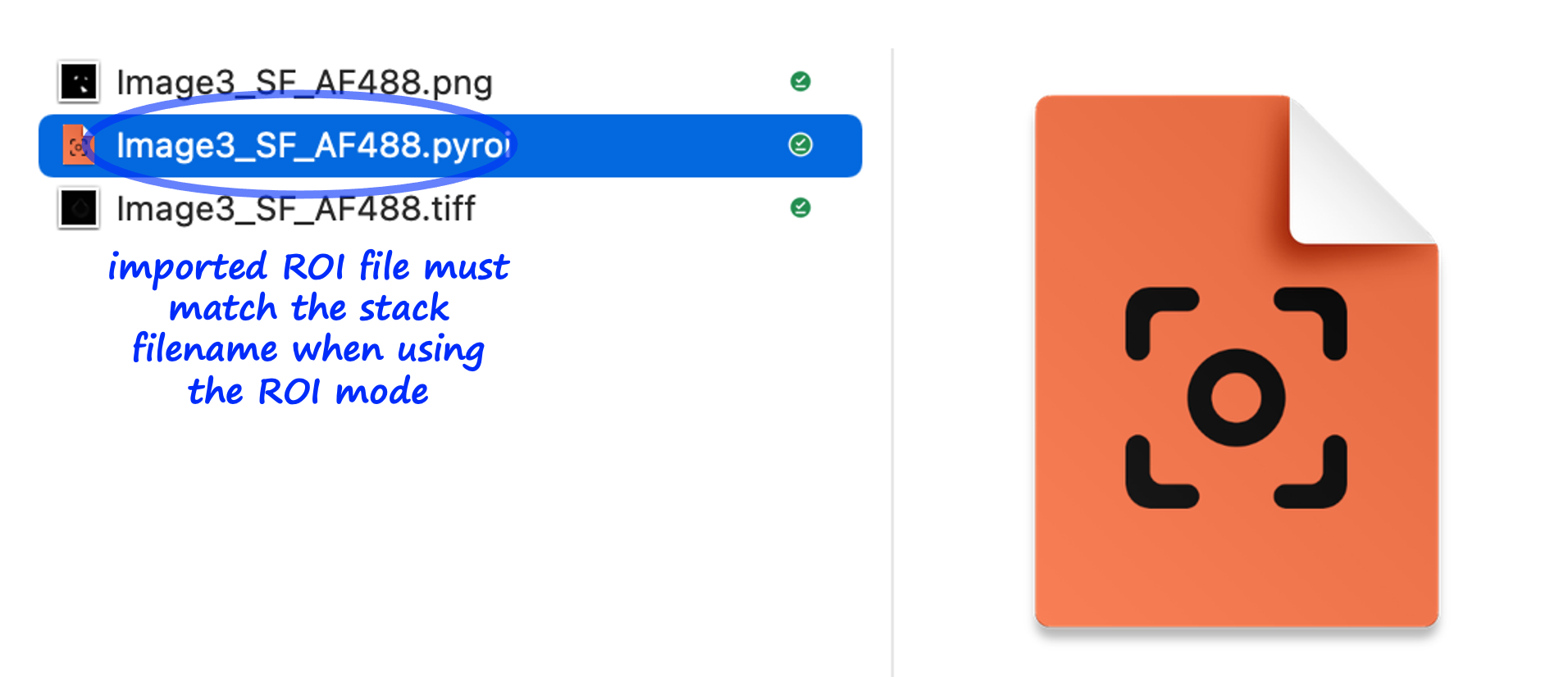
Load ROIs: PyPOLAR supports native
.pyroifiles, as well as.roior.zipfiles generated in ImageJ/Fiji.- Select ROI from the tool dropdown menu in the left panel to browse for your file. The ROI filename must be identical to the image stack filename.
- Alternatively, load ROIs directly within the ROI Manager using the Load button.
-
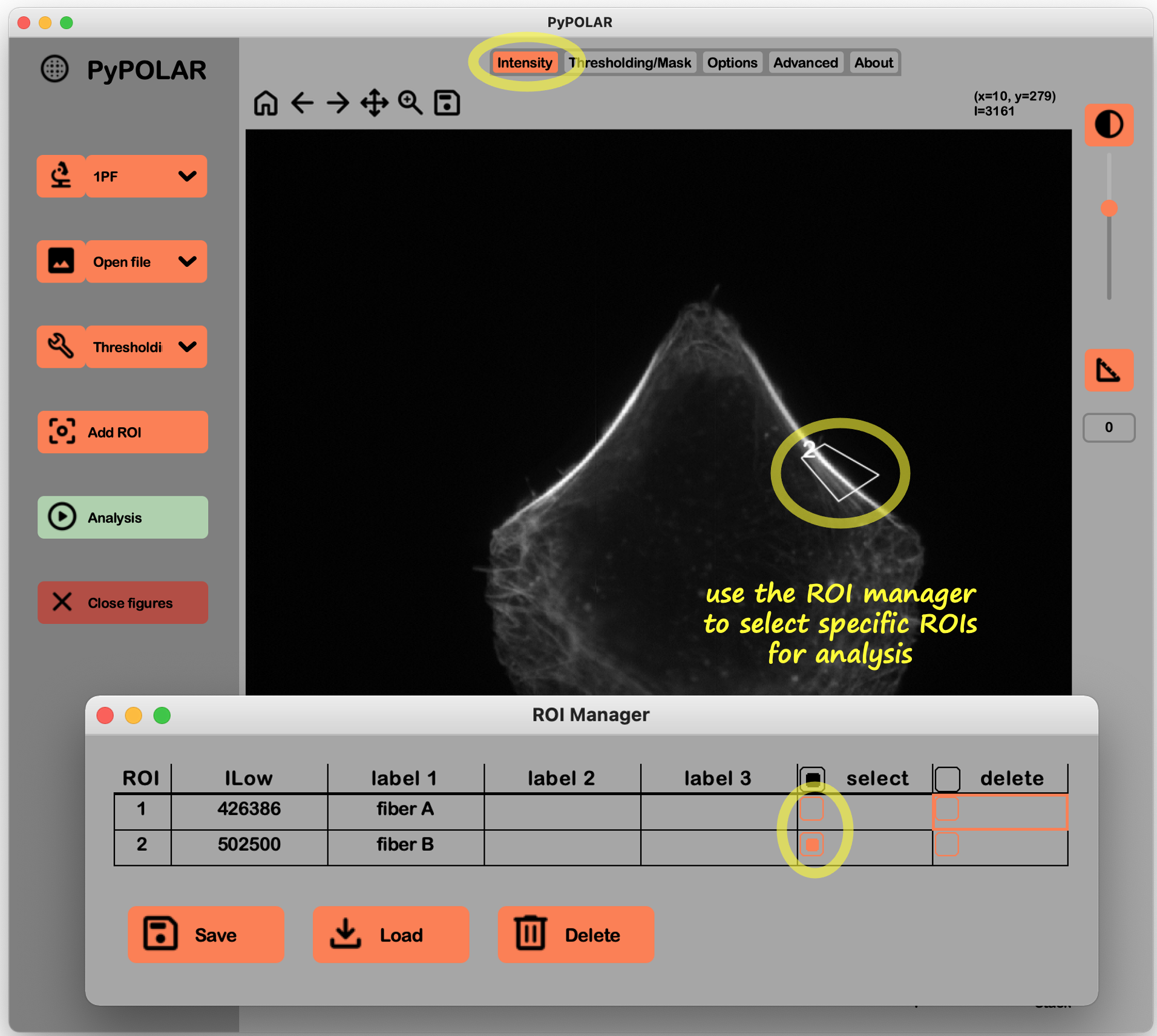
Explore and modify the ROI list: The index number of the ROI is used in the Excel export. You can manually renumber these if necessary. Specific ROIs can be selected or deselected for analysis in the ROI Manager, and appear interactively in the Intensity and Thresholding/Mask tabs. If an ROI is permanently deleted, the remaining regions are renumbered automatically.
$I_{low}$ values and labels added and displayed in the ROI Manager are saved in the.pyroifile and in the final Excel file.
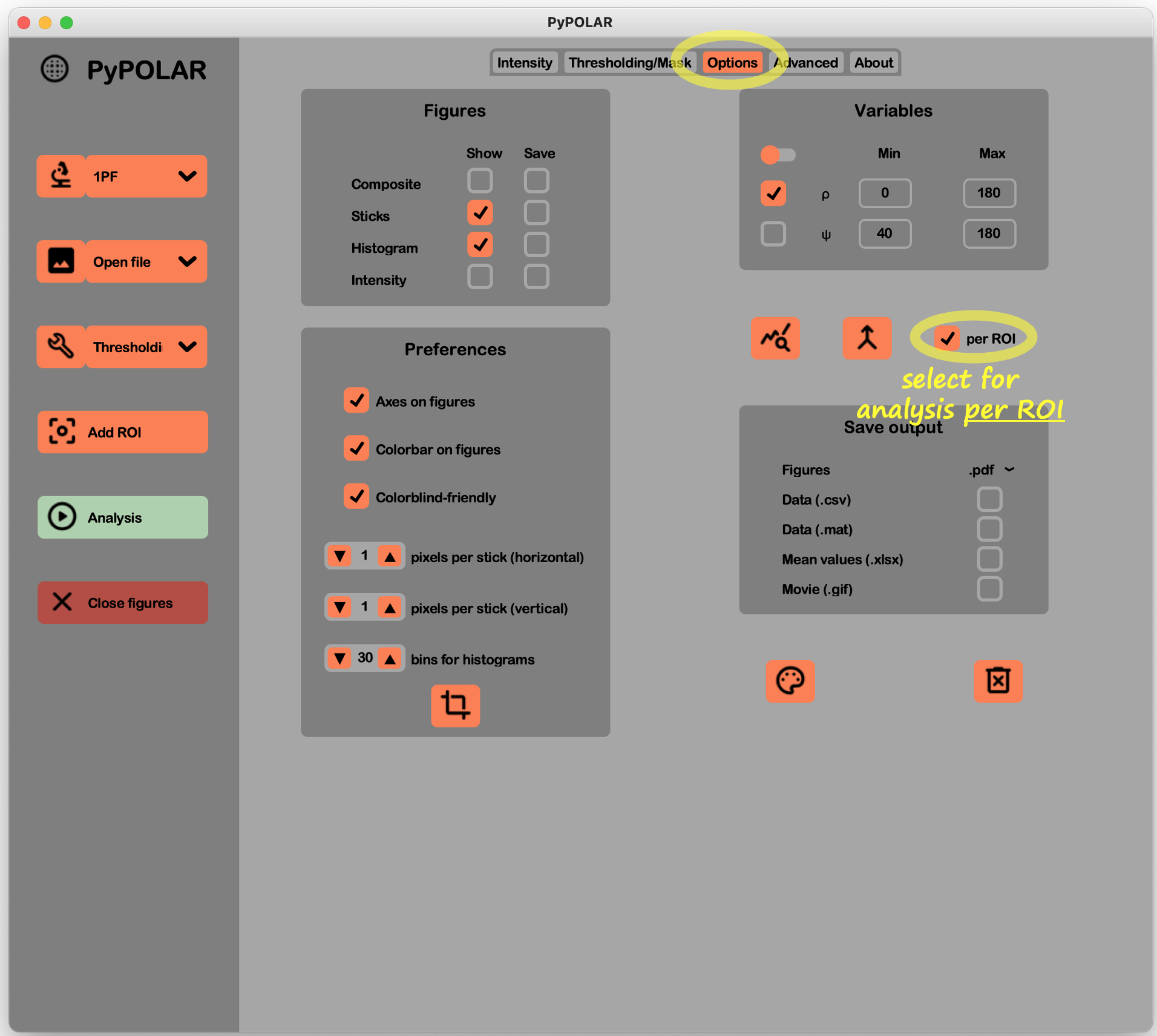
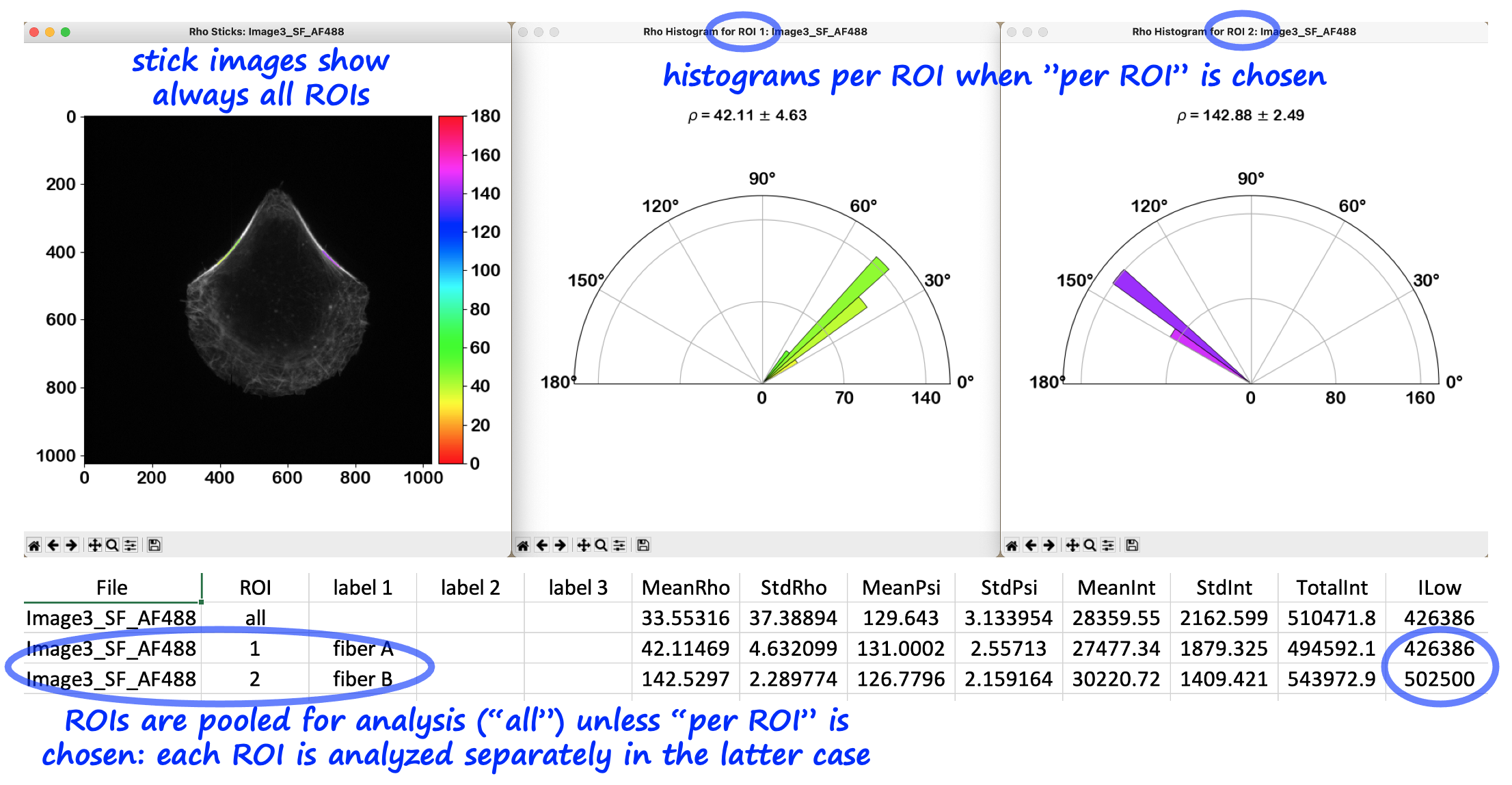
- Configure analysis: Set your experimental parameters, variables to calculate and output files as described in Step 3 of Tutorial 1. If results need to be displayed individually for each ROI, click per ROI in the Options tab to generate histograms and Excel reports for individual ROIs. The per ROI feature is interactive; clicking it again will pool all ROI data into a single result.
- Analyze: Click the Analysis button in the left panel. Explore figures as described in Step 4 of Tutorial 1.
 PyPOLAR is developed under the BSD 2-Clause License, Copyright © 2021 • cristel.chandre@cnrs.fr
Tutorials
- Tutorial 1 (basic analysis)
- Tutorial 2 (mask and ROI)
- Tutorial 3 (batch analysis)
- Tutorial 4 (reference angle and boundary)
- Tutorial 5 (figures and colorbars)