Tutorial 3
- Select method: Choose the experimental method (e.g., 1PF) in the left panel.
-
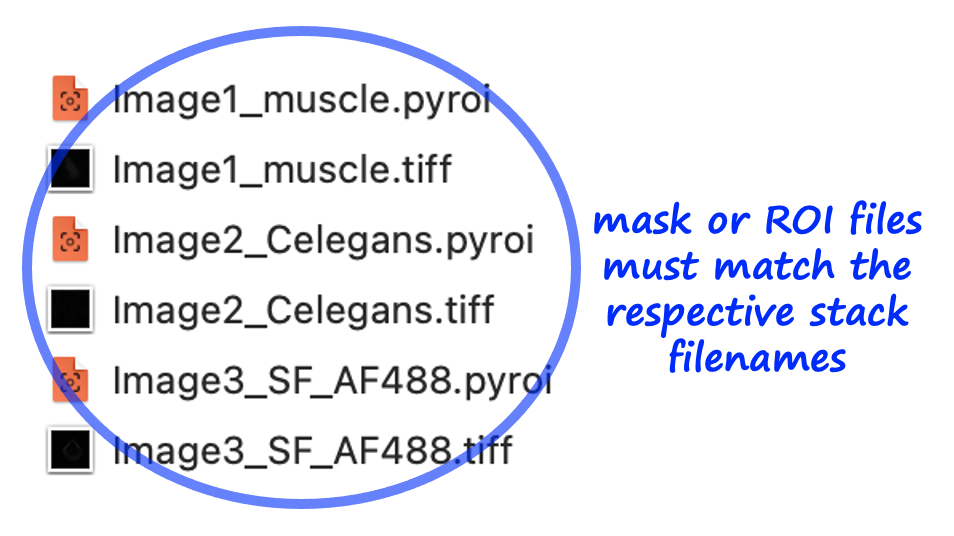
Organize data: Place all image stacks to be analyzed in a single folder. If using masks or ROIs, ensure that mask/ROI filenames match their corresponding image stack filenames exactly.
- Mask files must be
.pngfiles. - ROI files must be
.pyroi/.roi/.zipfiles.
- Mask files must be
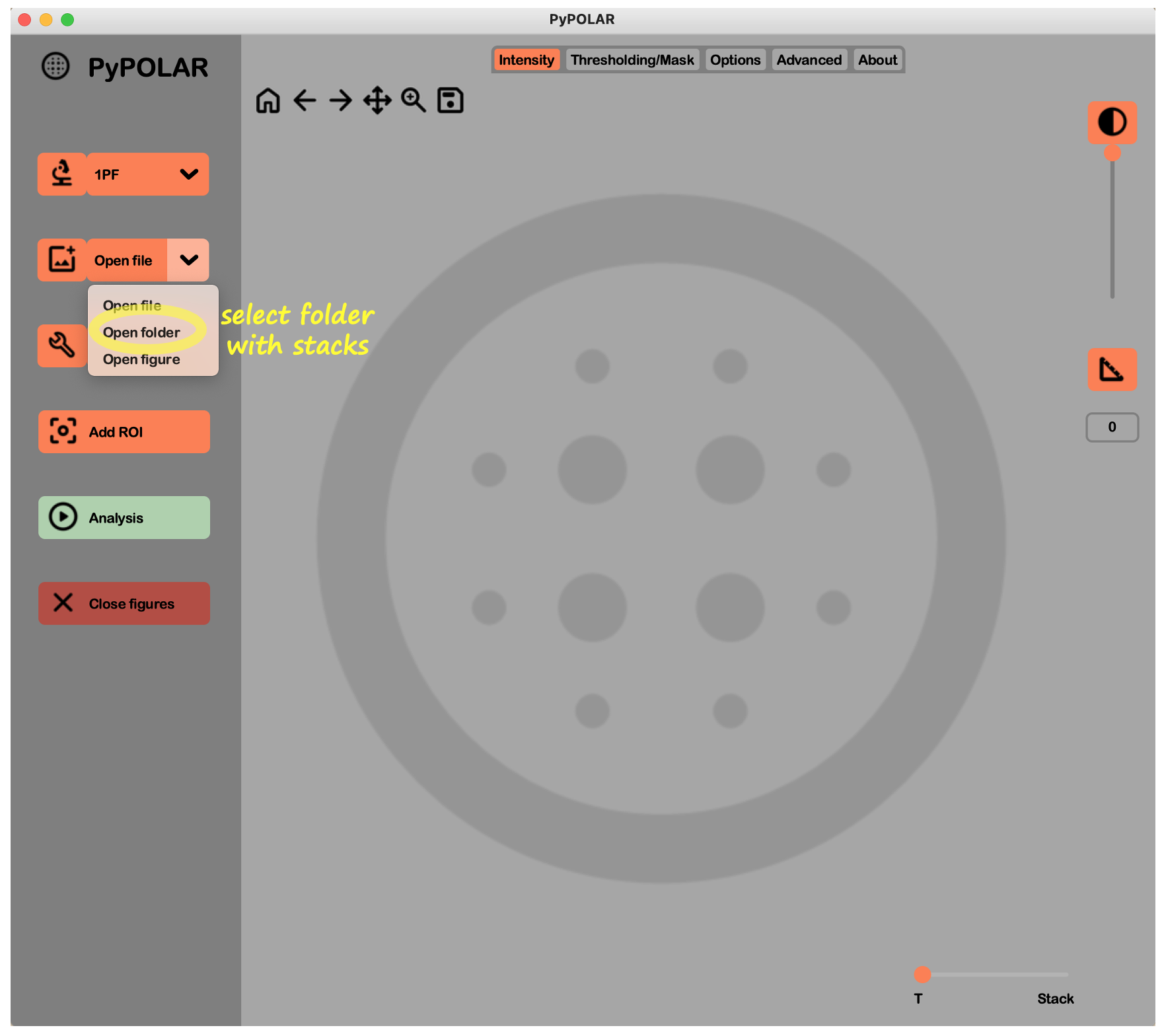
- Open batch: Select Open folder from the image dropdown menu in the left panel to browse and select the folder containing your image stacks.
-
Define intensity threshold: If not using masks or ROIs, set a global
$I_{low}$ threshold in the Thresholding/Mask tab that is appropriate for the signal levels across all files. -
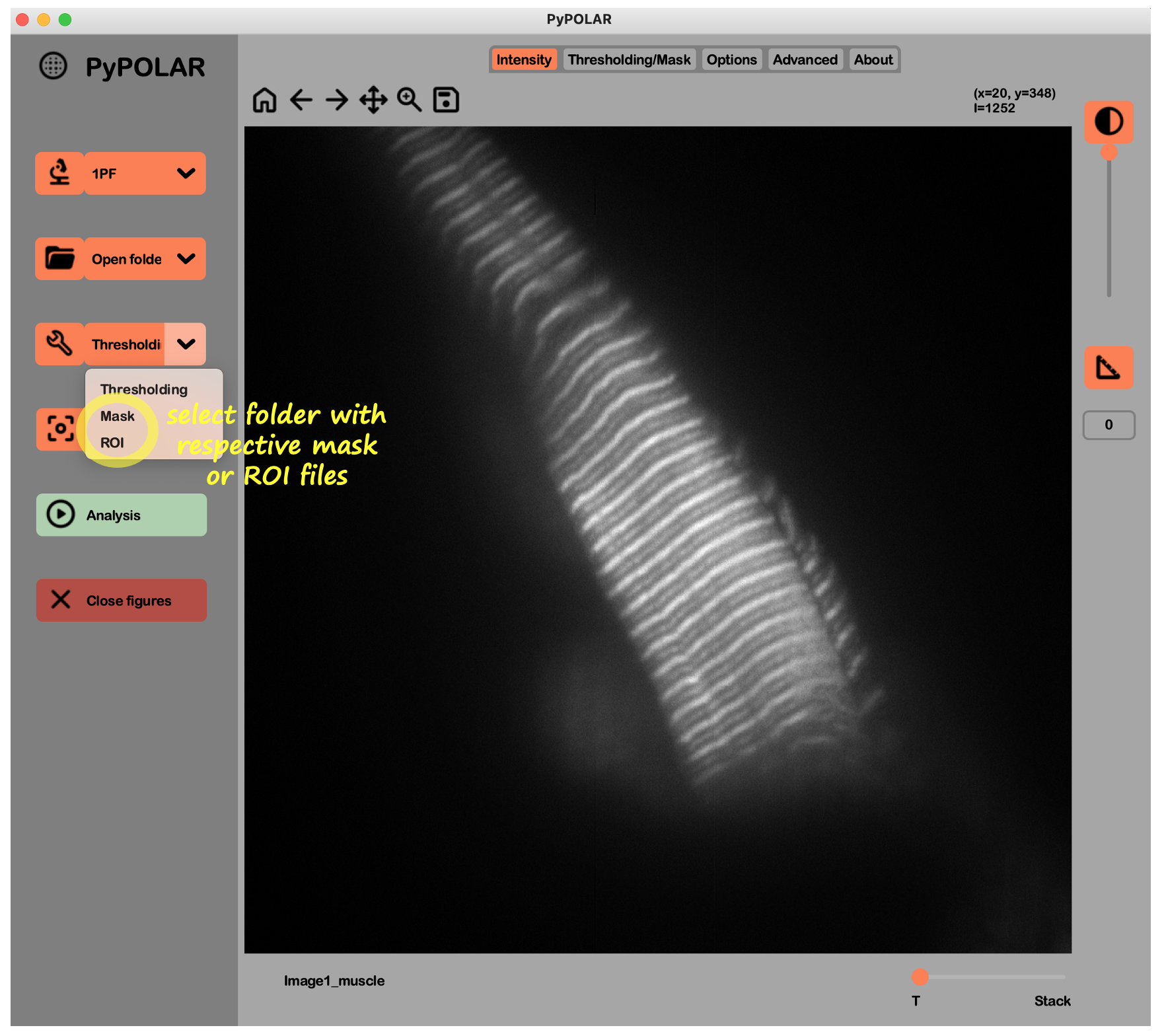
Include masks/ROIs: If you wish to use predefined masks or ROIs for the batch, select Mask or ROI in the tool dropdown in the left panel. Browse and select the folder containing your mask or ROI files. The software will automatically pair image files with their corresponding
.pngor.pyroi/.roi/.zipfiles.
-
Select variables and experimental settings: In the Options and Advanced tabs, set the variables (e.g.,
$\rho$ ,$\psi$ for 1PF) and experimental parameters (dark value, polarization offset, etc...) that will apply to the entire batch. - Select output settings: Choose your desired figure formats and data tables in the Options tab. If results need to be displayed individually for each ROI, click per ROI in the Options tab.
- Analyze: Click the Analysis button in the left panel. Explore figures as described in Step 4 of Tutorial 1. Batch results are automatically saved within the same folder as the original files.
- Reset workspace: To clear the batch configuration and prepare for a new set of data, click the trash button at the bottom right of the Options tab.
 PyPOLAR is developed under the BSD 2-Clause License, Copyright © 2021 • cristel.chandre@cnrs.fr
Tutorials
- Tutorial 1 (basic analysis)
- Tutorial 2 (mask and ROI)
- Tutorial 3 (batch analysis)
- Tutorial 4 (reference angle and boundary)
- Tutorial 5 (figures and colorbars)