Tutorial 4
- Select method and file: Choose the experimental method and file to analyze as in Step 1 of Tutorial 1.
- Select pixels to analyze: Select the pixels to analyze using intensity thresholding, masks, or ROIs. See Tutorials 1 and 2 for detailed steps.
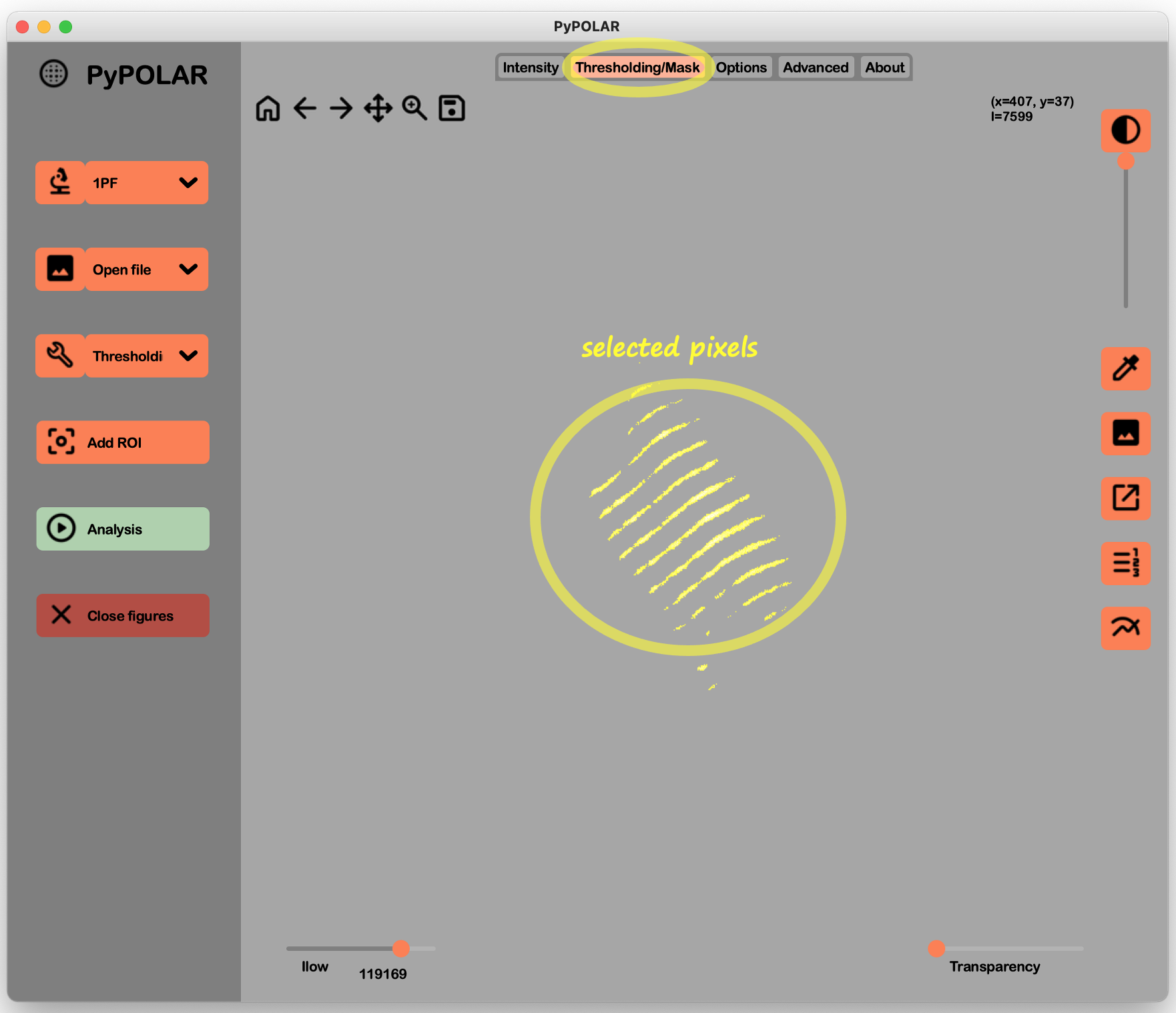
Use this method for normalizing to global orientations like embryo axes, cell division axes, or migration directions.
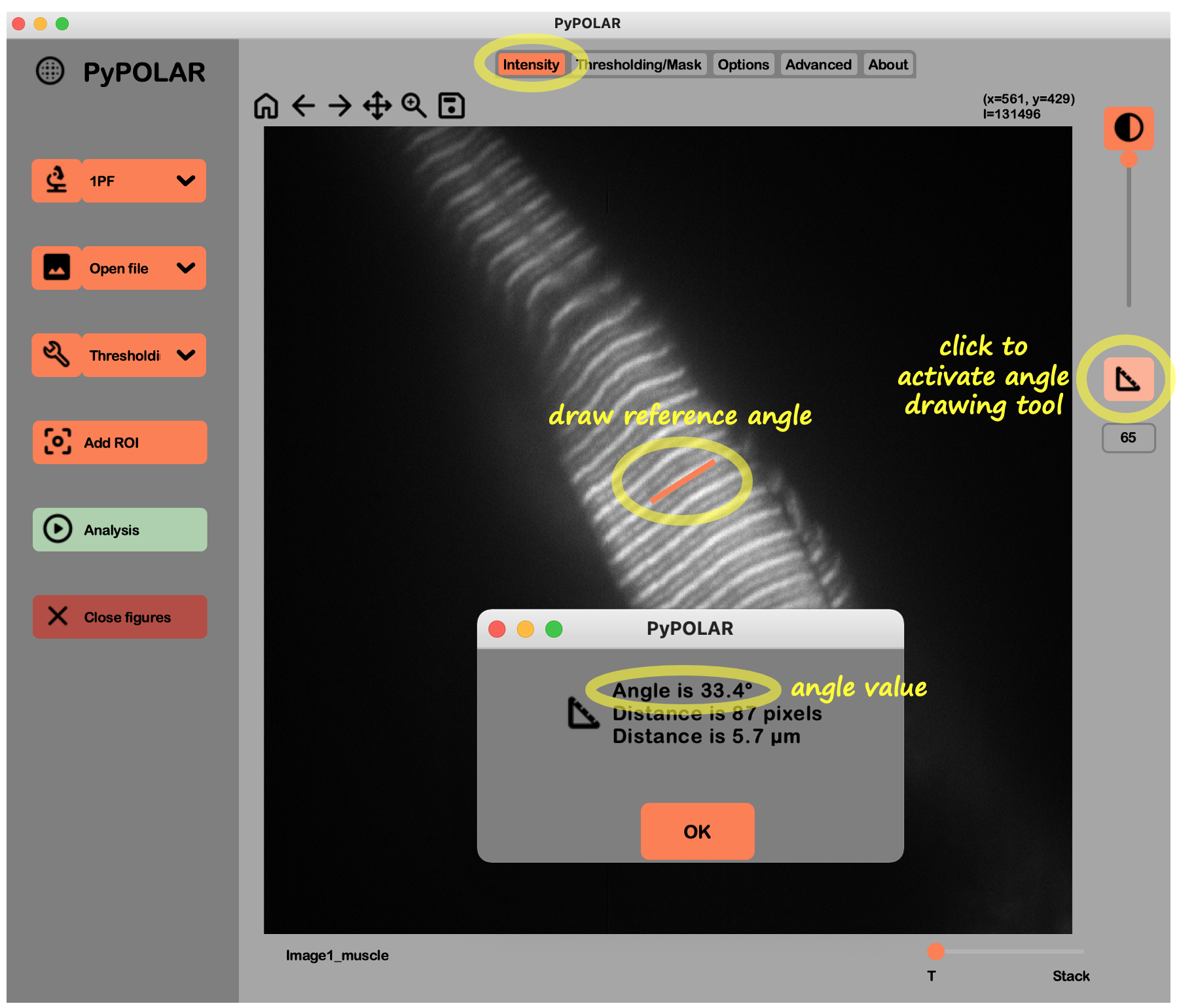
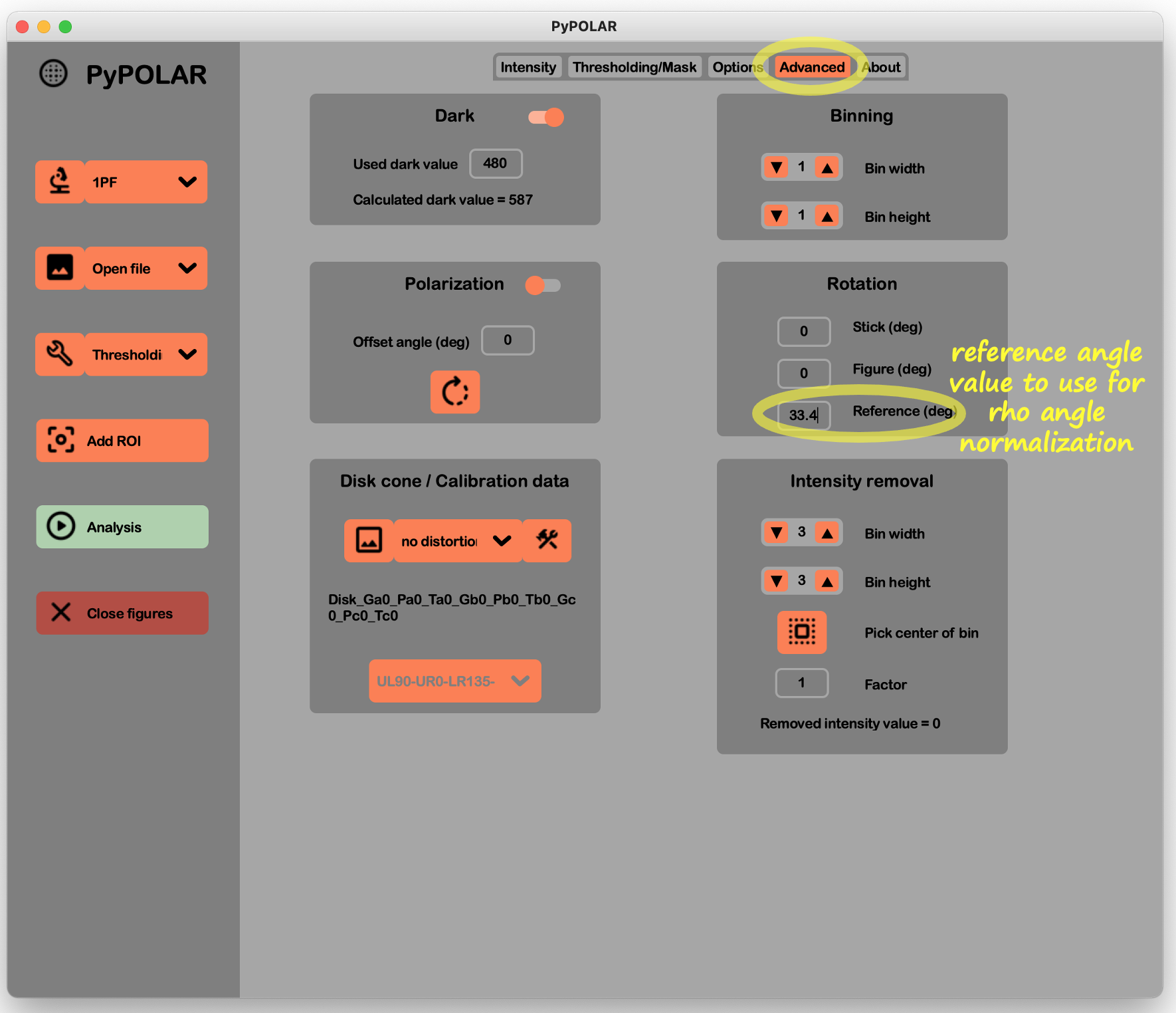
- Set angle: Enter the specific angle value in the Reference(deg) box in the Rotation panel of the Advanced tab and hit Enter. If needed, use the square icon angle tool in the right panel of the Intensity tab to draw a line manually on the image to find the correct angle value. If you have rotated the image (Figure(deg) feature in the Rotation panel of the Advanced tab), ensure the reference angle is determined based on the newly rotated figure appearing in the Intensity tab.
Use this method for normalizing to local structural orientations like the cell contour, cell-cell junctions or fibers.
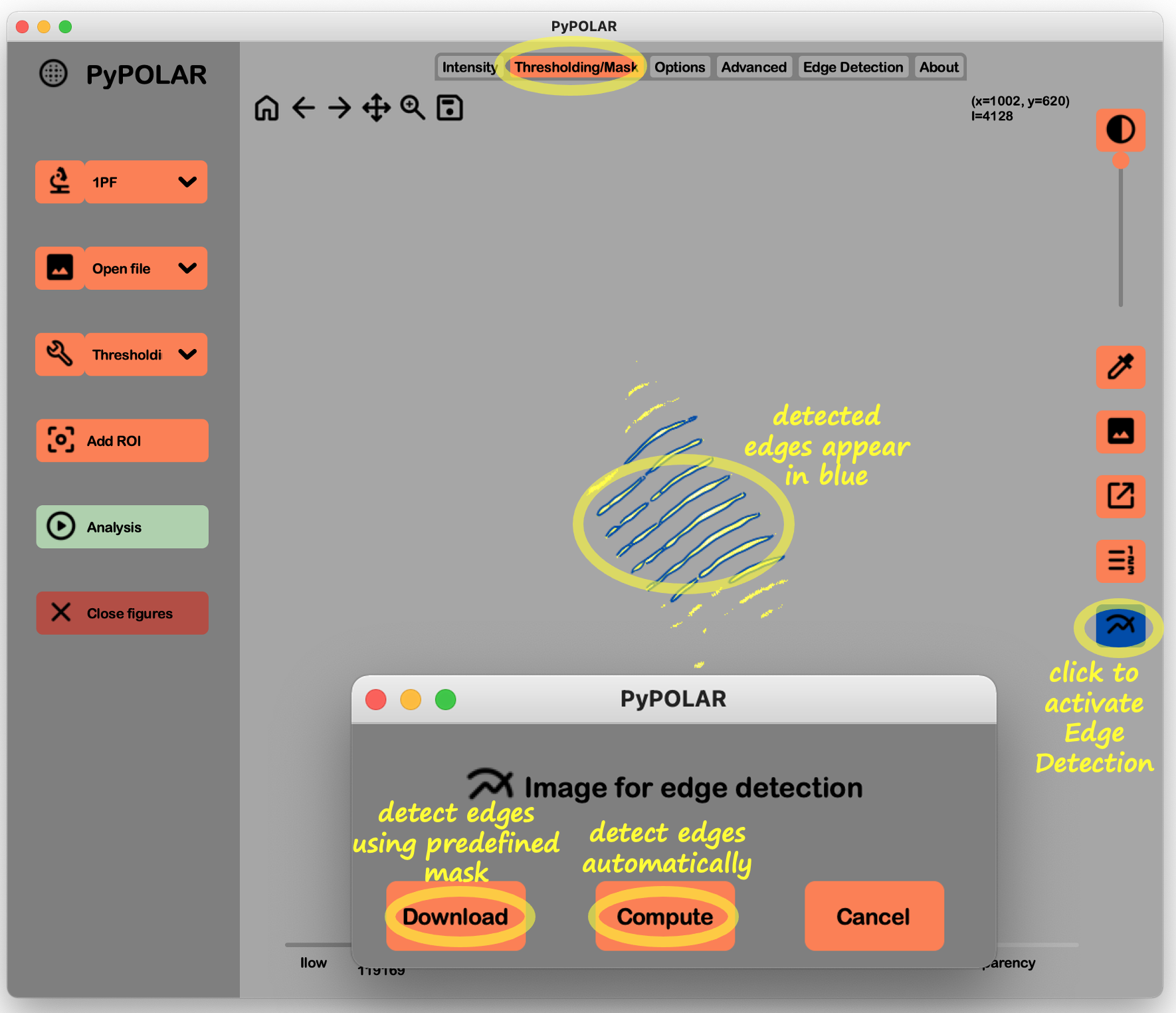
- Activate Edge Detection tool: Click the Edge Detection button in the bottom right of the Thresholding/Mask tab. The Edge Detection button remains blue while active.
-
Detect edges: Select in the opening window the method for edge detection:
- Automatic: Click Compute to let the software detect boundaries. Detected edges will appear blue in the Thresholding/Mask tab.
- Manual mask: Click Download to use a predefined mask of your boundaries.
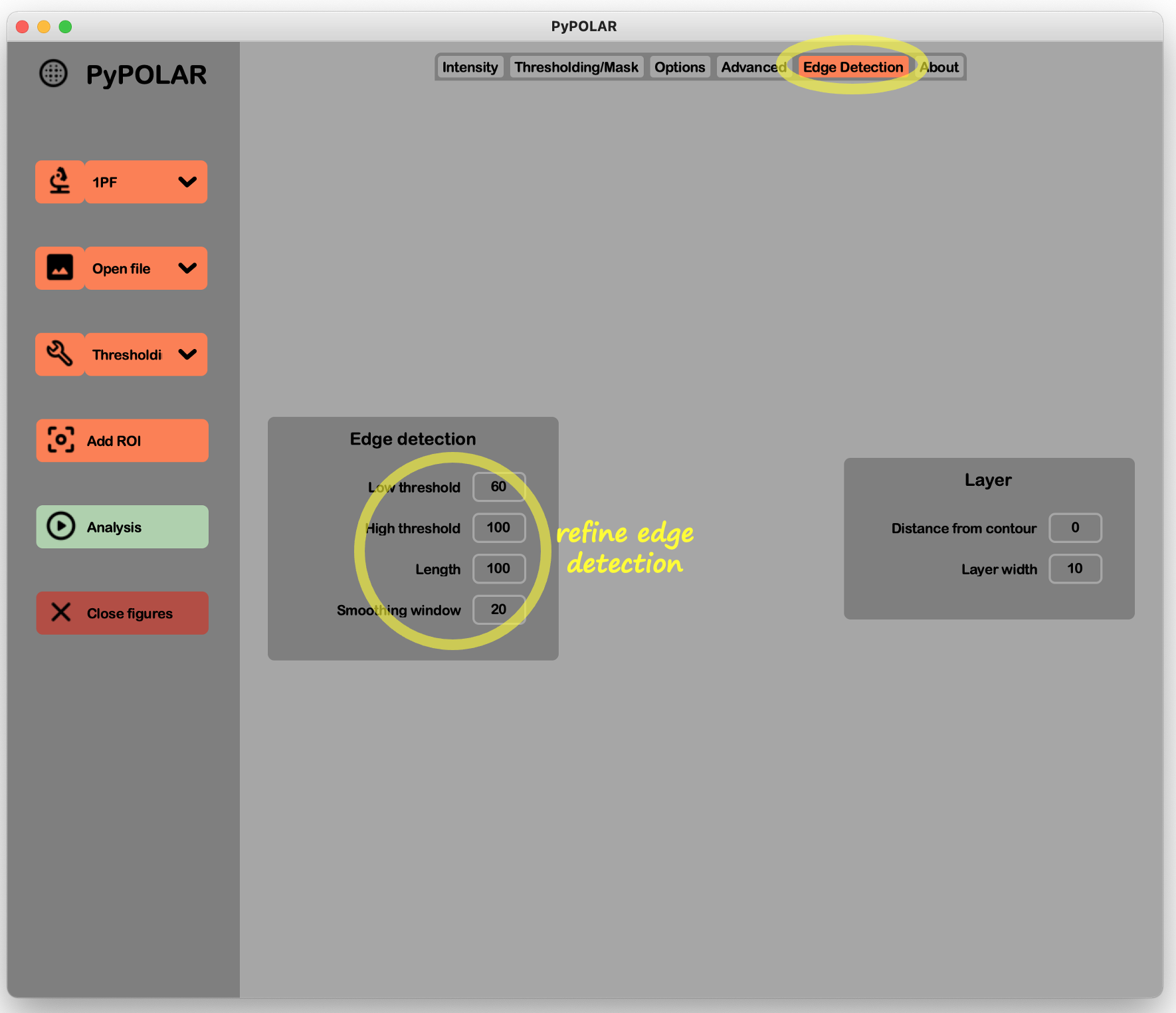
- Refine edge detection: Use the Edge Detection tab to the right of the Advanced tab to adjust parameters (e.g., the Smoothing window and the minimum length of the detected boundary in the Length box).
- Configure Analysis: Set your experimental parameters, variables to calculate and output files as described in Tutorial 1.
-
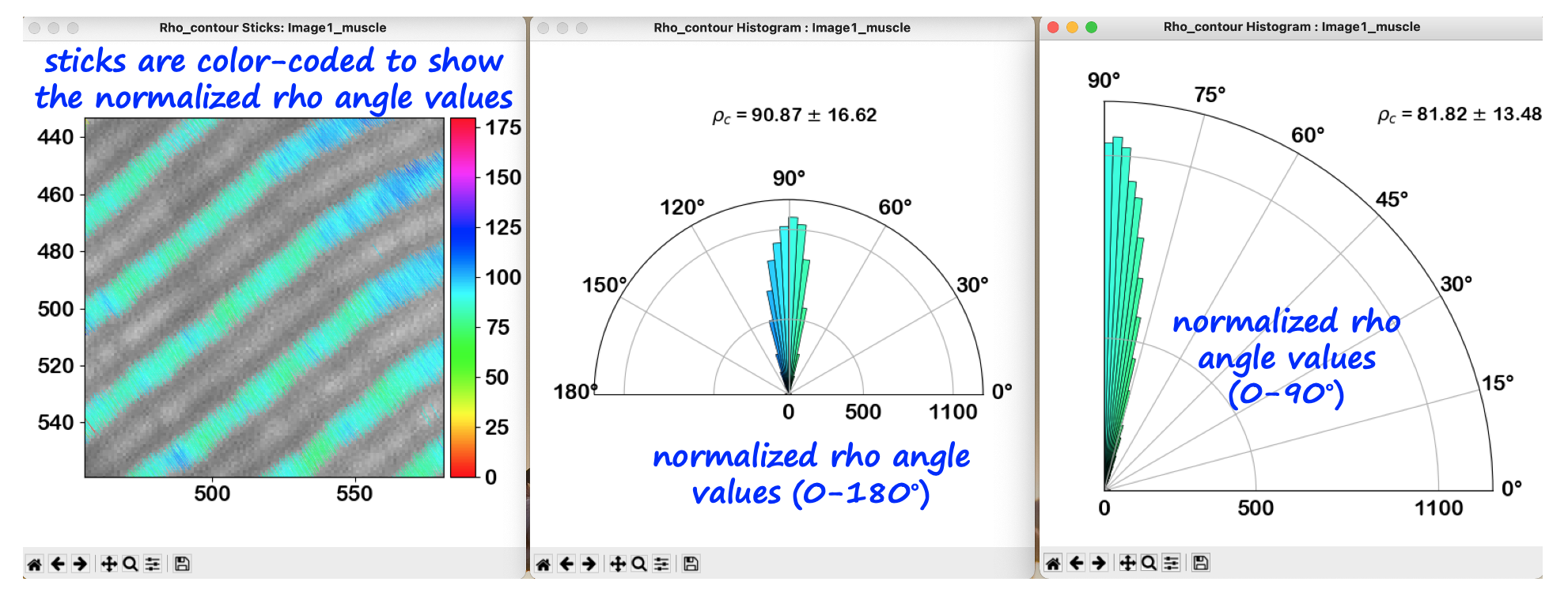
Analyze: Click the Analysis button in the left panel. Explore figures as described in Step 4 of Tutorial 1. If Histogram is selected, additional histograms displaying normalized
$\rho$ values in the 0–180° and 0–90° ranges will be generated. If Data (.csv), Data (.mat) or Mean values (.xlsx) is selected, the normalized values are also exported to the respective output files. -
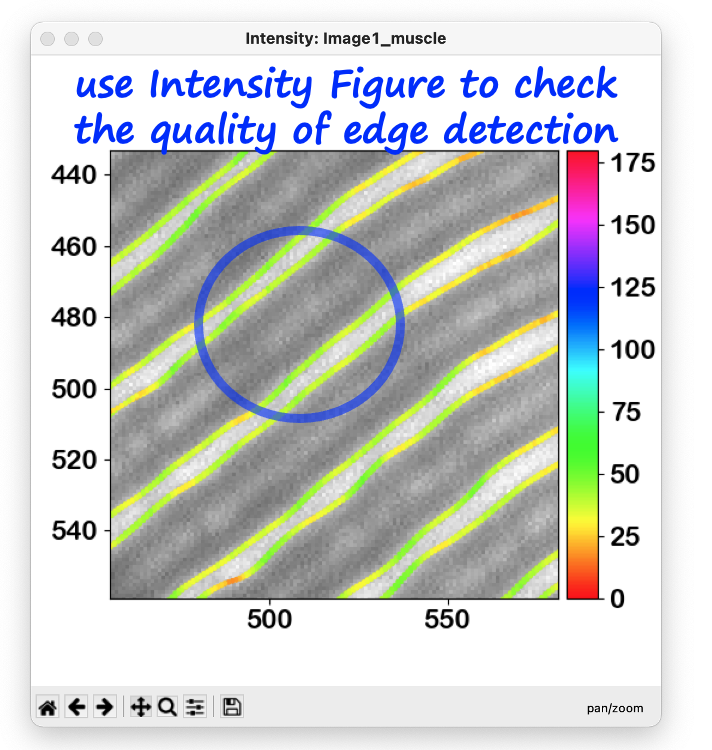
Verify the edge detection accuracy:
- Show or save the Intensity figure.
- The local orientations of the boundary are color-coded using the
$\rho$ value colorbar for visual confirmation.
 PyPOLAR is developed under the BSD 2-Clause License, Copyright © 2021 • cristel.chandre@cnrs.fr
Tutorials
- Tutorial 1 (basic analysis)
- Tutorial 2 (mask and ROI)
- Tutorial 3 (batch analysis)
- Tutorial 4 (reference angle and boundary)
- Tutorial 5 (figures and colorbars)