Tutorial 1
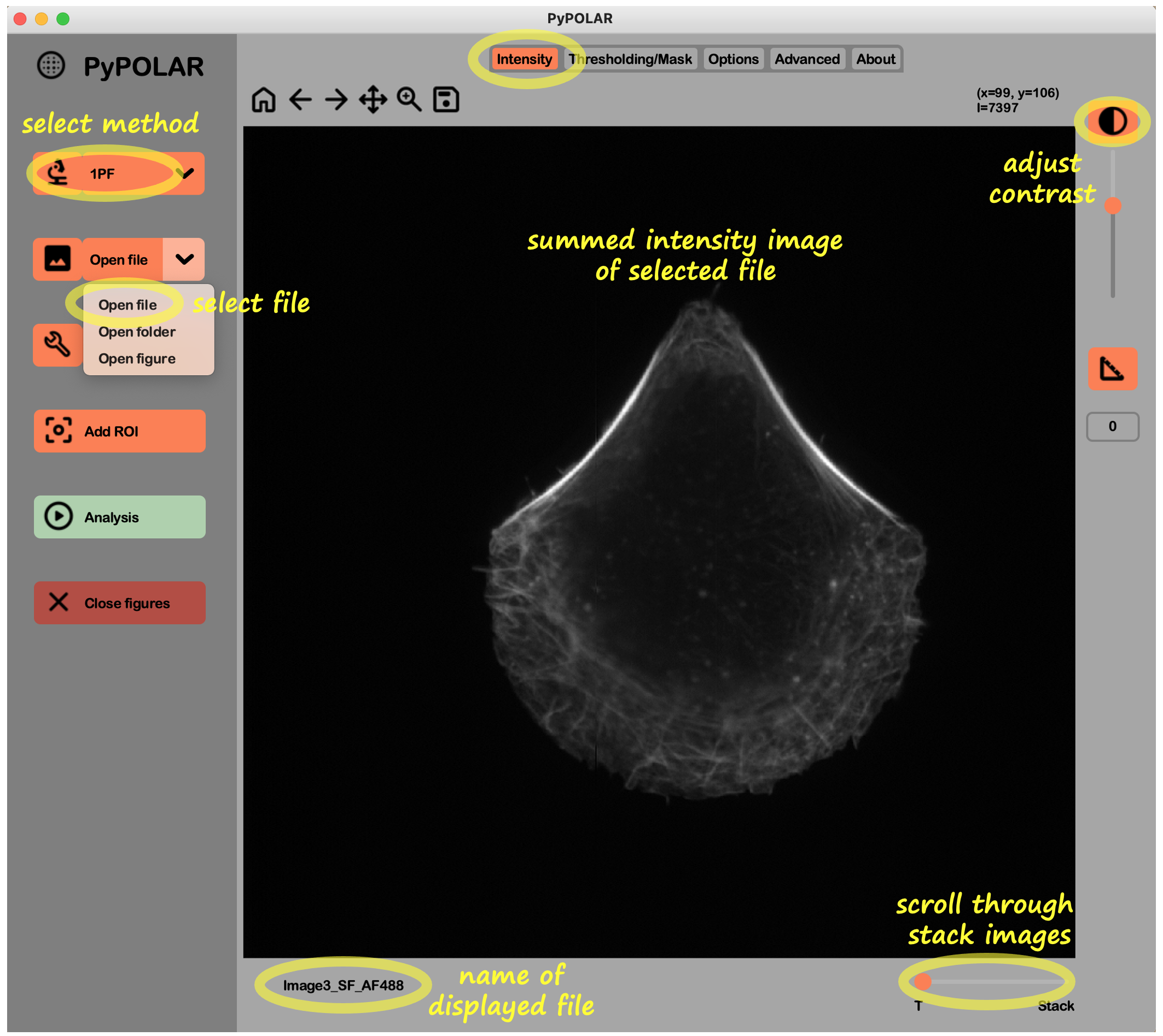
- Select method: Choose the experimental method in the left panel (e.g., 1PF).
- Open file: Use the Open file button in the image dropdown menu in the left panel to browse and select your file.
- View intensity: A summed intensity image of the stack file will appear in the Intensity tab, with the filename displayed below the image.
- Navigate stack: Use the bottom-right slider to scroll through stack images.
- Adjust contrast: Use the contrast feature in the right panel to adjust the contrast as needed; this will not impact the final analysis.
-
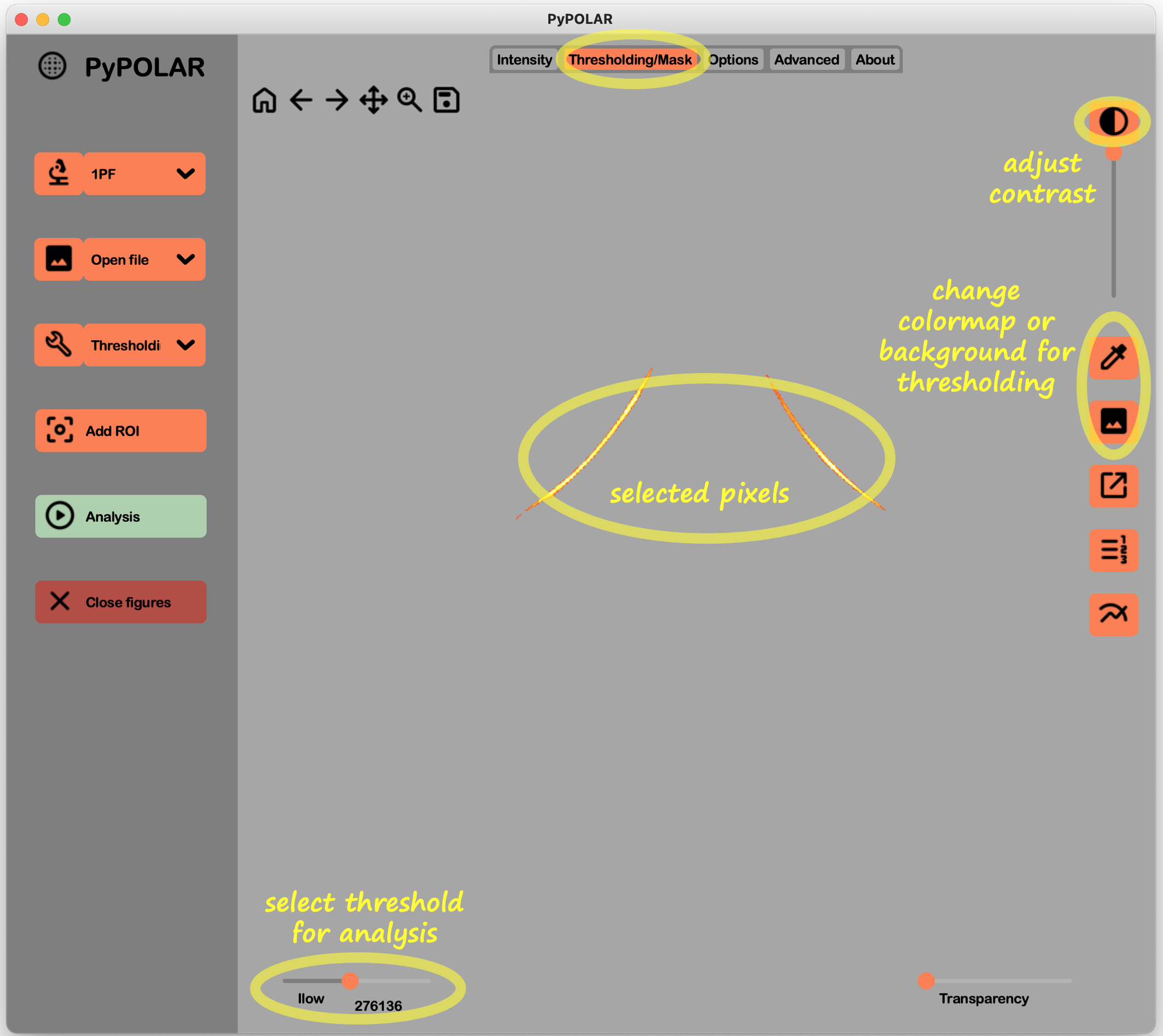
Select pixels to analyze: In the Thresholding/Mask tab, use the
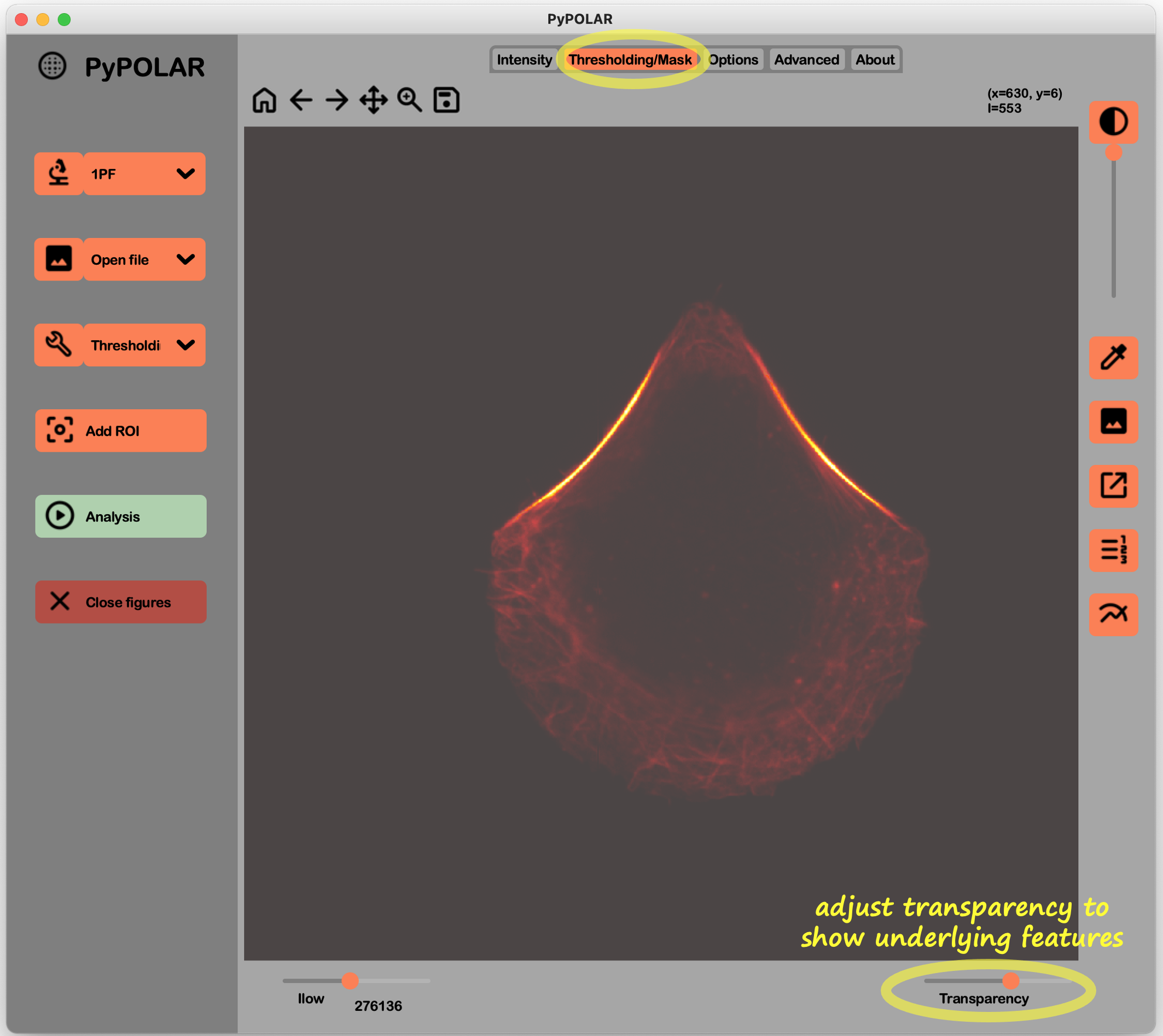
$I_{low}$ slider to select the intensity threshold for analysis. - Adjust contrast: Use the contrast feature in the right panel to adjust contrast or use the Transparency slider if high thresholds hide underlying features; these adjustments do not impact analysis.
- Customize: Change the colormap or background for thresholding using the tools in the right panel.
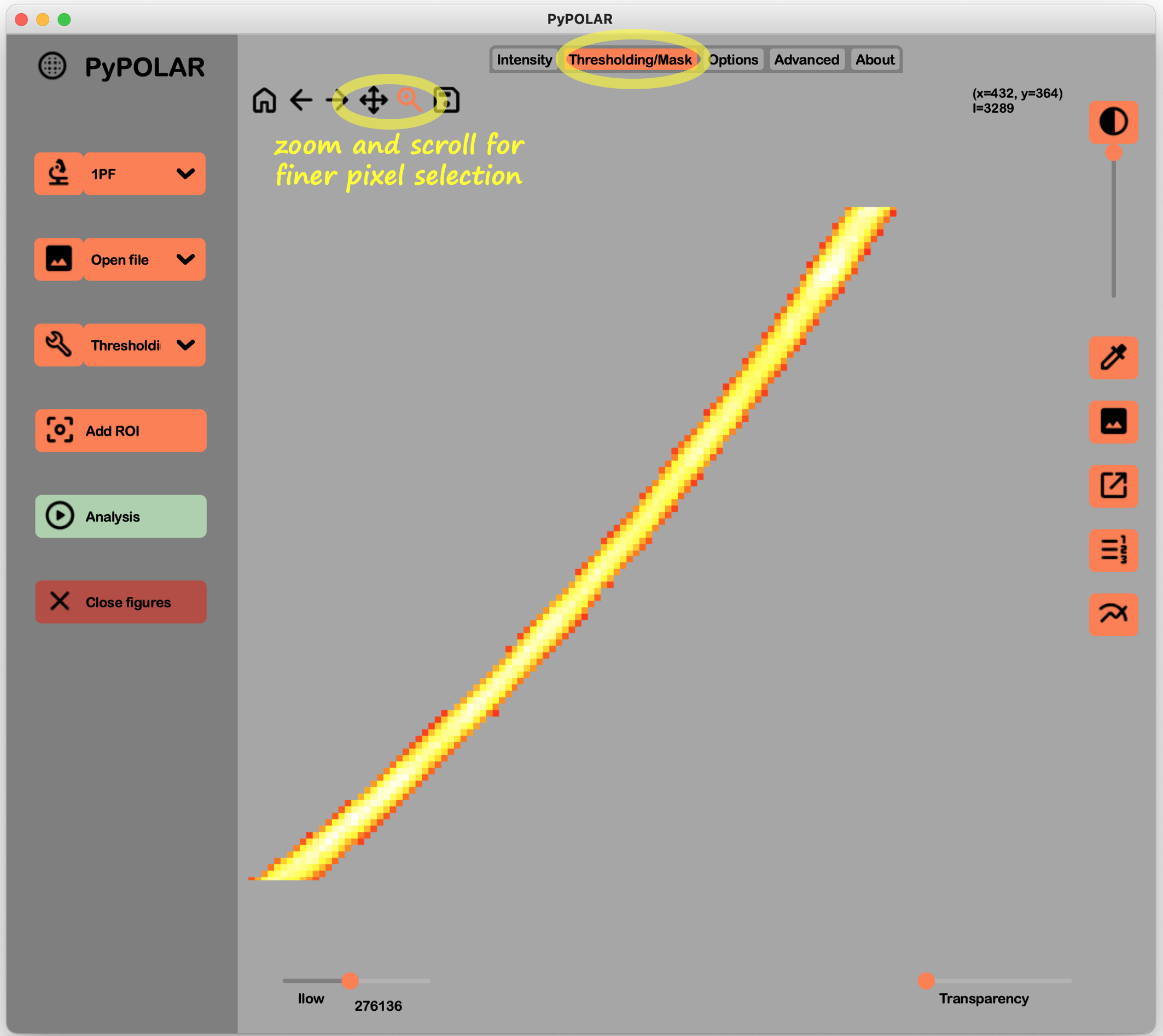
- Use the navigation toolbar: Use the toolbar to zoom and scroll for finer pixel selection.
-
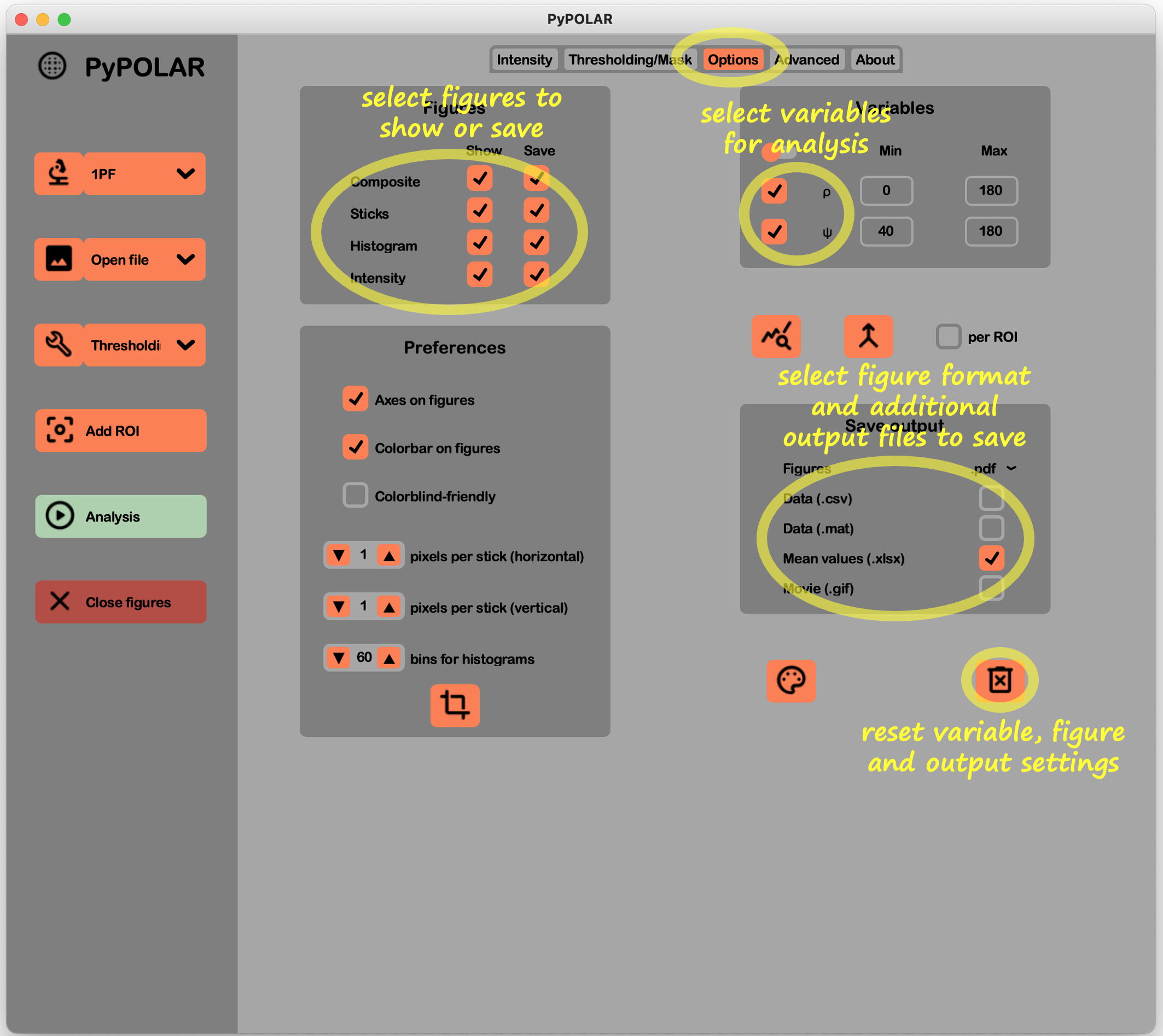
Choose variables: In the Options tab, select the variables for analysis, such as variables
$\rho$ ,$\psi$ for 1PF. - Select experimental settings: In the Advanced tab, set experimental parameters to be used for the analysis, such as dark value, polarization direction and offset, and calibration data relevant to the method (e.g., disk cone for 1PF).
-
Select output settings: In the Figures panel of the Options tab, choose which figures to show and/or save. Select the format for saving figures in the Save output table;
.pdfis used by default. -
Select output data (optional): Select additional output files in the Save output table:
-
.mat(Matlab) /.csv: For per-pixel values. -
.xlsx(Excel): For mean values. The Excel file also includes all experimental settings used for the analysis, such as$I_{low}$ , disk cone, dark value, and polarization direction/offset.
-
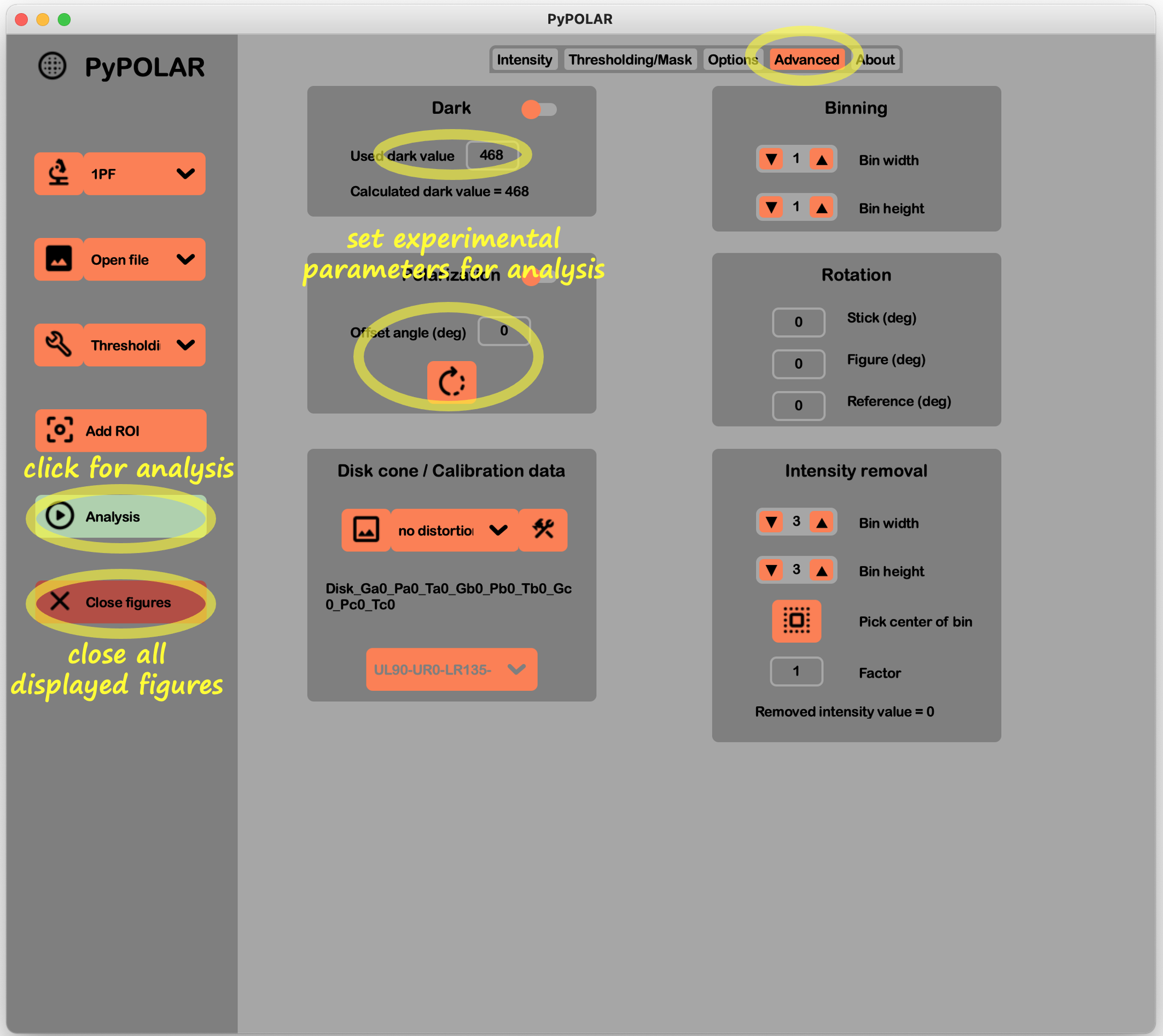
- Run analysis: Click the Analysis button in the left panel. The icon will turn to pause mode during the analysis process.
-
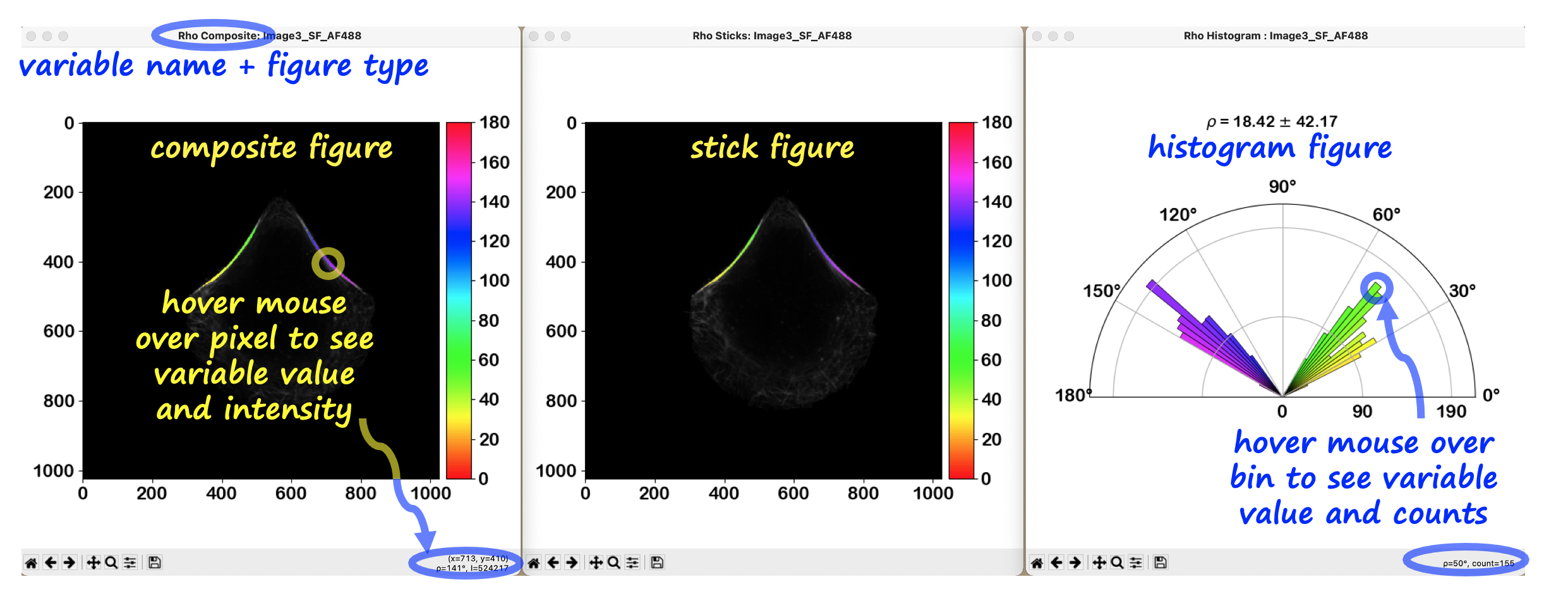
Explore figures: Review the generated figures (Composite, Sticks, Histogram, and Intensity).
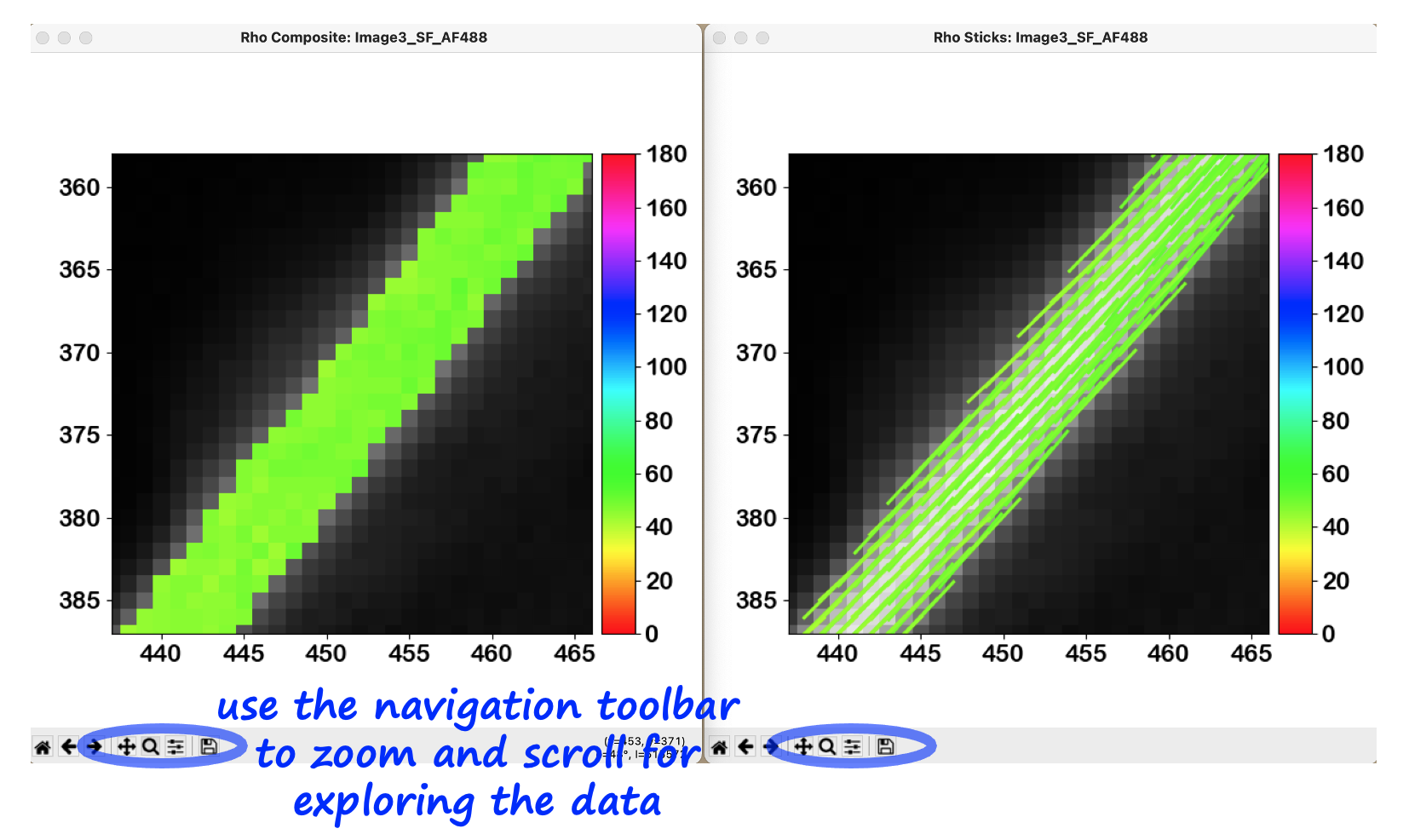
- Controls: Use the navigation toolbar at the bottom of figures to zoom, scroll, or save manually.
- Interactivity: Hover the mouse over images to see variable values or over histogram bins to see the respective values over bins. Consult Tutorial 5 for more tips on exploring figures interactively.
- Close figures: Use the Close figures button in the left panel to close all output figures.
- Reset workspace: To clear the Figures, Save output, and Variables tables, click the trash button at the bottom right of the Options tab.
 PyPOLAR is developed under the BSD 2-Clause License, Copyright © 2021 • cristel.chandre@cnrs.fr
Tutorials
- Tutorial 1 (basic analysis)
- Tutorial 2 (mask and ROI)
- Tutorial 3 (batch analysis)
- Tutorial 4 (reference angle and boundary)
- Tutorial 5 (figures and colorbars)